
Change Sync Folder Location
The FileCloud Sync app stores synchronized files at the following default locations:
- Windows: C:\users\<user>\Documents\FileCloud
- Mac OSX: {HomeDir}\FileCloud
- Linux: {HomeDir}\FileCloud
To change the Sync folder location:
- In your system tray, right-click the Sync icon, and choose Open.
The mini-dashboard opens. - At the bottom of the mini-dashboard, click Settings
The main dashboard opens to the Settings screen. - Across from Sync Folder Location, click Change.
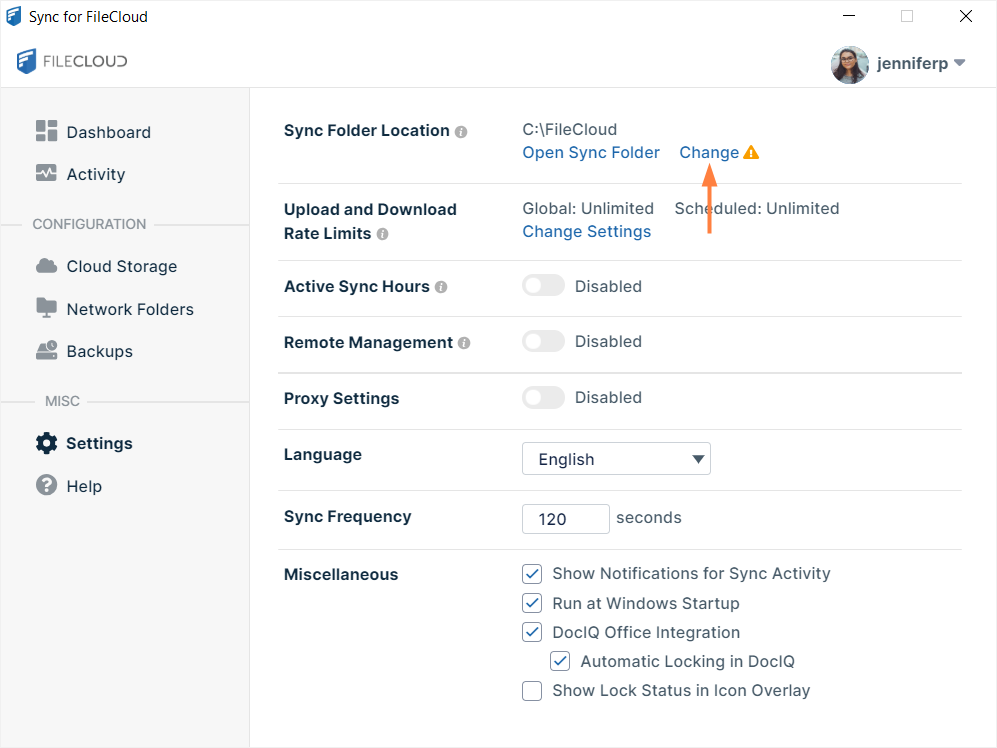
Your content explorer opens. - Choose a new Sync folder.
At the bottom of the Settings screen, the message Changes Saved. Restart Sync to apply the changes is shown. - Restart Sync.