
Checking Sync Status
You can check the status of your most recent sync in the main dashboard, the mini dashboard, or on the system tray icon.
Status in the main dashboard
Cloudstorage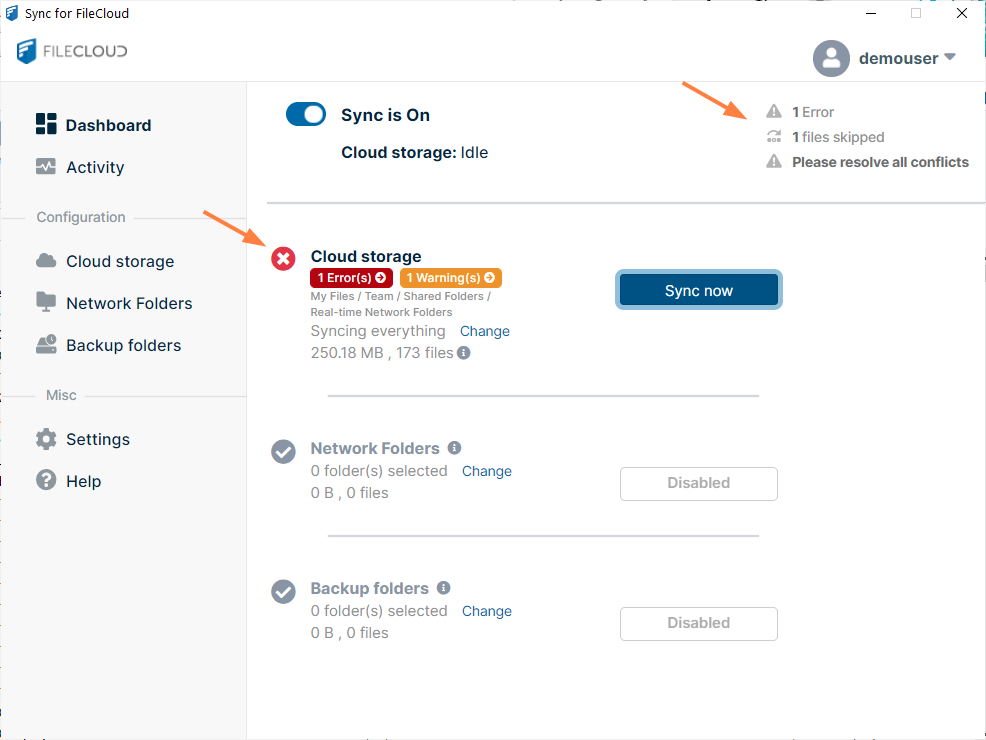
Status flags in the mini-dashboard
- If there were conflicts in the most recent sync operation, the mini-dashboard displays a red error flag with the number of conflicts.
- If there were skipped files in the most recent sync, the mini-dashboard displays a yellow flag with the number of skipped files.
If the most recent sync was successful, the mini-dashboard displays a check in a blue circle before Cloud storage.
Click the red or yellow flag in the mini-dashboard to go to the main dashboard's Sync Activity page to see the conflicts or skipped files.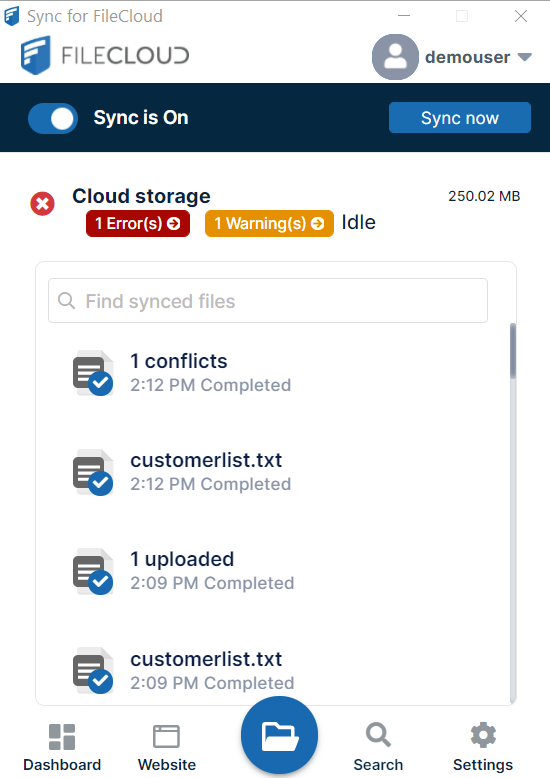
Status flags in the system tray
You don't have to open one of the dashboards to check your sync status. Sync alerts you to problems with a status indicator that appears as a dot overlaying the icon in the system tray: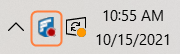
The color of the dot indicates the status of the most recent sync operation:
| Icon | Color | Status |
| Red | Error in Sync activity |
| Yellow | Warning about Sync activity |
| None | Sync was successful or no activity |
| Black (white circle) | Sync Running |


Click the Sync icon to open the mini-dashboard.