Restrictions on Filenames and File Types in FileCloud
Please note the following restrictions when uploading files to FileCloud:
Files with the same name:
If you upload a file with the same name and the same case as another file in the same folder, it overwrites the file.
If you upload a file with the same name but a different case than another file in the same folder, you cannot upload the file and the File Operations window displays a file name conflict message.
If you upload files with the same name but different file extensions, like myfile.doc and myfile.docx, they are treated as different files.
FileCloud cannot upload files with leading spaces in the filename.
By default, files with the extensions php, php5, phar, and phtml cannot be uploaded into FileCloud.
To change the upload limit and size of the drive by changing the User Storage Quota:
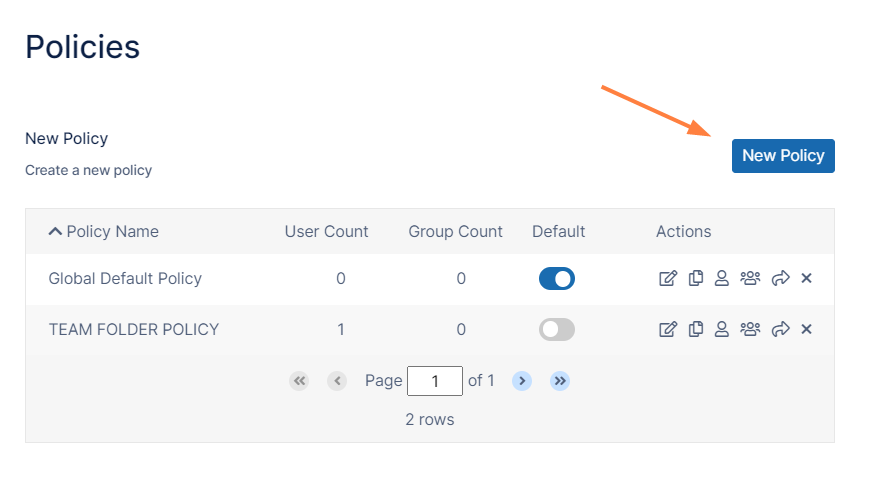
In the FileCloud admin portal's left navigation bar, scroll down and clickSettings.Then, on theSettingsnavigation page, clickPolicies . The Policies page opens.
Click the New Policy button.
In the New Policy dialog box, type in a name for the policy, and then click Create.
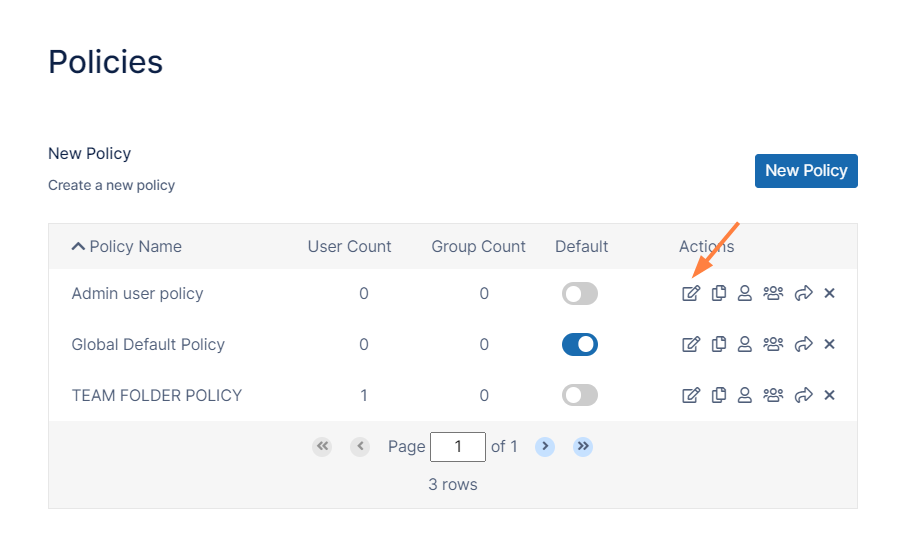
Click the edit button for the policy you just created.
On the General tab, change the User storage quota. To set unlimited storage quota for the user, set User storage quota to 0.
Click Save.
From the left navigation pane, click Users.
On the Manage Users screen, click the user who you want to add to the new policy, and then click the edit button ().
On the User Details screen, click Manage Policy.
On the User Policy screen, across from Selected Policy click Select.
On the Policy List page, select the policy you created for this user, and then click Select.