The ability toselect a file as the default preview when sharing a folder publicly is available inthe current FileCloud user interface beginning in version 21.1.
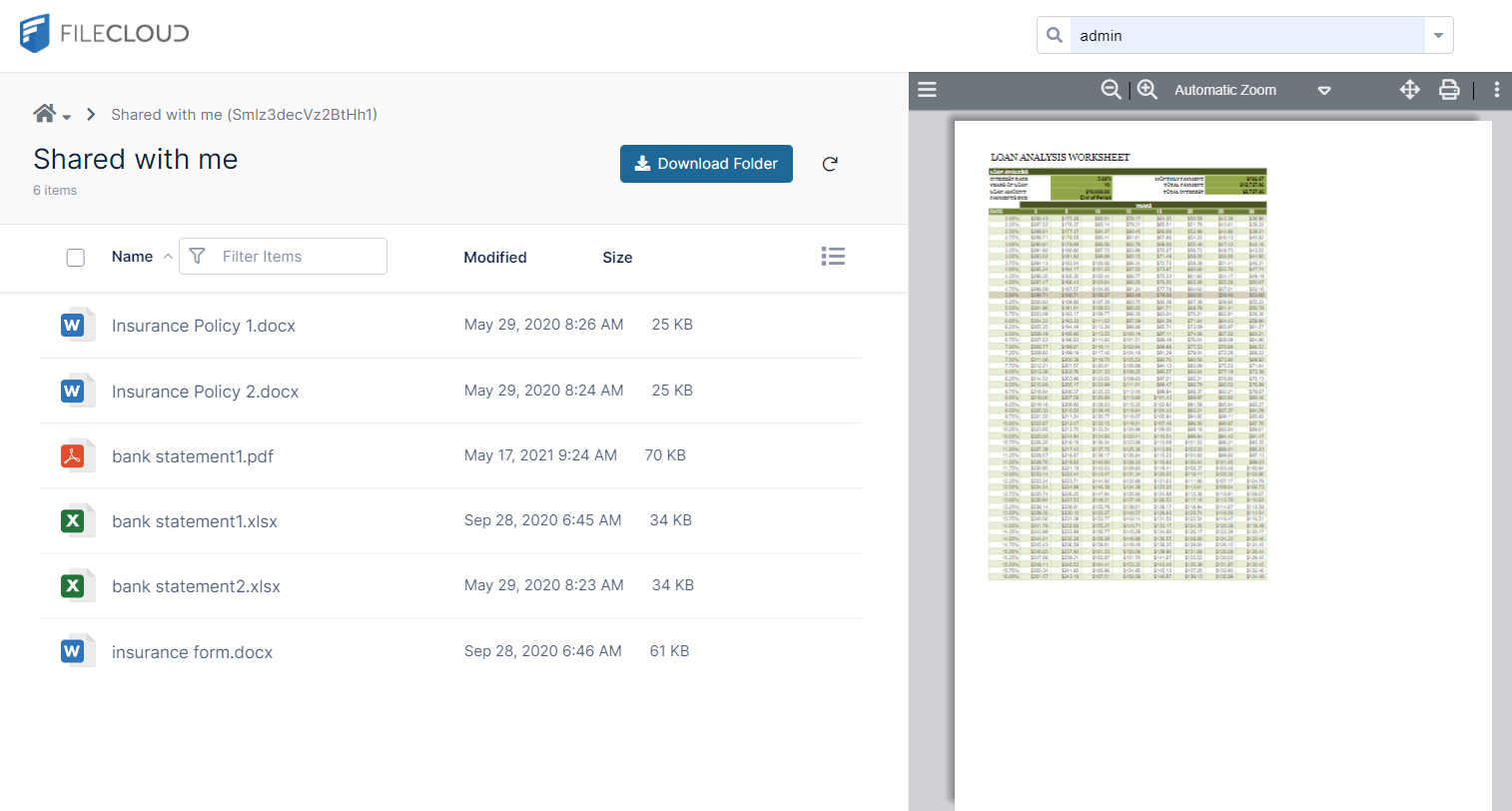
Share recipients are shown the preview when they view the share.
Note to admins: If an Office file is chosen as the preview file, it will not appear when the folder is previewed unless Document Converter is enabled.
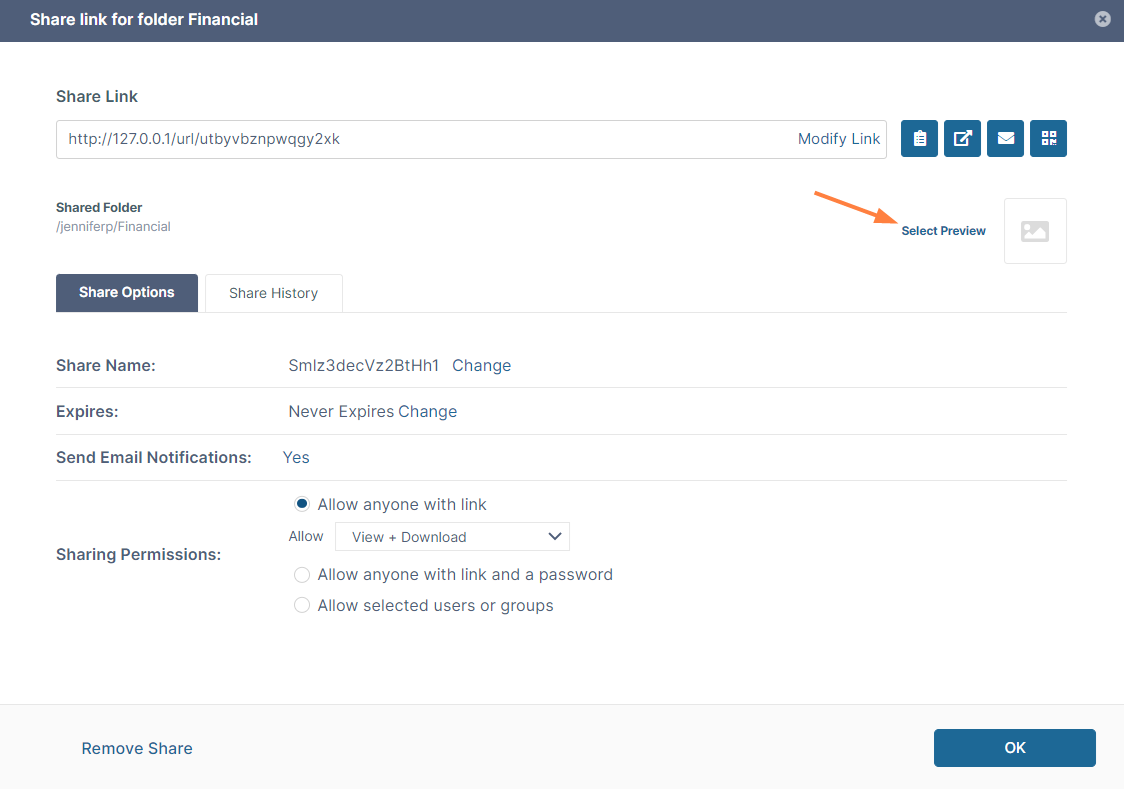
In the Share link for folder dialog box, click Share Options. When the dialog box expands, it displays a Select Preview link.
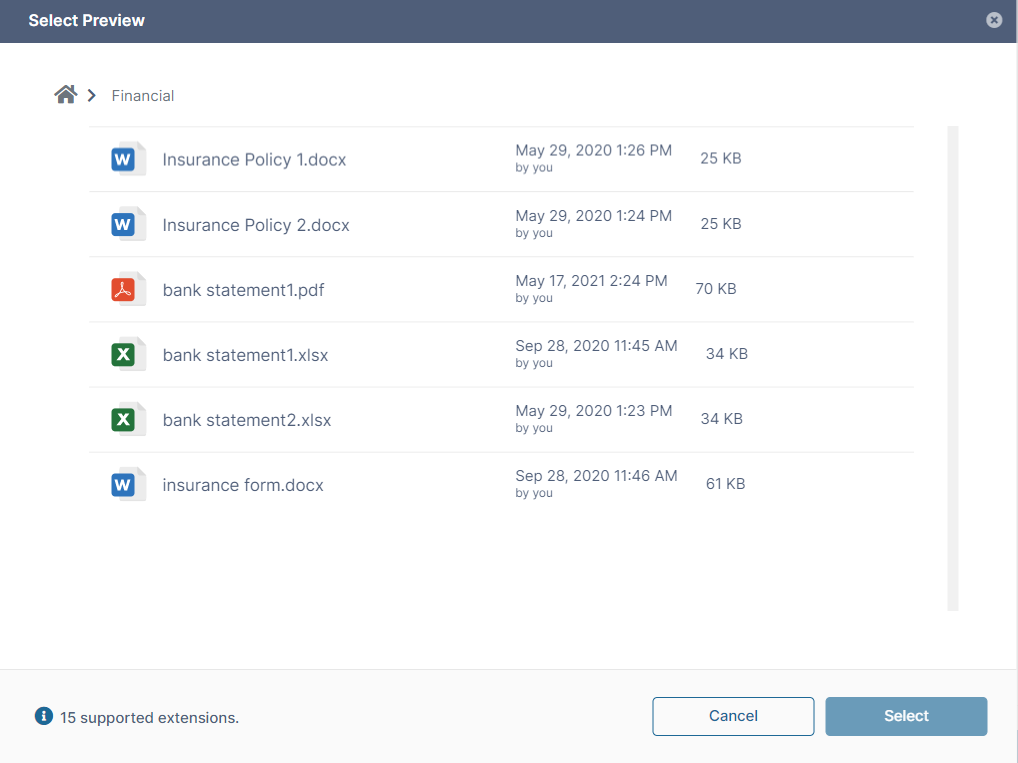
Click the Select Preview link. A Select File to Preview window opens.
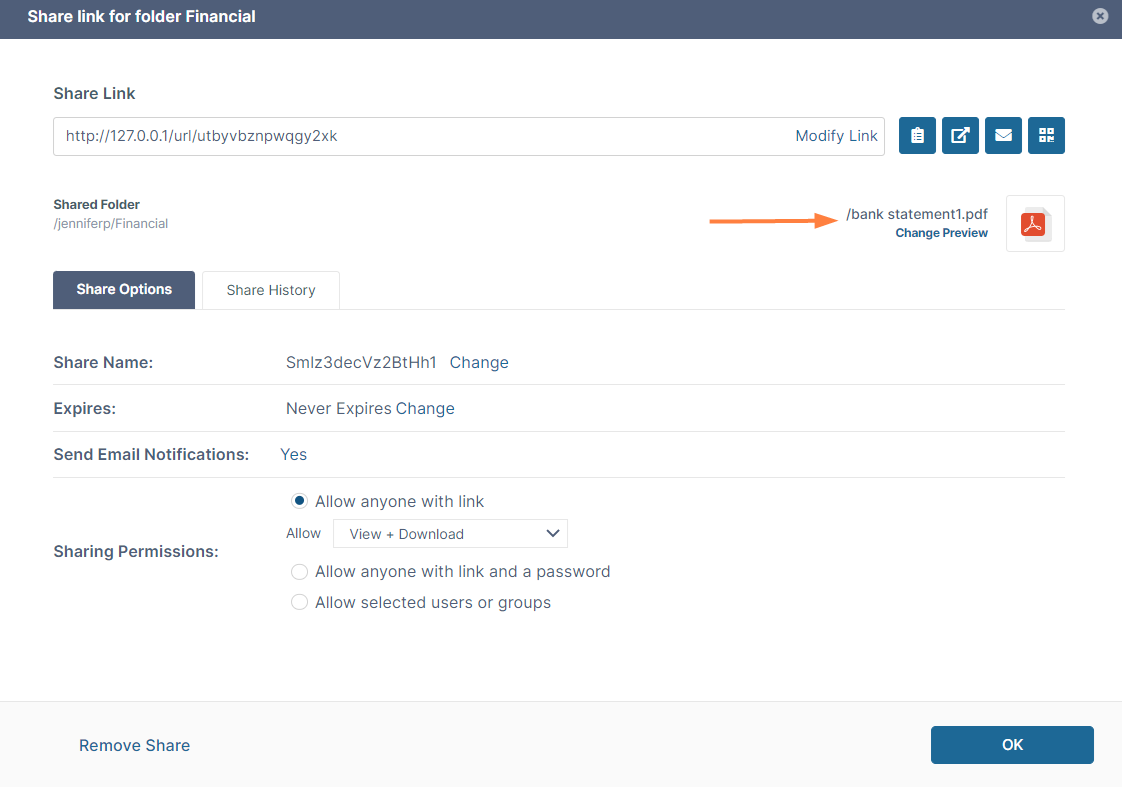
Check the preview file, and click Select. The window closes and the Share link for folder dialog box displays the name and filetype icon for the file.
If you want to see what the preview looks like to someone viewing the share, click (Open link in new window) in the upper-right corner of the dialog box. The contents of the shared folder are shown with the preview of the file
JavaScript errors detected
Please note, these errors can depend on your browser setup.
If this problem persists, please contact our support.