By default, when a user logs into FileCloud, their session remains authenticated for a specified amount of time.
Device
Time Session is Valid
Web Browser
Specified by the value in Session Timeout in minutes setting. If the browser is closed, the session expires.
All other apps and clients
Doesn't expire. Session lasts until user logs out from app.
Enabling Session Expiration for all Devices
If you want all login sessions for all user devices (including web browsers) to expire and require re-login, set the policy to Enforce Session Timeout for All Devices.
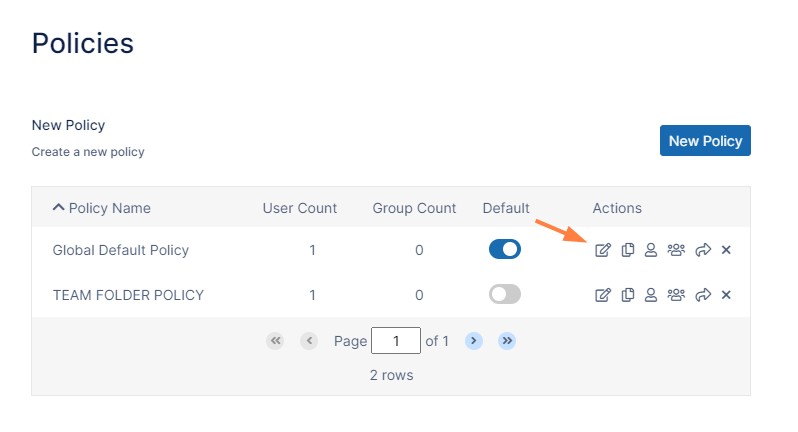
In the FileCloud admin portal's left navigation bar, scroll down and clickSettings.Then, on theSettingsnavigation page, clickPolicies . The Policies settings page opens.
Click the Edit icon in the row for the users' policy.
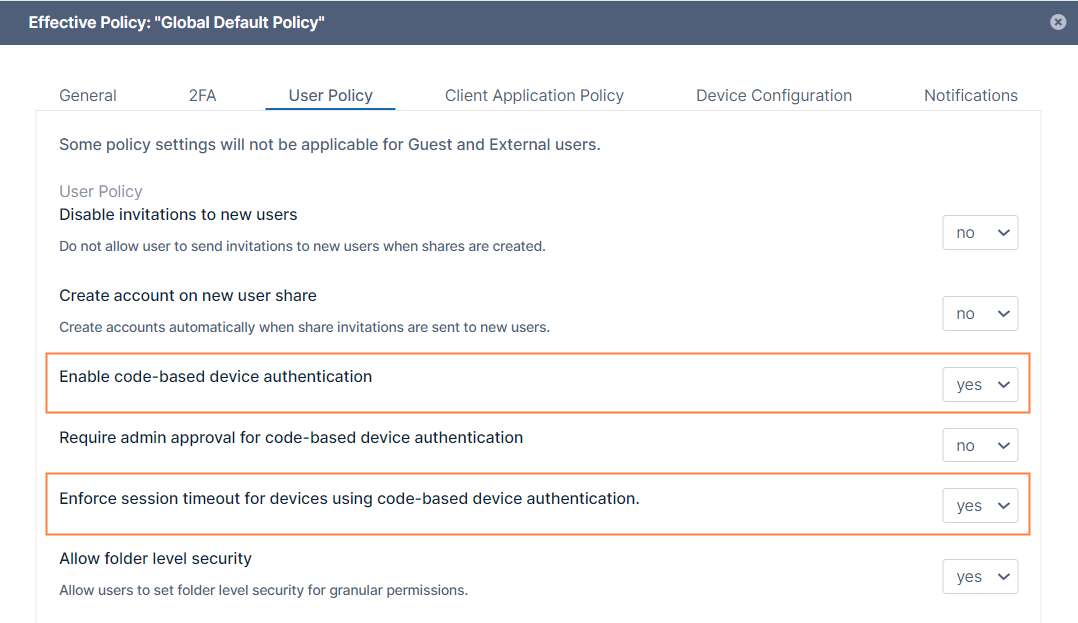
Click the User Policy tab.
In order to enable the Enforce session timeout for devices using code-based device authentication setting, scroll down to the setting Enable code-based device authentication and set it to yes. Now Enforce session timeout for devices using code-based device authenticationis enabled.
Set Enforce session timeout for devices using code-based device authenticationto yes.
Click Save.
Note: We don't recommend requiring session expiration for devices and other clients as it might impact functionality and reduce user friendliness.
Device
Time Session is Valid
Web Browser
Specified by the value in Session Timeout in minutes setting. If the browser is closed, the session expires.
All other apps and clients
Specified by the value in Session Timeout in minutes setting. Note: When log in used username and password, app will automatically re-login, so the session will not appear to expire. When log in used Device Authorization code, app will require user to re-login into FileCloud using the web browser.
JavaScript errors detected
Please note, these errors can depend on your browser setup.
If this problem persists, please contact our support.