After you attach a Cloudian S3-Compatible Object Storage bucket to a FileCloud Server Network Folder, you can update any of the original settings.
To edit a Cloudian S3-Compatible Object Storage bucket-based Network Folder:
Open a browser and log in to the admin portal.
In the left navigation panel, select Network Folders.
On the Manage Network Folders window, click the Cloudian S3-Compatible Object Storage bucket-based network folder, and then click the edit icon ().
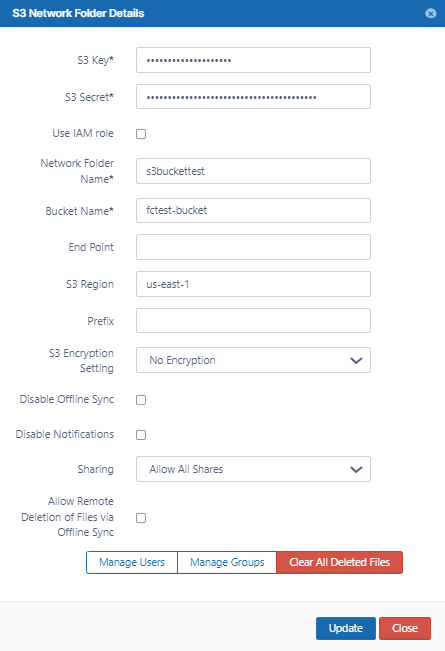
On the S3 Network Folder Details window, set any of the following options:
Option
Description
S3 Key
The key that identifies the bucket.
S3 Secret
Secret access key used with S3 key to gain access.
Use IAM role
When checked, theS3 KeyandS3 Secretfields disappear and the IAM role is used to connect to the S3 bucket.
Network Folder Name
Name of the network folder that will contain the bucket.
Bucket Name
Name identifying the bucket.
End Point
URL where API requests are sent.
S3 Region
Physical region where buckets are created.
Prefix
Optional. A prefix to add to the network share paths to create sub-paths within the bucket.
S3 Encryption Setting
No Encryption - On theAttach S3 bucketwindow, select the type asNo encryptionbecause Cloudian does not support managed key encryption.
Disable Offline Sync
Enabling this option will prevent this network share from being available for sync via FileCloud Sync client
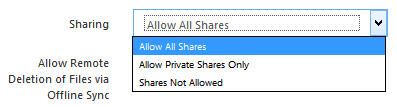
Sharing
Sharing the content of the network share can be disabled or enabled using this option
Allow Remote Deletion of Files via Offline Sync
Enabling this function will allow deleting files in the Cloudian S3 Bucket if the files are deleted in the synced client. By default deletes are not propagated to Cloudian S3 bucket when deleted via Sync client.
JavaScript errors detected
Please note, these errors can depend on your browser setup.
If this problem persists, please contact our support.