Administrators can import files to managed storage configuration to prepare FileCloud for users.
NOTES:
During the seeding operation, the system is operating under a special mode and user access must not be allowed (though it is not prevented automatically).
Therefore, ideally, seeding should be done during initial system setup.
Once seeding is done, indexing must be done manually.
Import Files into Local Managed Storage
Prerequisite:
In order for the data to be imported, the following conditions must be met.
The data must be in locally accessible disk. Ideally, the data must reside in the same drive as the managed storage (for example, if managed storage is in C:\fileclouddata, then the import data must also be in C: drive)
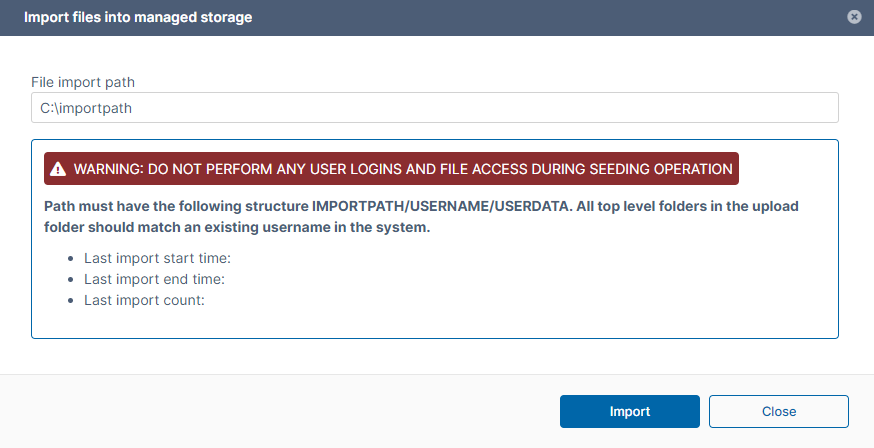
The data must be in following structure. <ImportPath><users><data>. For example, if you have four users, bshepard, jsmith, mjackson, sjane, then the structure should be:
The users must already be created in the system (bshepard, jsmith, mjackson, sjane must already be valid full users in the system).
The users must have enough quota assigned to allow the data import.
To import files into local managed storage:
In the FileCloud admin portal's left navigation bar, scroll down and clickSettings.Then, on theSettingsnavigation page, clickMisc. By default,Generalsettings are opened.
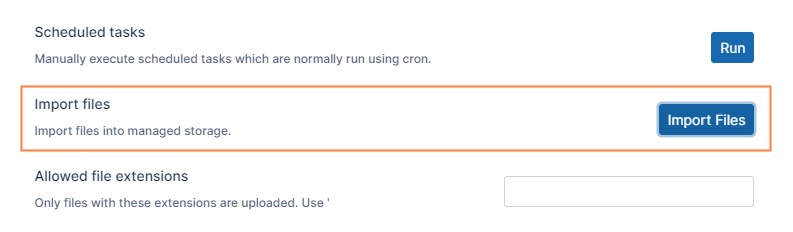
Scroll down to Import Files, and click the Import Files button.
On theImport files into managed storage dialog box, in File Import Path, type the location to the files you want to import in the format C:\importpath or \import\data.
Click Import.
Import Files into S3 Managed Storage
Prerequisite:
In order for the data to be imported, the following conditions must be met
The data must be in a bucket that is accessible with the same credentials as the Managed Storage bucket
Both Managed Storage as well as the seeding bucket should not have encryption enabled.
The data must be in following structure. <Toplevel Folder><List of valid user account folders><data for each of the folder>
The users must already be created in the system with full user status.
The users must have enough quota assigned to allow the data import.
To import files into S3 managed storage:
In the FileCloud admin portal's left navigation bar, scroll down and clickSettings.Then, on theSettingsnavigation page, clickMisc. By default,Generalsettings are opened.
Scroll down to Import Files, and click the Import Files button.
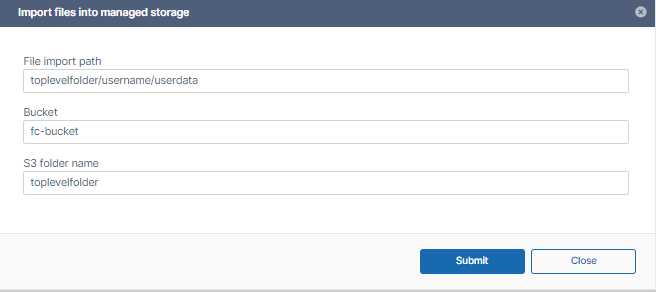
On theImport files into managed storage dialog box, fille in the fields as follows: File import path - The originating folder of the content to be imported. Bucket - the name of the bucket that contains the files you want to import. S3 folder name - the name of the top level folder in the bucket that contains the files you want to import.
Click Submit.
JavaScript errors detected
Please note, these errors can depend on your browser setup.
If this problem persists, please contact our support.

 NOTES: