
Import NTFS Permissions to ServerSync

Any existing FileCloud folder permissions defined on the server side will be overwritten by the NTFS permissions after import.
To import permissions:
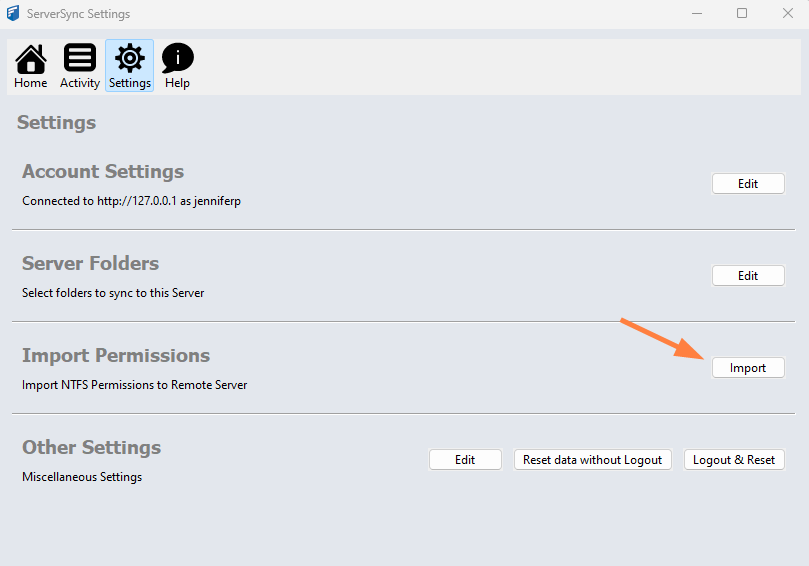
- From the system icon tray, right-click the ServerSync icon, and then select Settings.
- On the Settings screen, in the Import Permissions section, click Import.
Note: You cannot import permissions from shared folders. - In the Import Permissions window, click Select for Remote Folder.
- Select the remote folder that you want to copy permissions to.
- Then click Select for Local Folder.
- Select the corresponding local folder that you want to copy permissions from.
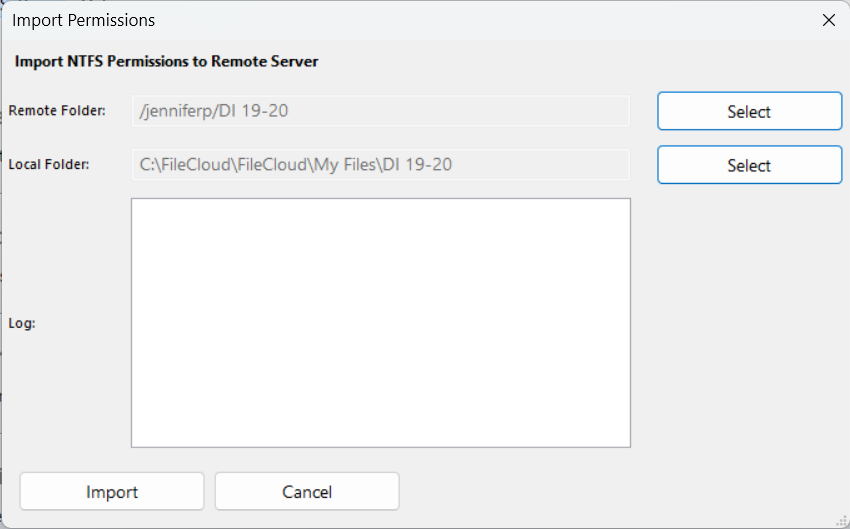
- On the Import Permissions window, click Import.
A prompt asks you to confirm import and warns you that NTFS permissions will overwrite existing server side permissions.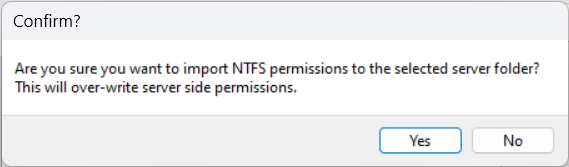
- Click Yes if it is okay to overwrite the permissions on the server.
The permissions are imported.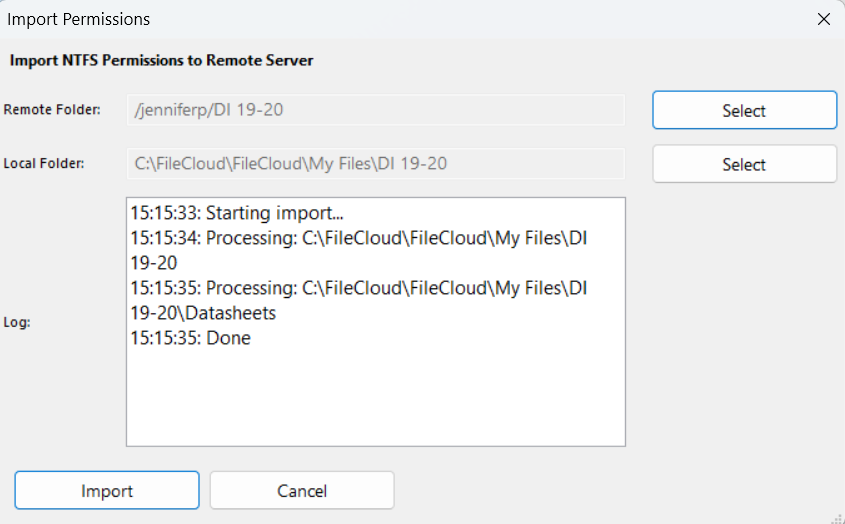
NTFS/FileCloud permission conversions
When a file or folder with NTFS permissions is imported into FileCloud, the NTFS permissions are converted into comparable FileCloud permissions, as shown in the following chart:
| NTFS permission | FileCloud permission |
| Read/List folder contents/Read & execute | Read |
| Write | Read + Write |
| Modify | Read + Write + Delete |
| Full Control | Read + Write + Delte + Share + Manage |