Install Content Search for Windows
Advanced content searching capabilities for documents in FileCloud uses Solr and requires the correct Java Development Kit (JDK).

FileCloud now fully supports OpenJDK 11.02 instead of Oracle Java.
- Java Development Kit (JDK) consists of the Java Runtime Environment (JRE) along with tools to compile and debug Java code for developing Java applications.
- OpenJDK is an open source implementation of the Java Standard Edition platform with contributions from Oracle and the open Java community.
- OpenJDK is the official reference implementation for Java Standard Edition from Java SE 7.
- OpenJDK is released under license GPL v2 wherein Oracle JDK is licensed under Oracle Binary Code License Agreement.
- Oracle JDK’s build process builds from OpenJDK source code.
 FileCloud's Doc Converter feature also requires OpenJDK 11. If you already have this installed, you can skip the first two steps.
To install OpenJDK and Content Search for Windows:
To install OpenJDK:
- Download Open JDK 11.02+9 from https://jdk.java.net/archive/.
- Create a new folder in the C: drive.
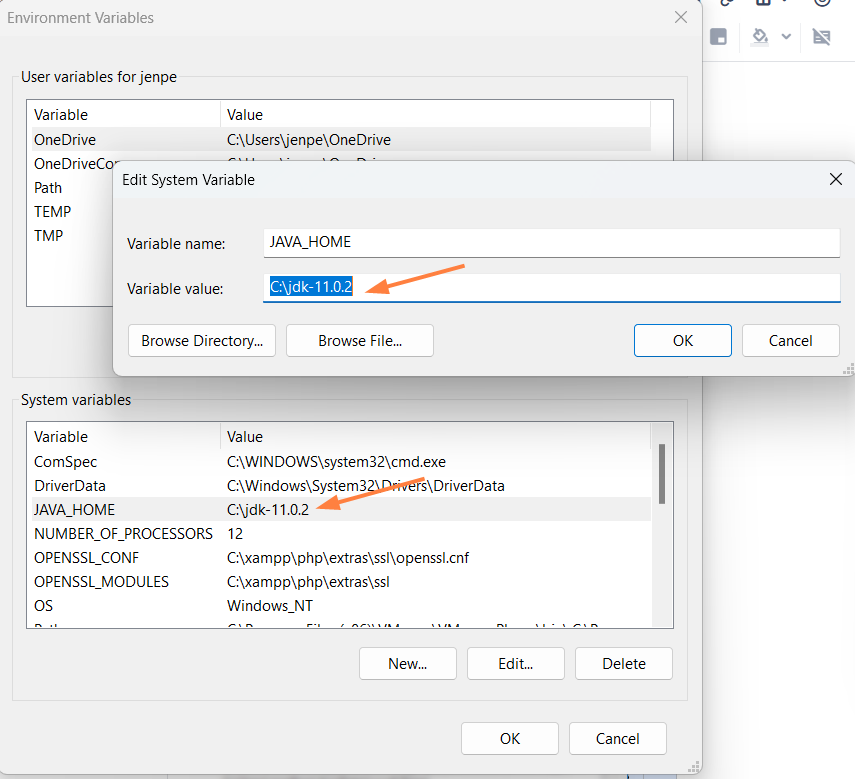
(In the example screenshot, jdk-11.0.2 is the name of the new folder.)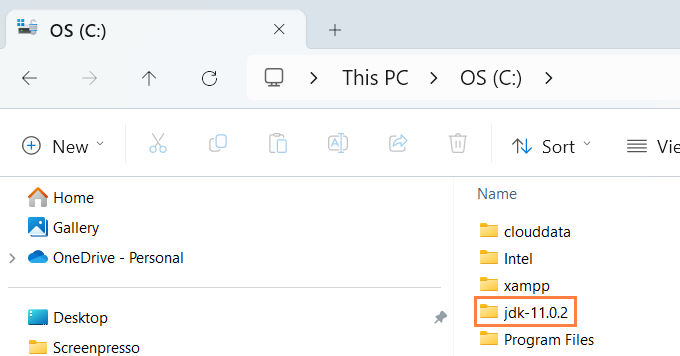
- Extract the Open JDK file you downloaded into the new folder.
Setting the path and environment variables will differ depending on the version of Windows you have on your computer. These instructions were designed for Windows 11.
 Administrator privileges are required to modify the path and environment variables.
To set the JAVA_Home path:
- Open the Windows Control Panel.
- Enter environment variables in the search bar.
- Click Edit the system environment variables.
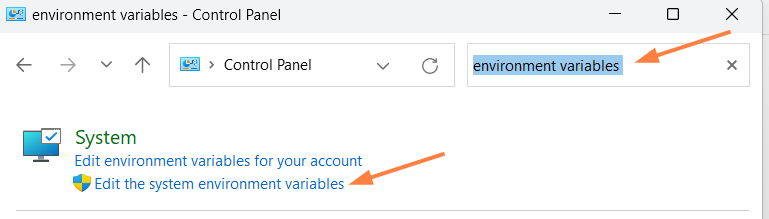
- In the System Properties dialog box, click Environment Variables.
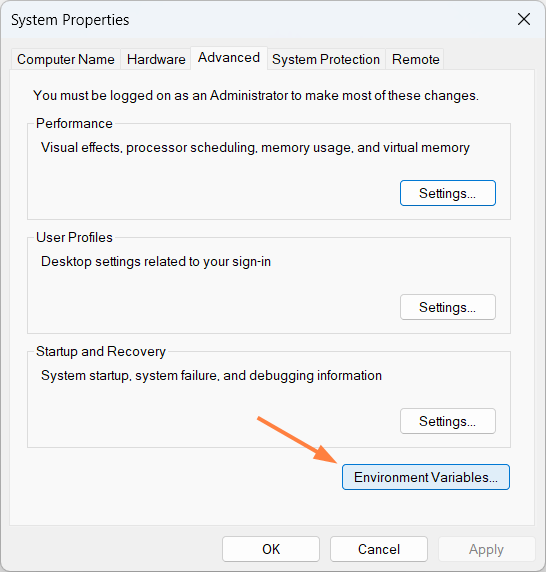
The Environment Variables dialog box opens. - In the System variables box, Click JAVA_HOME, and then click Edit.
The Edit System Variable dialog box opens. - Change Variable value to the address of the folder you created for jdk, and click OK.
- In the Environment Variables dialog box, click OK.
To install and start Content Search:
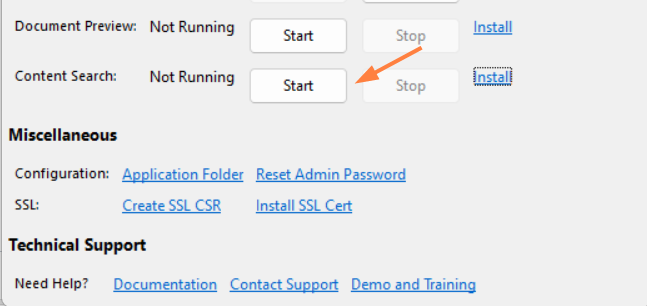
- Open the FileCloud Control Panel.
- Next to Content Search, click Install.
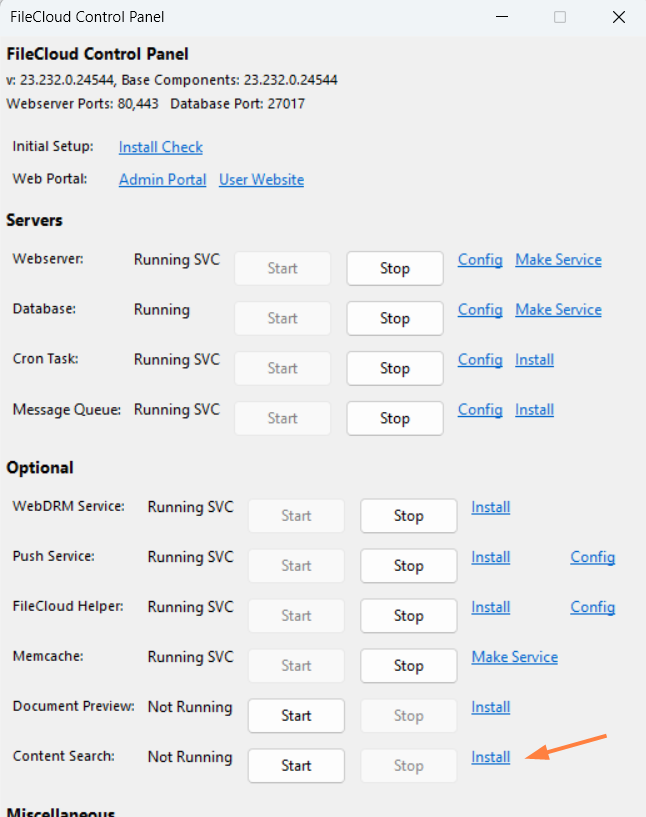
- To start the Content Search service, click the Start button.