
Installation and Configuration of 3 server MongoDB cluster
Use the following steps to install and configure MongoDB on three servers.
Install MongoDB on three servers.
Windows:
Use the FileCloud Installer package to install MongoDB. On the FileCloud control panel, start only the Database service. If Web and MongoDB are hosted on the same server, start all services except for Solr, Helper and Memcache.
Ubuntu:
Use the following code to install using the MongoDB repository.CODEcurl -fsSL https://pgp.mongodb.com/server-6.0.asc| sudo gpg -o /usr/share/keyrings/mongodb-server-6.0.gpg --dearmor echo "deb [ arch=amd64,arm64 signed-by=/usr/share/keyrings/mongodb-server-6.0.gpg ] https://repo.mongodb.org/apt/ubuntu jammy/mongodb-org/6.0 multiverse" | sudo tee /etc/apt/sources.list.d/mongodb-org-6.0.list apt update -y apt install -y mongodb-org
RHEL:
Use the following code to install using the MongoDB repository.CODEcat <<EOF > /etc/yum.repos.d/mongodb-org-6.0.repo [mongodb-org-6.0] name=MongoDB Repository baseurl=https://repo.mongodb.org/yum/redhat/\$releasever/mongodb-org/6.0/x86_64/ gpgcheck=1 enabled=1 gpgkey=https://pgp.mongodb.com/server-6.0.asc EOF yum install mongodb-org -ySet up the hostname binding and replication.
It is recommended that you use hostnames for the MongoDB IP bindings in the MongoDB config file, for example:
db1.filecloudlabs.com
db2.filecloudlabs.com
db3.filecloudlabs.com
Change or add the values of the replica set and bind IP configuration parameters in the MongoDB configuration file as follows:
Windows:
In the configuration file: xampp\mongodb\bin\mongodb.conf
For IP or Host binding, add:CODEbind_ip = db1.filecloudlabs.com
For replication, add:CODEreplSet = rs0
For example: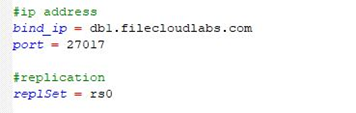
Ubuntu/RHEL:
In the configuration file: /etc/mongod.conf
For IP or Host binding, add:
net:
port: 27017
bindIp: db1.filecloudlabs.com
For replication, add:
replication:
replSetName: rs0
for example: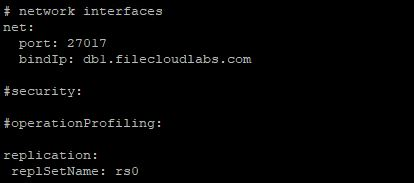
After making the above changes, restart the MongoDB service.
On Windows, restart mongoDB from Windows Services or Database on the FileCloud Control Panel.
On Ubuntu and RHEL, use the command systemctl restart mongod or service mongod restartInitiate Replica Set configuration
Before proceeding with this step, verify that all 3 DB servers can connect to port 27017 using the bind IP value.This applies to only one node. Select a node, db1.filecloudlabs.com, for example, and run the following command. If you run this in more than one DB server, the configuration will become invalid. It’s also important to use the bind_ip value used in
one of the DB servers to connect to the Mongo Shell.To connect to the mongo shell on db1.filecloudlabs.com run the below command:
On Ubuntu/RHEL:CODEmongosh --host db1.filecloudlabs.com
On Windows:CODExampp\mongodb\bin\mongosh --host db1.filecloudlabs.com
Initiate the replica set by running the below commands:CODErs.initiate() rs.add('db2.filecloudlabs.com') hostname of second server rs.add('db3.filecloudlabs.com') hostname of third serverCheck the status of the Cluster
After the replica set initiation, connect to the replica set using Mongo Shell. Enter the below command from any one of the DB servers:
Ubuntu/RHEL:CODEmongosh --host “rs0/db1.filecloudlabs.com,db2.filecloudlabs.com,db3.filecloudlabs.com”
Windows:CODExampp\mongodb\bin\mongosh –host “rs0/db1.filecloudlabs.com,db2.filecloudlabs.com,db3.filecloudlabs.com”
Run rs.status() inside the Mongo Shell to see the replica set status. One of the nodes should show as Primary, and the other two nodes should show as Secondary. The same optime on all the servers indicates that the servers are in sync.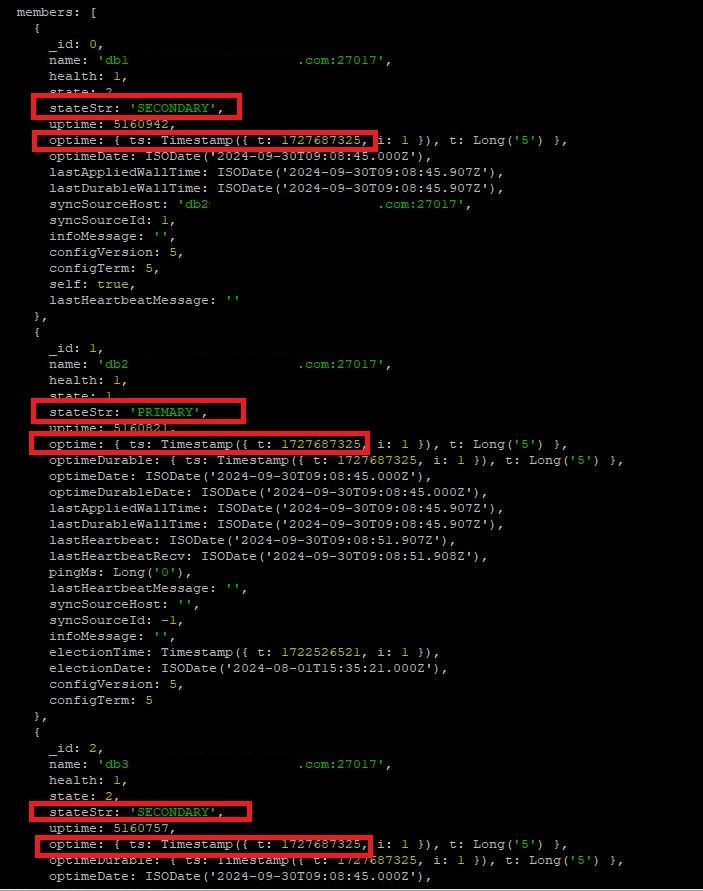
Create the MongoDB user to use for DB authentication from FileCloud web nodes.
These commands need to be executed within the Mongo Shell:
CODE> use admin; > db.createUser({ user: 'dbuser', pwd: 'aSecretPassword', roles: ['root'] });Upon executing the above commands, 'dbuser' is added as a valid database user. (You may use a different username and password.)
Enable MongoDB cluster authentication in the MongoDB configuration file
To enable replica cluster authentication, use either MongoDB Keyfile Authentication or x.509 certificate. The following steps cover MongoDB Keyfile cluster authentication.
Generate MongoDB Key File:
In a Linux environment, you can perform this step in a FileCloud web node, and then copy the key to the MongoDB server, or install OpenSSL in the MongoDB server to run the commands.
To install OpenSSL in MongoDB nodes:
Ubuntu:CODEapt-get install openssl
RHEL:CODEyum -y install openssl
Perform the following steps to generate a key file on any one of the servers. Once the key file is generated, copy it to the other MongoDB servers.
Ubuntu/RHEL:CODEsudo -s /bin/bash -c 'openssl rand -base64 741 > /etc/mongodb-keyfile' sudo -s /bin/bash -c 'chmod 600 /etc/mongodb-keyfile'
Ubuntu:CODEsudo -s /bin/bash -c 'chown mongodb.mongodb /etc/mongodb-keyfile'
RHEL:CODEsudo -s /bin/bash -c 'chown mongod.mongod /etc/mongodb-keyfile'
Windows:CODEcd C:\xampp\apache\bin openssl rand -base64 741 >"C:\MongoAuthFiles\mongodb-keyfile"
Change the MongoDB configuration file to enable Cluster Authentication.Linux
Open the file /etc/mongod.conf.
Add the lines:
CODEsecurity: authorization: enabled keyFile: /etc/mongodb-keyfile

Windows
Open the file xampp\mongodb\bin\mongodb.conf
Add the line:
CODEkeyFile = C:\MongoAuthFiles\mongodb-keyfile
Once the changes are made to the config file, restart the MongoDB services one by one and verify the cluster status.
After authentication is enabled, the connection string for accessing the Mongo Shell is:
Ubuntu/RHEL:
mongosh --host “rs0/db1.filecloudlabs.com,db2.filecloudlabs.com,db3.filecloudlabs.com” --authenticationDatabase admin --username dbuser --password aSecretPassword
Windows:
xampp\mongodb\bin\mongosh –host “rs0/db1.filecloudlabs.com,db2.filecloudlabs.com,db3.filecloudlabs.com” --authenticationDatabase admin --username dbuser --password aSecretPassword
To configure x.509 certificate authentication, see Configure Cluster Authentication with SSL.
Note: Following the same process, additional servers can be added to a replica cluster. FileCloud does not recommend setting up a three server DB replica cluster with one primary, one secondary, and one arbiter.