
iOS Getting Started Guide

Beginning with version 23.241, FileCloud no longer supports iOS 13 and iOS 14.
Before you can access your files with your FileCloud account, you must install the app and configure your device.
Setting Up Your Device
 Before installing the app on your phone, you must have a FileCloud account. Contact your administrator if you do not have one yet.
To install the FileCloud iOS app:
- On your device, navigate to Apple's App Store.
- Download the FileCloud iOS app.
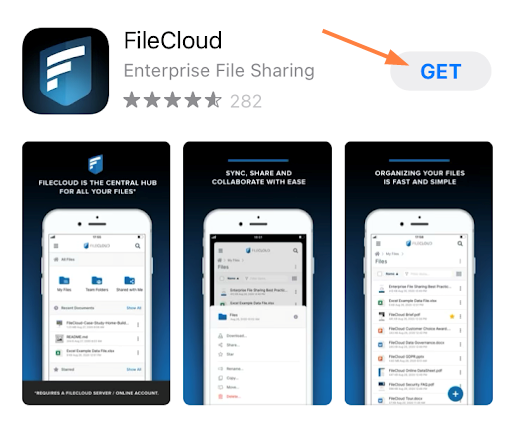
- When the app is completely downloaded, tap Open.
When you add an account, you must authenticate it using one of the following methods:
- Password
- Device Code Authentication
- Single Sign-On (SSO)
The method you choose depends on how your FileCloud administrator configures authentication. If you aren't sure, contact your administrator.
To add your FileCloud account and authenticate it:
- Tap the icon for the FileCloud app to open it.
The Welcome screen opens. - Enter your FileCloud address, and tap Next.
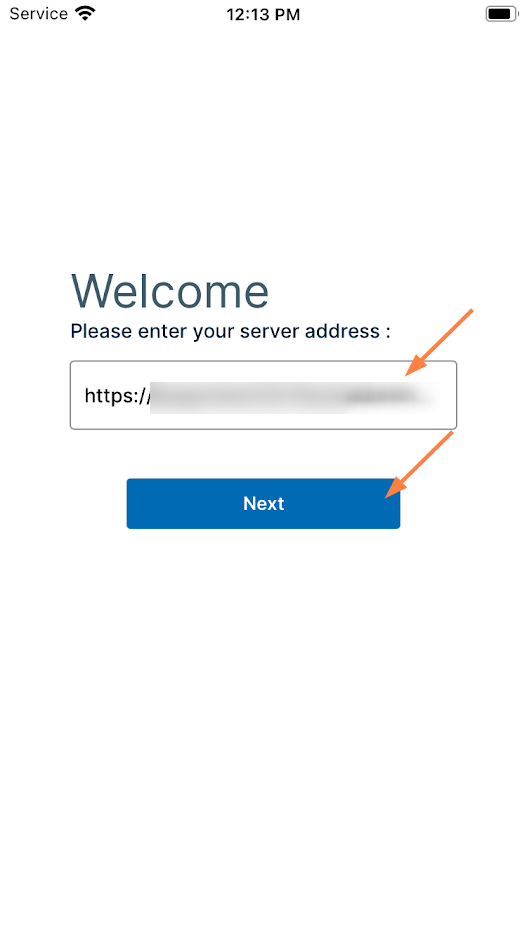
- Log in one of the following ways:
- Enter your account name and password and tap Login. You are logged in to your FileCloud account.
- Tap Login with SSO.
- Enter your account name and tap Device Code Authentication.
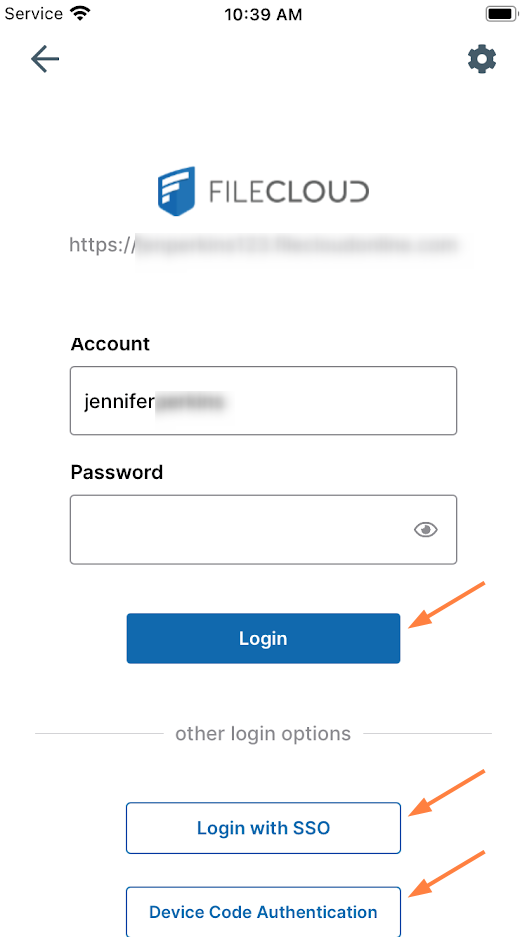
Login with SSO
You are able to log in with SSO if your FileCloud system supports SSO.- Tap Login with SSO.
Your SSO sign in screen opens, for example: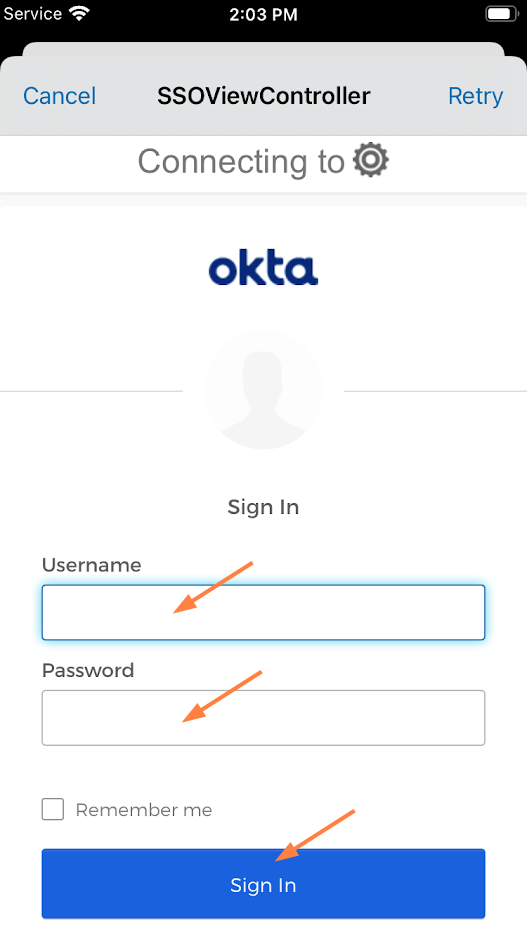
- Enter your SSO username and password and sign in.
You are automatically logged in to FileCloud.
Note: If you cannot authenticate using SSO, check with your administrator.
- Tap Login with SSO.
Device Code Authentication
- After entering your account name into Account, tap Device Code Authentication.
An Authorization Code dialog box opens: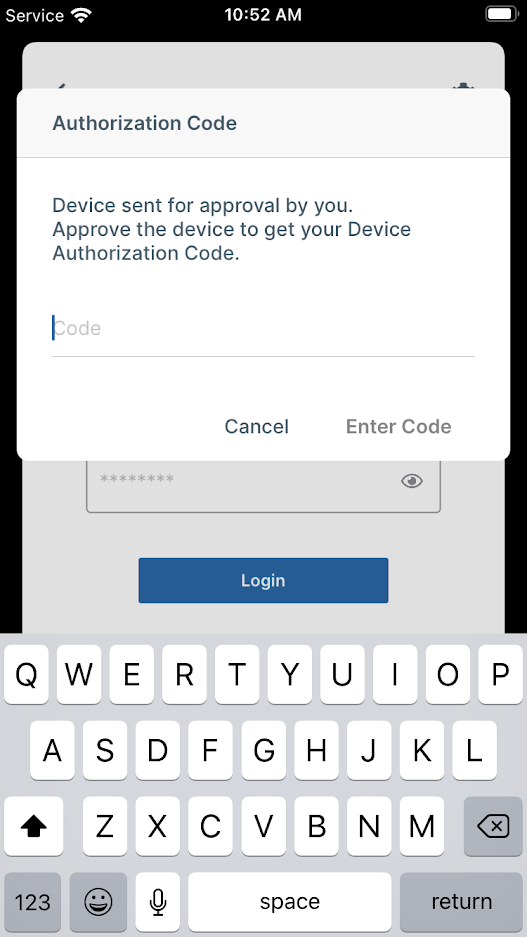
- Log in to the FileCloud user portal, and go to Settings > Devices.
- In the row for your iPhone, click the check.
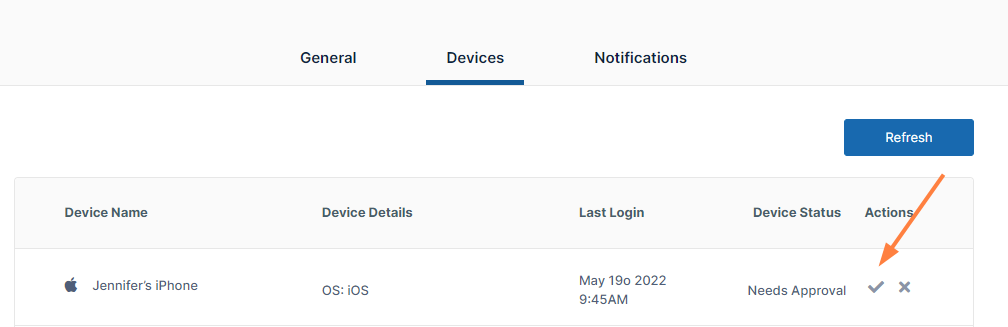
A device authorization code pops up.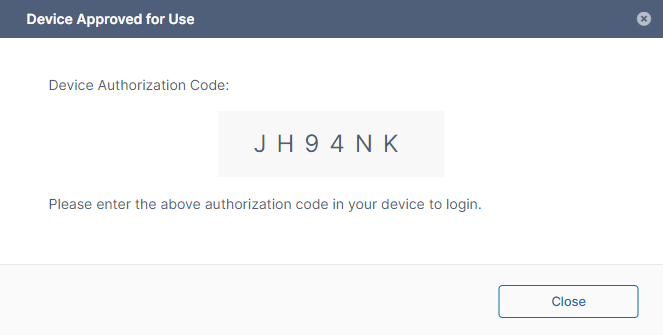
- Enter the code into the Code field on your iPhone, and tap Enter Code.
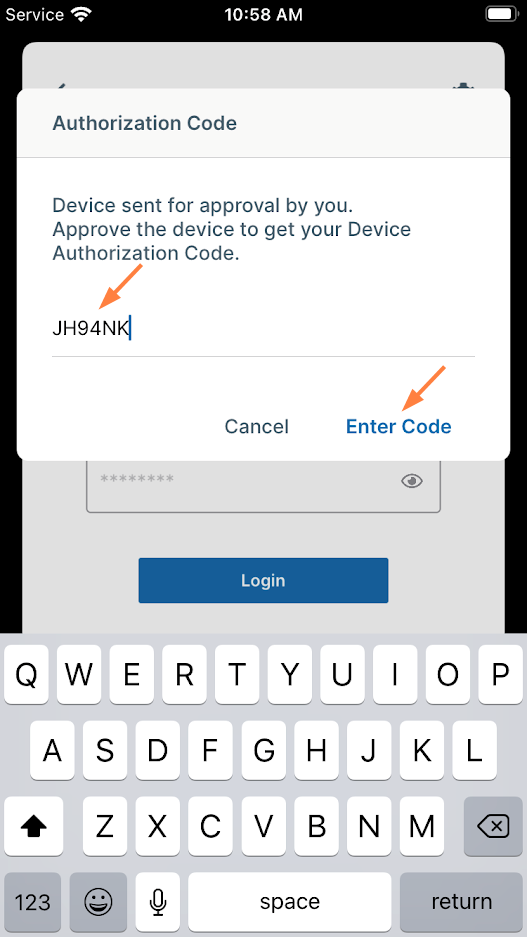
You are logged in to your FileCloud account.
- After entering your account name into Account, tap Device Code Authentication.
Once the account is authenticated, you are logged in to FileCloud and shown the FileCloud user dashboard.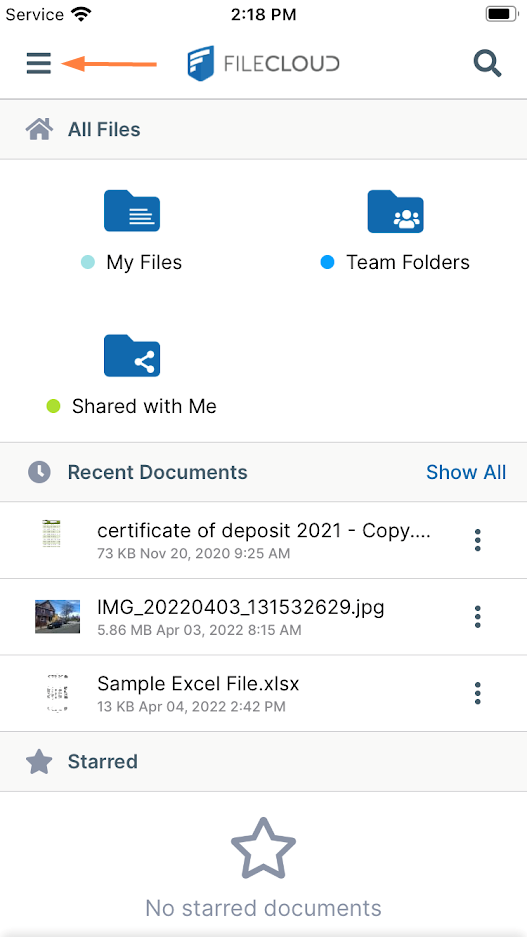
FileCloud's iOS interface has a navigation pane that you can access by tapping the Menu icon in the upper-left corner of the screen:
Tapping the icon opens a panel of navigation links:
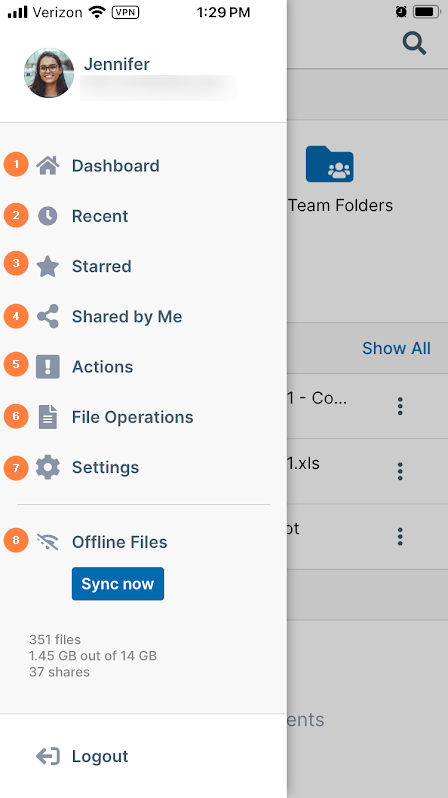 |
|