You can use the FileCloud app to sync media (automatically back up photos and videos) to the FileCloud server in the background.
The FileCloud app will automatically detect new photos and videos and back them up to the selected location.
To enable automatic backup, you either need an administrator account or your administrator has to configure this setting for you.
To configure automatic backup of photos and videos:
1. Configure the Admin Settings
To configure the administrator settings:
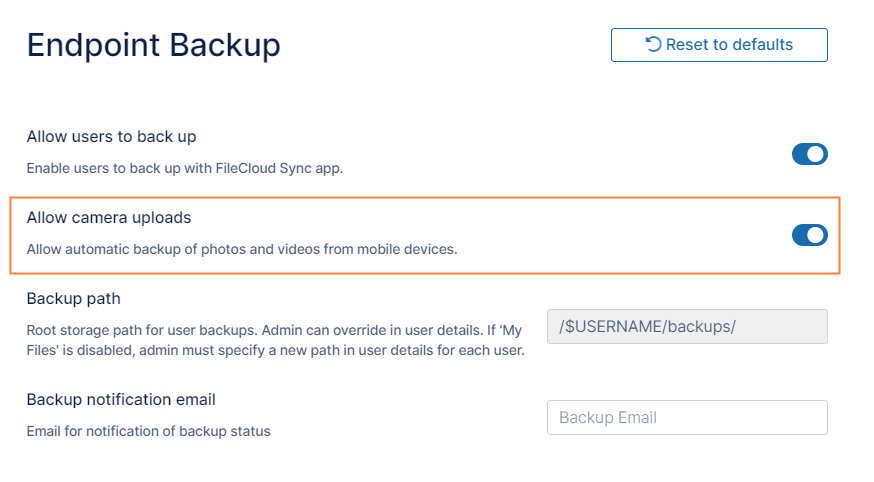
In the FileCloud admin portal's left navigation bar, scroll down and clickSettings.Then, on theSettingsnavigation page, clickEndpoint Backup . The Endpoint Backup settings page opens.
Enable Allow camera uploads.
Click Save.
2. Configure Your Android Device
To configure your Android device:
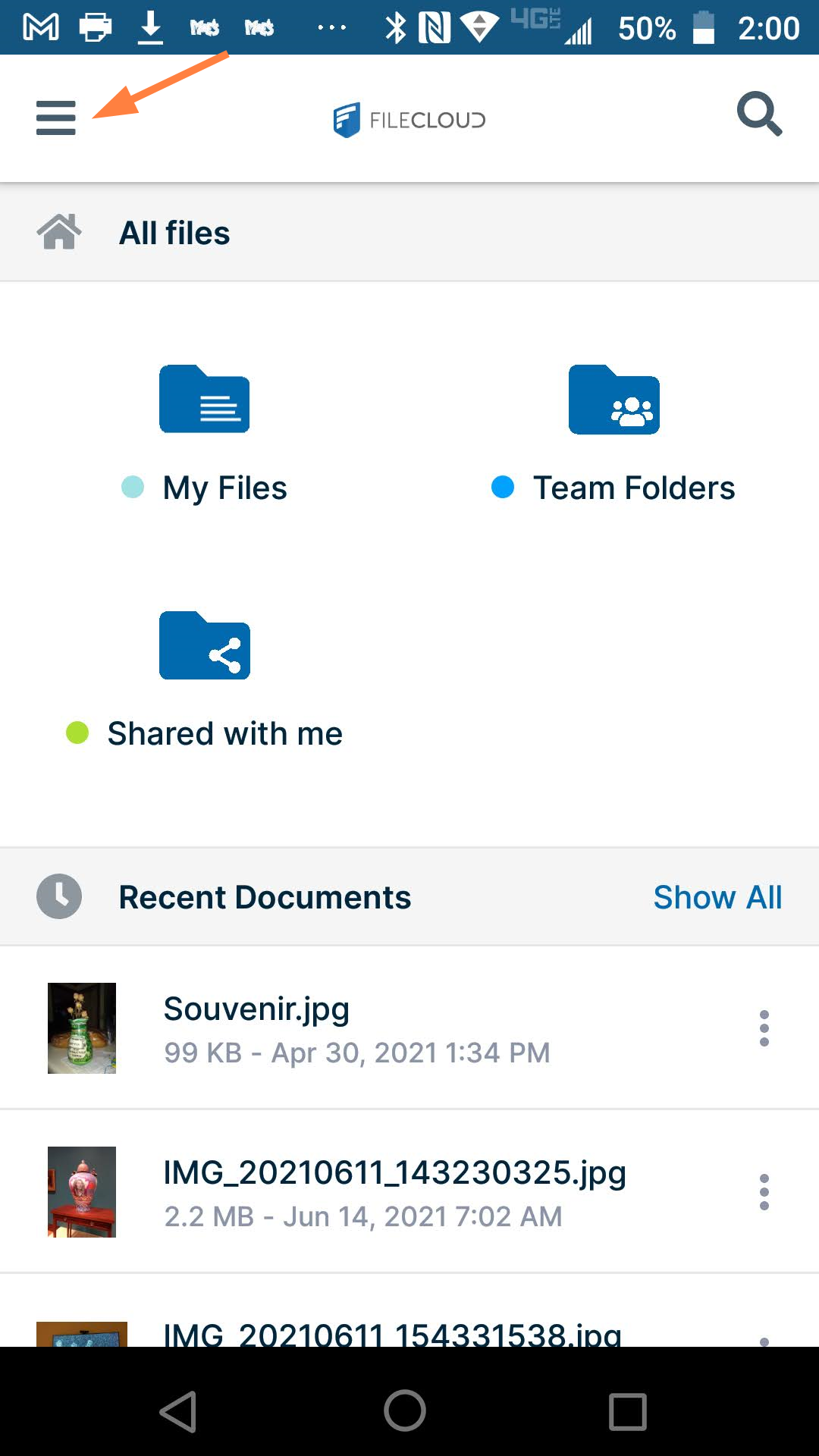
Open the FileCloud app.
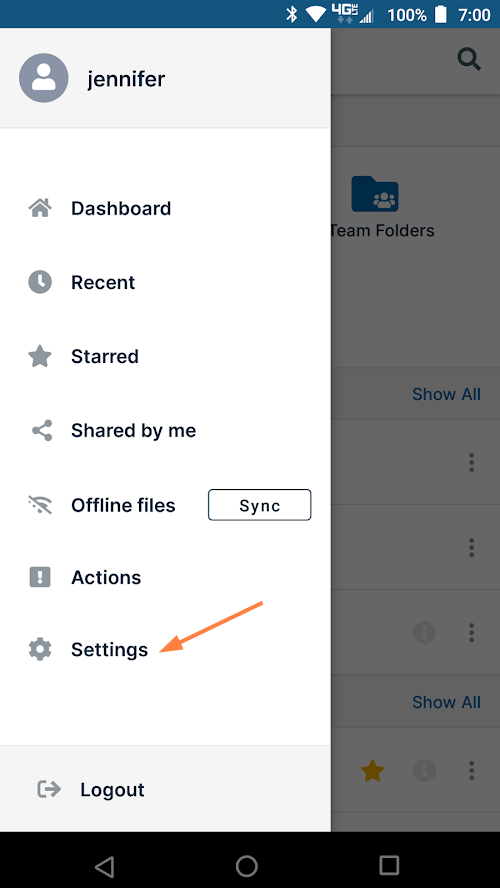
In the upper-left corner, tap the menu icon. A list of options opens.
Click Settings.
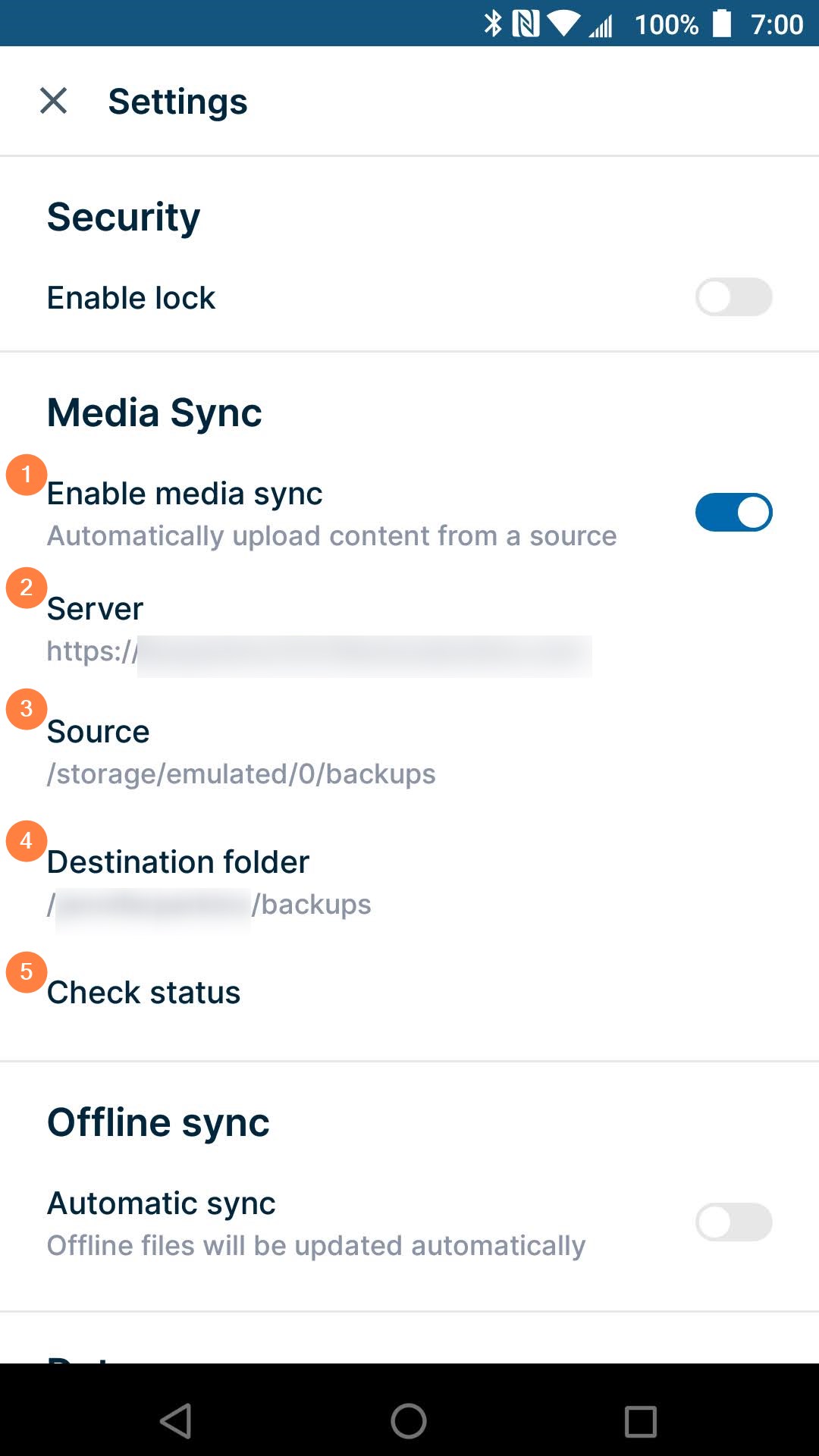
In the list of settings, slide the Media Sync switch to the right so that it is on. Although Media Sync has multiple options, the only one required to set up automatic backup is Server.
Tap Server. Choose a server to select it as the backup server.
Set any of the other options shown in the table below.
1 Enable media sync - Turns media sync on.
2 Server - (required) The backup server.
3 Source - (optional) The local folder the app retrieves pictures from for backup. By default, your Android's main camera folder is used.
4 Destination folder - (read-only) Displays the path to the server folder your media is uploaded to and stored for backup.
5Check status - Displays a dialog box with information about the current status of media uploads.
JavaScript errors detected
Please note, these errors can depend on your browser setup.
If this problem persists, please contact our support.