
Preview a File
You can preview a file in the user portal without opening it for editing.


To preview a file:
- Hover over a file in the User Portal.
A row of icons appears.
The Preview icon is the first icon, which looks like an eye.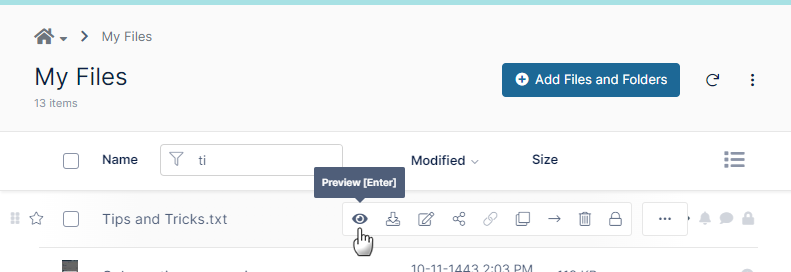
- Click the Preview icon.
(You can also click the name of the file to open it for preview).
A window that shows the content of the file opens.
The preview can be edited with the same Web edit/Office Online and Edit in Desktop applications that are available for editing the file from the file listing.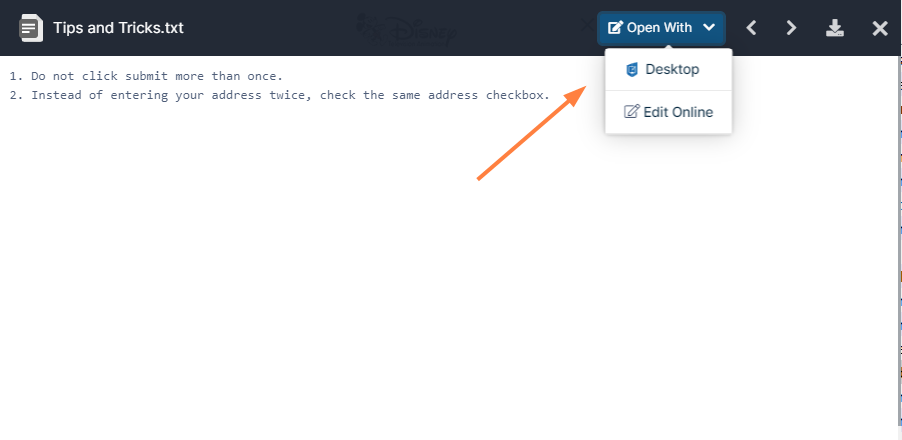
You can store, view and share medical files such as X-rays, CT scans, Ultrasounds and MRIs securely in FileCloud Server.
- You can upload a medical file with a file extension of .DICOM.
- In the dashboard, you can select a file with the .DICOM extension, and then click the Preview button.
- In Preview mode, the medical file is rendered as an image with special viewing options that are exclusive to viewing .DICOM files.
When you open the preview, you have the following cursor options:
| Option | Keys | Description | |
|---|---|---|---|
| Drag |
hold down the left mouse button | moves the image around in the preview window |
| Zoom In |
scroll the mouse wheel forward | enlarges the image in the preview window |
| Zoom Out |
scroll the mouse wheel backwards | reduces the image in the preview window |
| Lighten the Image |
hold down the mouse wheel and drag forward | increases the contrast to lighten the image |
| Darken the Image |
hold down the mouse wheel and drag backwards | decreases the contrast to darken the image |


In addition, you can click following options at the bottom of each preview window to perform the actions listed below:
Pan/Zoom - Click and drag mouse over image to adjust pan and zoom.
Image - Click and drag mouse over image to adjust brightness and contrast.
Scroll - Use mouse wheel top/bottom to flip through the images. Double-click to animate.
Reset - Reset to initial image.
Tags - Display image metadata information.