Resolve a conflict from the Sync directory in file explorer:
In your system tray, right-click on the Sync icon and chooseOpen.
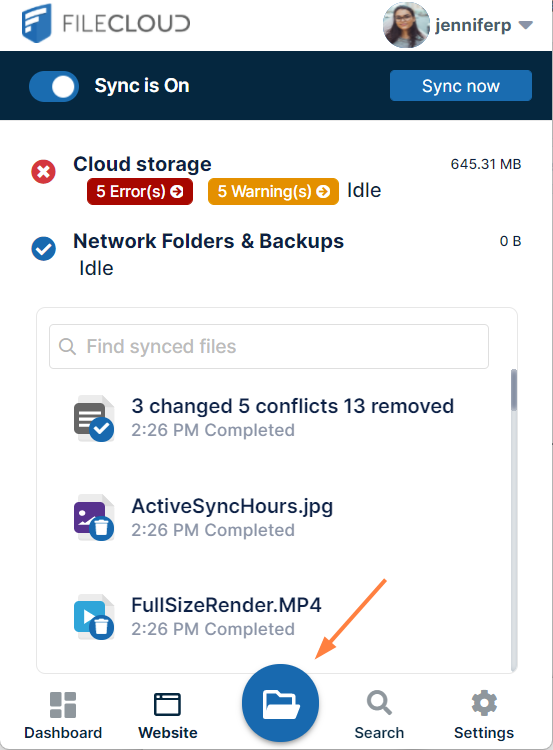
In the mini-dashboard, click the Open Sync Folder icon.
File explorer opens and displays your Sync directory.
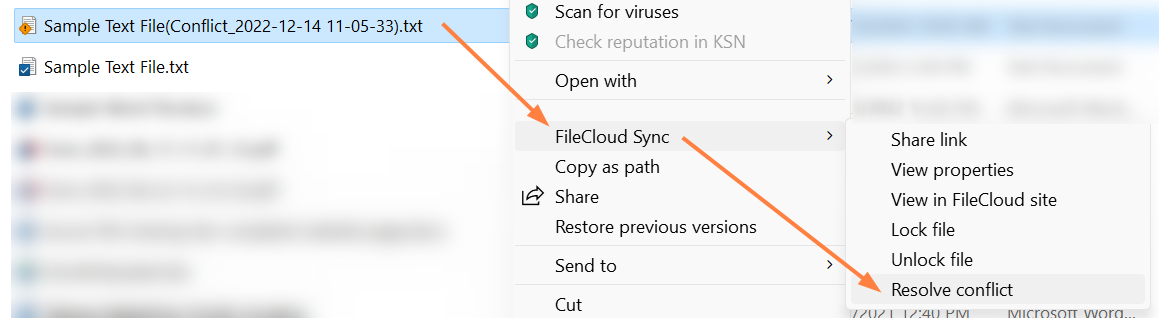
Open the folder in your Sync directory that contains the conflict file or folder. A conflict file has a yellow warning icon over it and a name in conflict format in parentheses. It appears above or below the local version of the file.
Right-click on the conflict file, and choose FileCloud Sync > Resolve conflict.
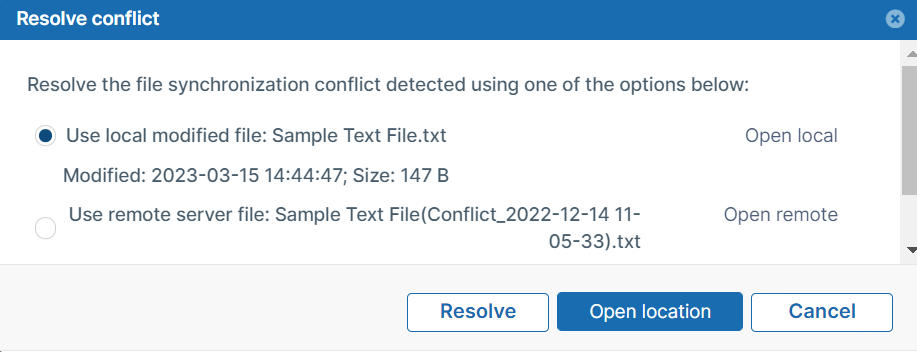
A Resolve Conflict dialog box opens.
If you want to check the content of either file before choosing which copy to save, click Open local or Open remote.
Select Use local modified file:(filename) to discard the server file and keep your modified local file. or select Use remote server file: (filename) to discard your modified local file and save the server file.
Click Resolve, and confirm your change. The conflict file no longer appears.
JavaScript errors detected
Please note, these errors can depend on your browser setup.
If this problem persists, please contact our support.