
Setting a User Account to Expire

The issue with an expiration date automatically changing to the day before has been fixed in FileCloud Server version 18.2 and later.
As a FileCloud administrator, you can set up a user account to be temporary, and configure it to expire.
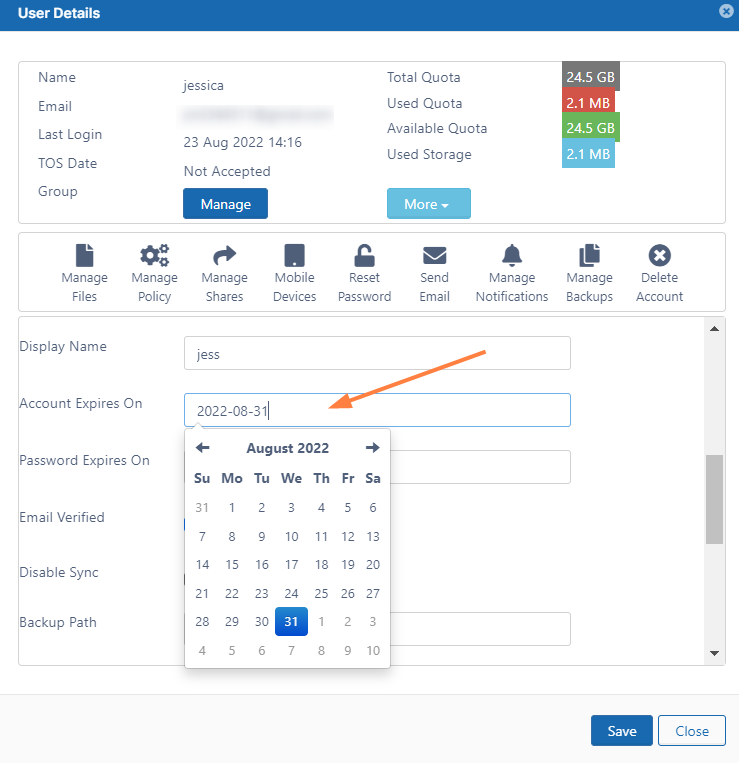
To see a user's details and what they have permission to do:
- Open a browser and log on to Admin Portal.
- From the left navigation panel, click Users.
- In the users list, click on the row of the user you want whose details you want to view.
- Click the edit icon (

- Scroll down to see the Account Expires On field.
- To see a calendar and select a date, click the text box.
- To save your changes, click Save.