You can edit folder-level permissions set by users and folder-permissions set on Team Folders from the Folder Permissions link in the navigation panel.
How Folder-Level Permissions and Share Permissions Work Together
Permission rules: How permissions interact
Whichever is more restrictive, share permissions or folder-level permissions, apply.
Inheritance of folder-level permissions is turned on by default for all folders and sub-folders.
Subfolders inherit the folder-level permissions of their immediate parent folders.
If you manually turn off inheritance for a folder, its subfolders still have inheritance turned on.
In a share, greatest share permissions given to a user or the user's group apply.
In folder-level permissions, user permissions override permissions of a group the user is in.
When a user belongs to multiple groups with conflicting permissions, the effective permissions are the enabled permissions from all their groups combined.
To configure FileCloud to allow setting folder-level permissions
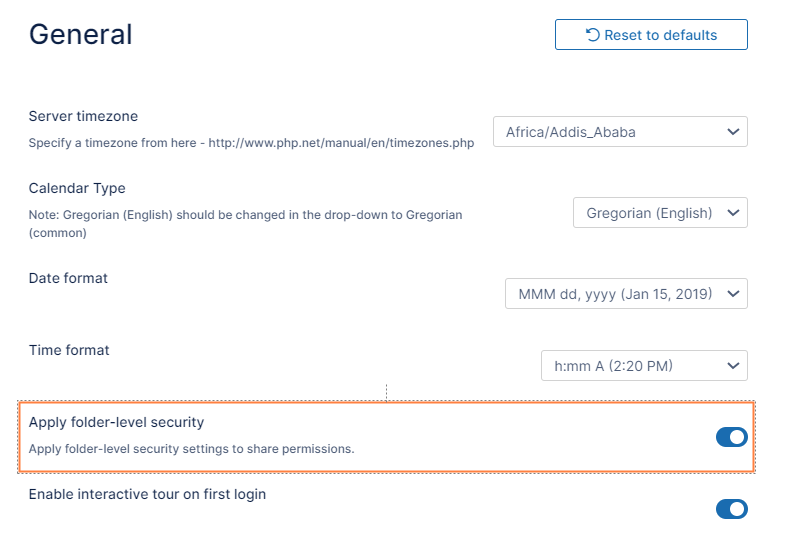
In the FileCloud admin portal's left navigation bar, scroll down and clickSettings.Then, on theSettingsnavigation page, clickMisc. By default,Generalsettings are opened.
Enable Apply folder-level security. Now, folder-level permissions can be set.
To apply folder-level permissions to user folders:
Add Folder-Level Permissions to User Folders
In the admin portal's left navigation panel, click Users.
On the Manage Users page, select a user, and then click the Edit icon.
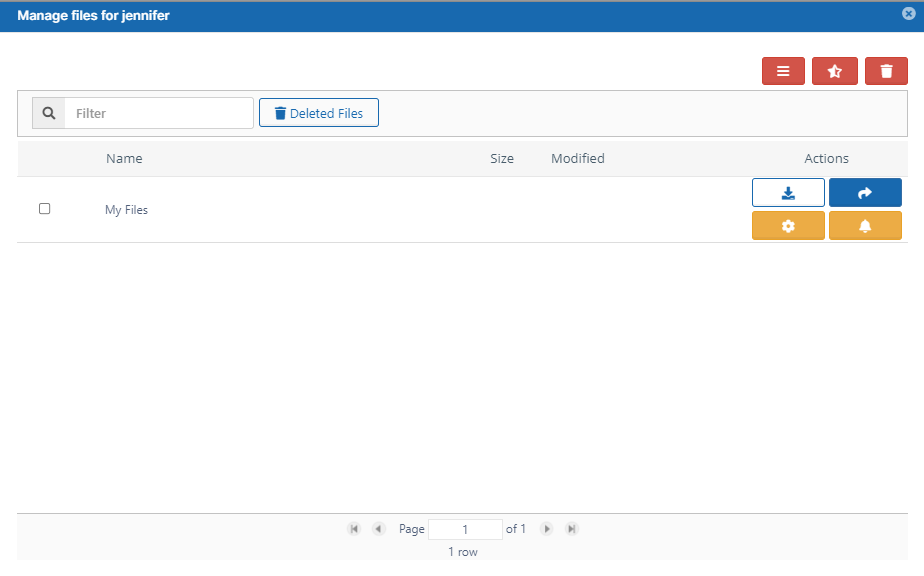
On the User Details dialog box, clickManage Files. The Manage Files for <User> window opens.
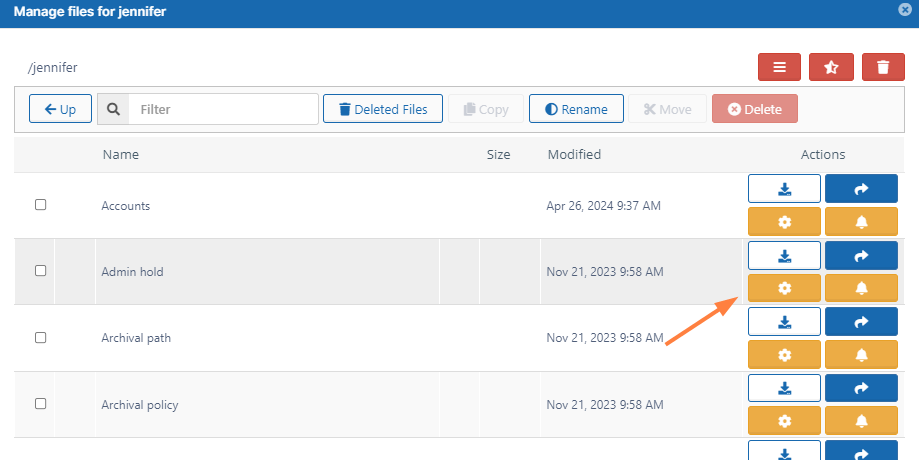
Expand My Files and locate the folder that you want to set folder-level permissions for.
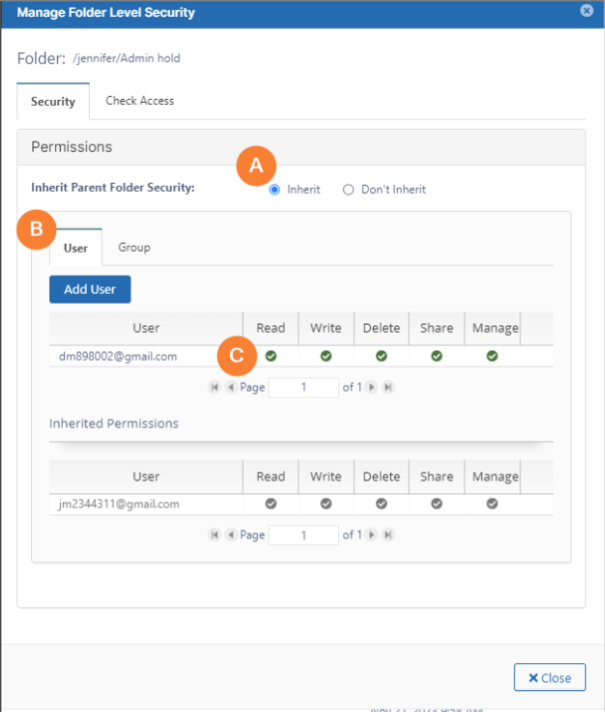
Click the Manage Access button in the folder's row. The Manage Folder Level Security dialog box opens. Any folder-level permissions that are already effective appear.
Follow the steps below to assign and change user and group folder-level permissions. Users who do not appear on the list have all folder-level permissions to the folder (unless their group permissions are limited)
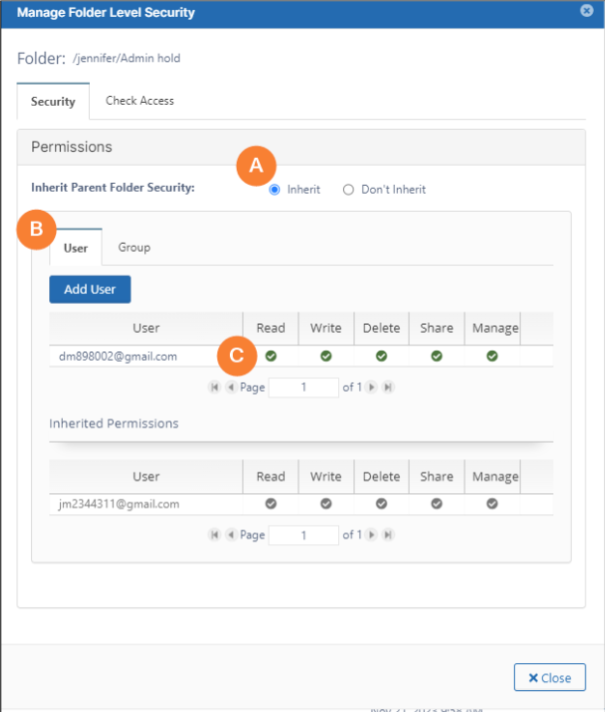
A By default, Inherit is selected. If you select Don't Inherit, users do not inherit permissions from this folder's parent folder, and the lower Inherited Permissions section no longer appears. B Click Add User to add a user and limit their access to the folder, or click the Group tab and add a group. C In the top list of users, check or uncheck levels of permissions.
To edit folder-level permissions set by admins on Team Folders and set by users on user folders:
Manage Folder Level Permissions
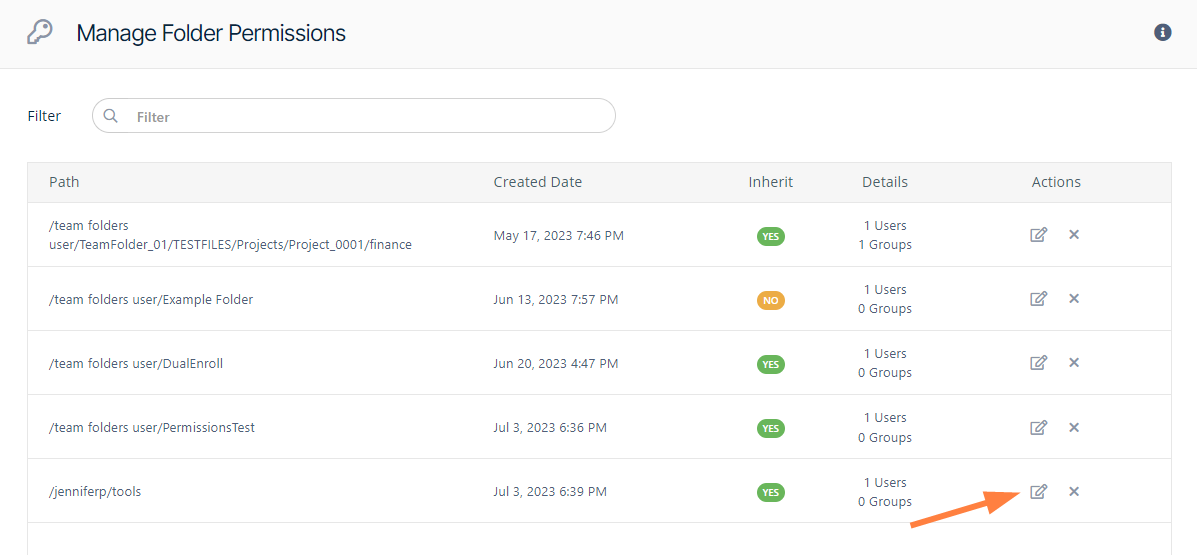
To open the Manage Folder Permissions screen, In the navigation panel, click Folder Permissions.
To open the Manage Folder Level Security dialog box, click the edit button.
Follow the steps below to assign and change user and group folder-level permissions. Users who do not appear on the list have all folder-level permissions to the folder (unless their group permissions are limited)
A By default, Inherit is selected. If you select Don't Inherit, users do not inherit permissions from this folder's parent folder, and the lower Inherited Permissions section no longer appears. B Click Add User to add a user and limit their access to the folder, or click the Group tab and add a group. C In the top list of users, check or uncheck levels of permissions.
Checking Effective Permissions
Check Effective Permissions
Administrators can check to see which effective folder permissions a user has to a folder. Effective permissions are the actual permissions when various permissions assigned to a user for the same folder are combined (for example, effective permissions show which permissions apply when a user has both individual and group permissions).
However, when you are using the methods shown on this page, this does not take into account which share permissions may have been given to the user for the folder. So, when the folder is shared, the share permissions may change the actual access the user has to the folder.
When a user checks effective permissions for Team Folders in the user portal, share permissions and folder-level permissions are taken into account.
The possible folder-level permissions are:
Permission
Description
Read
Allows Downloading Files
Allows Previewing Files
Write
Allows uploading and modifying existing files
Allows creating files and folders
Allows renaming files and folders
Delete
Allows deleting files and folders
Share
Allows sharing files and folders
Manage
Allow managing folder-level permissions for this folder
To check a user's effective permissions on a folder from the Manage Folder Permissions or Manage Users screen:
Access the Manage Folder Level Security dialog box in one of the ways shown on this page.
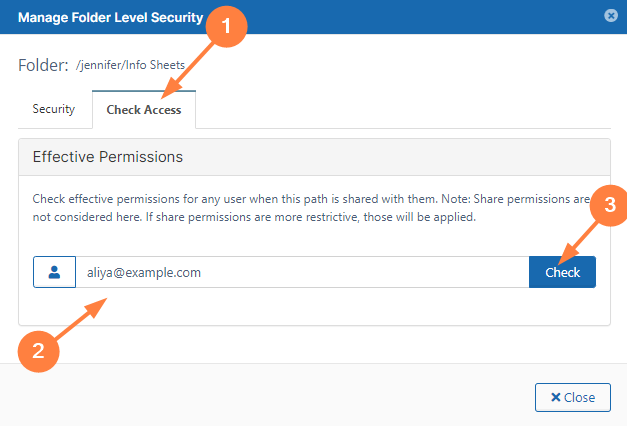
Select the Check Access tab.
In the box next to the user icon, enter the user's email id for their FileCloud account.
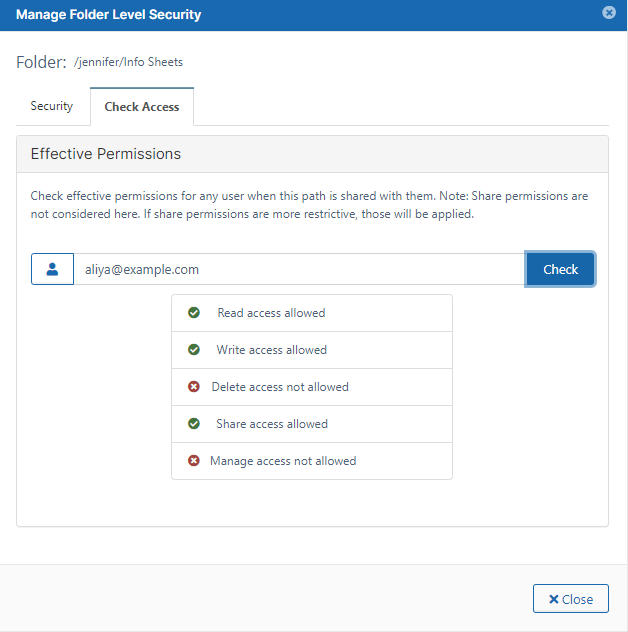
Click Check. The user's permissions to the folder are listed:
Permission inheritance
How Do Inherited Permissions Work?
In general, a folder can be in one of the following states:
The sub-folder has all of the same permissions as its parent folder
The sub-folderhas all of the same permissions as its parent folder, plus additional permissions
The sub-folder has all of the same permissions as its parent, minus additional permissions
The sub-folder's permissions are not connected in any way to the parent folder and the sub-folder retains a separate set of permissions
When setting folder-level permissions in FileCloud, you have the following options:
Option
Description
Inherit Permissions
Permissions set by default in this folder are exactly the same as its parent folder's permissions.
Don't Inherit Permissions
Permissions set in this folder don't inherit from its parent folder's permissions and are specific to only this folder.
JavaScript errors detected
Please note, these errors can depend on your browser setup.
If this problem persists, please contact our support.





 Inherit Permissions
 Don't Inherit Permissions