
Sharing FileCloud Content in MS Teams
Once FileCloud has been integrated with MS Teams, you can access FileCloud in a channel or a chat.
To access FileCloud in Teams:
- Open Teams and go to one of your teams.
- Begin a new message.
Below the message line a FileCloud icon appears with other icons.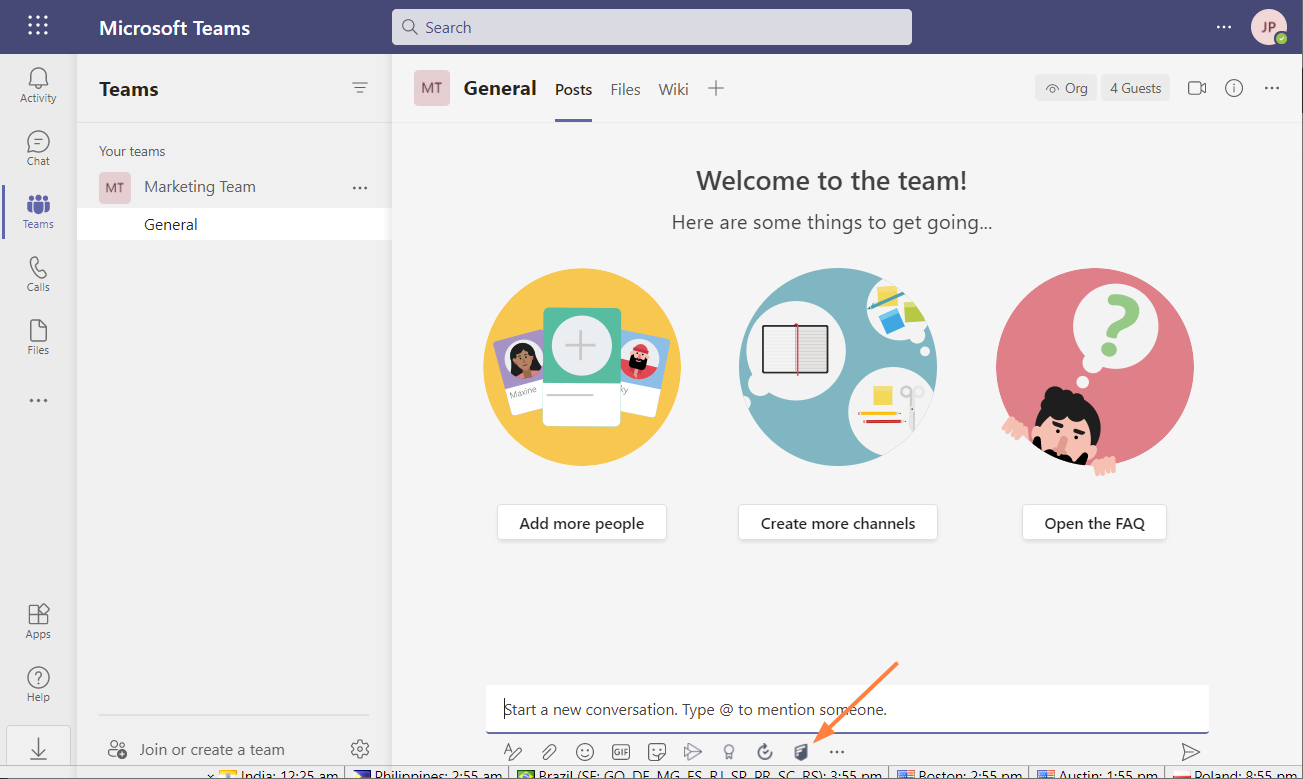
- Type in your message. At the position where you want to include a link to FileCloud content, click the FileCloud icon.
If you are not logged in to FileCloud, follow the prompt and log in.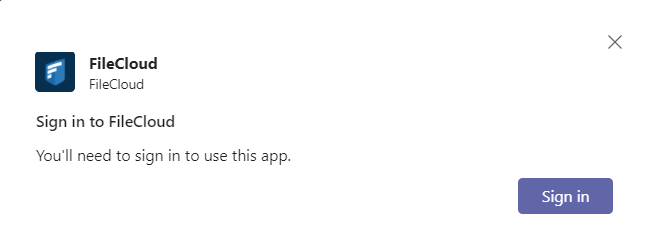
A FileCloud window displaying your FileCloud folders opens. - Navigate to the file or folder that you want to share, and click the three dots to its right.
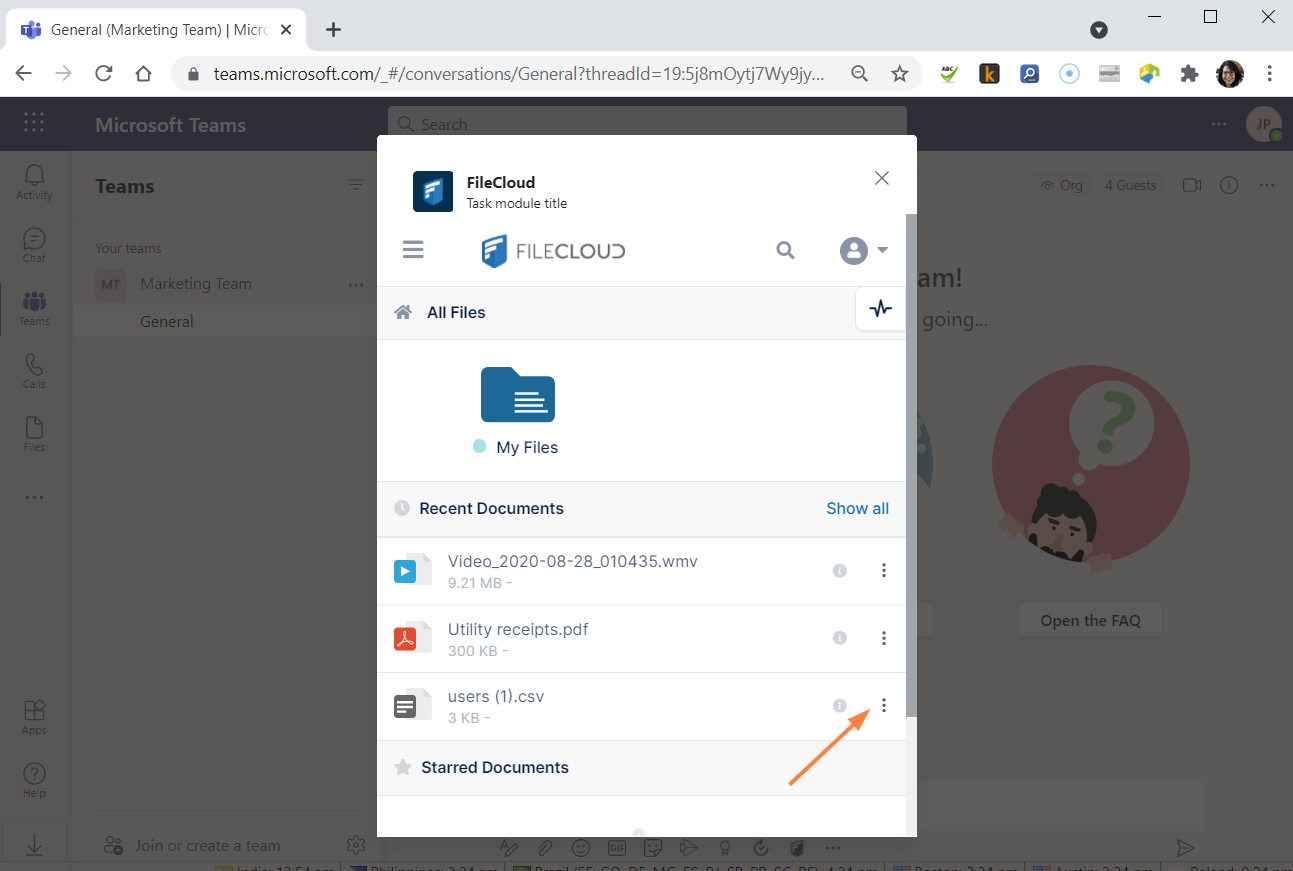
Download and Share options are shown. - Click Share.
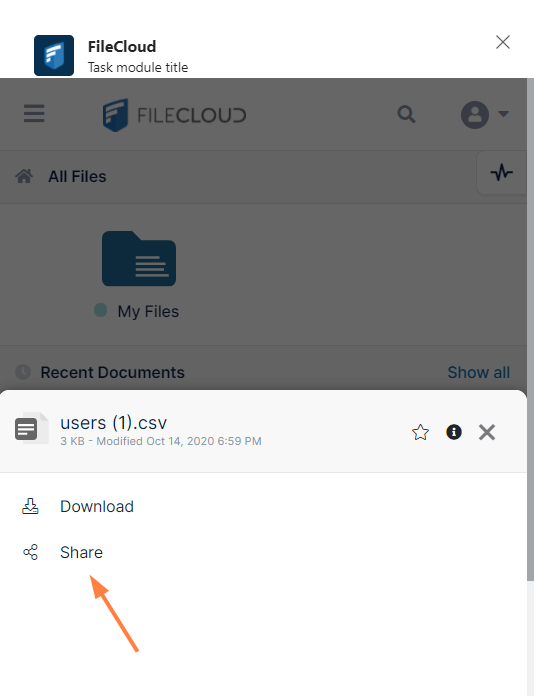
A screen that lets you set share options or take other share actions opens. - Set any share options. See the links below for help with share options.
If you choose to make the share password protected, the password appears in the share message sent to the share recipient.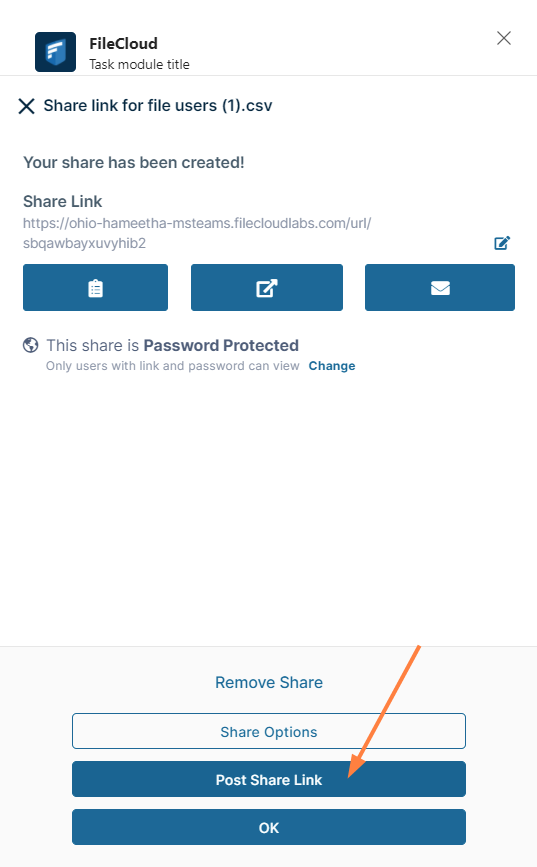
- Click Post Share Link.
The link becomes available in the message: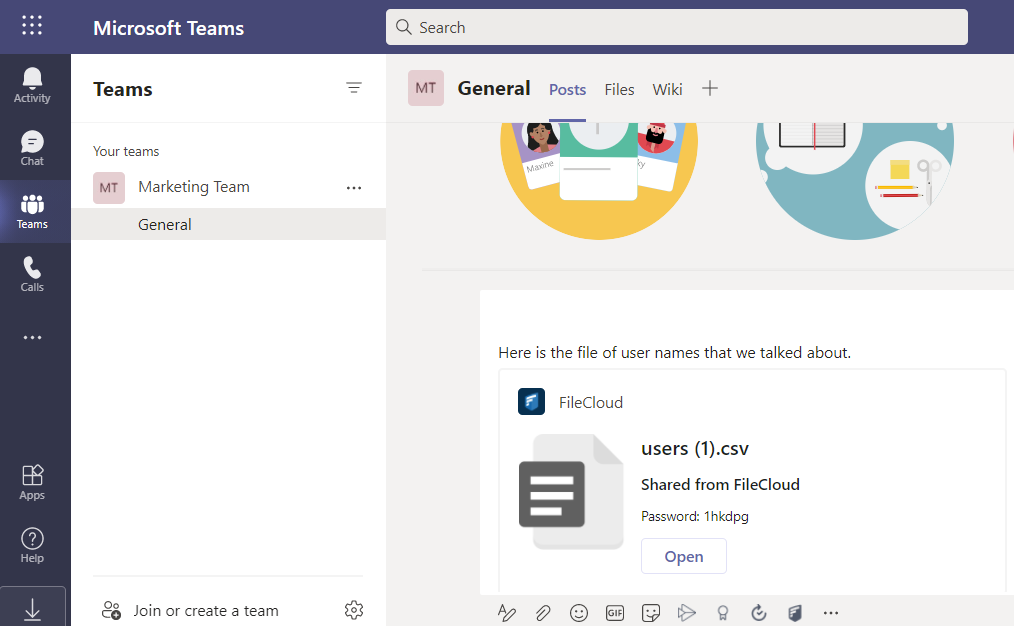
Members of the team can click Open to access the share.

For information about share options, see:
Public Share Options for Files
Private Share Options for Files
Share Options for Public and Private Folders