User Access Levels and User Types
When you create a user, you assign it an access level.
There are four different access levels for users.
| Level | Access | Notes |
|---|---|---|
| Admin Access | The default Admin has complete control over the FileCloud system. | The default Admin account is used to manage the FileCloud. The default admin user account is 'admin'. Other users can be marked as 'admins' and given limited set of permissions.
|
| Full Access | Control over its own private cloud storage space in My Files. | These user accounts can:
|
| Guest Access | Restricted access to the FileCloud system. | These user accounts:
|
| External Access | Access to FileCloud only through a Web browser. | These user accounts:
|


- Both Full and Guest users accounts are counted towards user accounts specified in the license.
- External Access accounts are NOT counted towards the license.
User Types Comparison
User Access Feature | Full Access | Guest Access | External Access |
|---|---|---|---|
| User Portal (Web Browser) Access | Permitted Fully functional | Permitted Not all functions available | Permitted Not all Functions Available |
| View shared files | Permitted | Permitted | Permitted |
View Network Shares | Permitted | Permitted | Only via shares created by users
|
| Authentication | Local / ActiveDirectory | Local / ActiveDirectory | Local Only |
| Mobile App Access | Permitted Fully functional | Permitted Not all functions available | Not Available |
| Personal storage in FileCloud | Available | Not Available | Not Available |
| Share files with other users | Permitted | Permitted | Not Available |
| Access storage using Cloud Drive | Permitted | Permitted | Not Available |
| Sync storage using Cloud Sync | Permitted | Permitted | Not Available |
| SSO Login | Permitted | Permitted | Not Available |
| Group Membership | Can be member of any group | Can be member of any group | Can be member of any group except Everyone. |
| Admin Account | Can be Admin Account | Can be Admin Account | Cannot be an Admin Account |
| Team Folders | Permitted | Permitted | Permitted |
| Automation App | Permitted | Permitted | Not Available |
| File and Folder Comments | Permitted | Permitted | Not Available |
| 2FA | Permitted | Permitted | Available by license beginning in Version 20.2 for Enterprise Advanced customers. |
Checking User Access Level
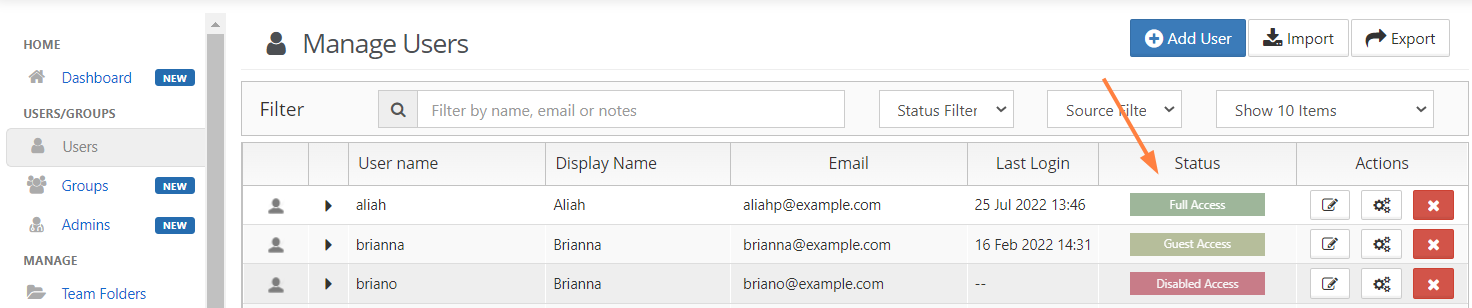
The access level of any user account can be checked by the Administrator using the admin portal.
To check a user's access level:
- Log on to Administration Portal.
- Click Manage Users in the navigation panel.
- In Filter, enter the name or the email of user
- The Access for the user will be listed in the Status column.