
Viewing and Editing eSignature Requests
In the eSignature screen in FileCloud, you can view, complete, and delete your eSignature requests.
To access the eSignature screen in FileCloud, in the user drop-down list, click eSignature.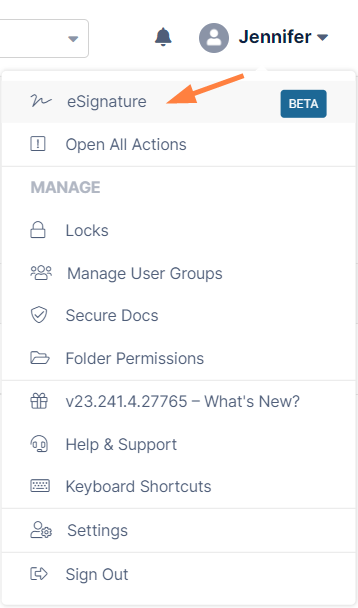
The eSignature page opens: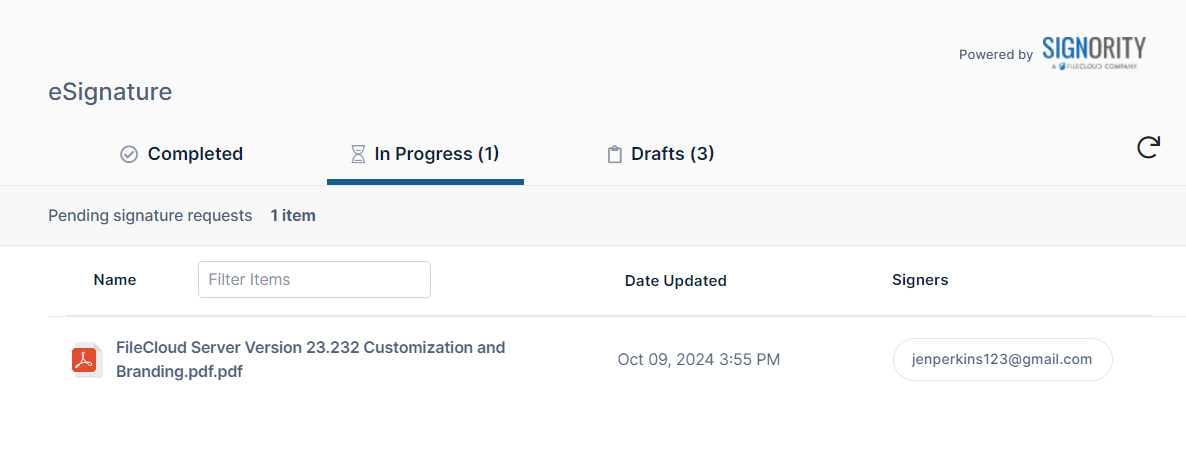
In Progress eSignature requests
The In Progress tab shows eSignature requests that have been sent to signers but have not yet received all of the required signatures.
From the In Progress tab, you can view more details of the request, edit the FileCloud destination folder, or cancel the request.
To view more details of the request:
- In the In Progress tab, hover over the request and click the eye icon.
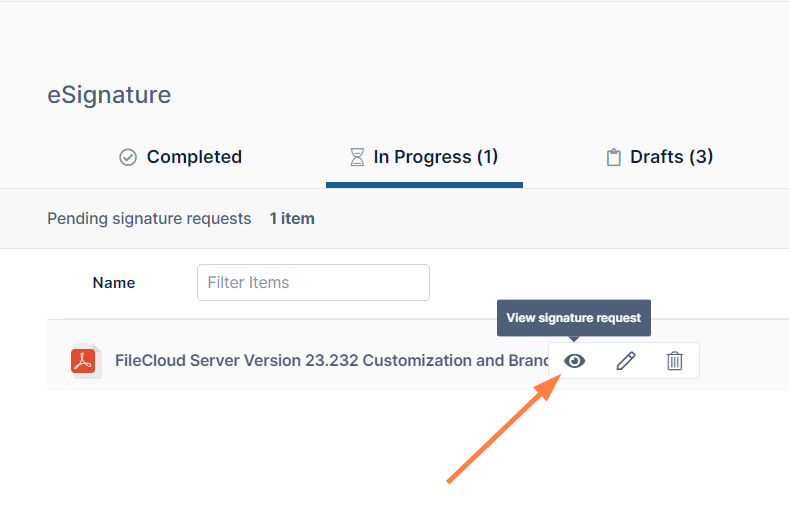
The following information about the request is shown to you: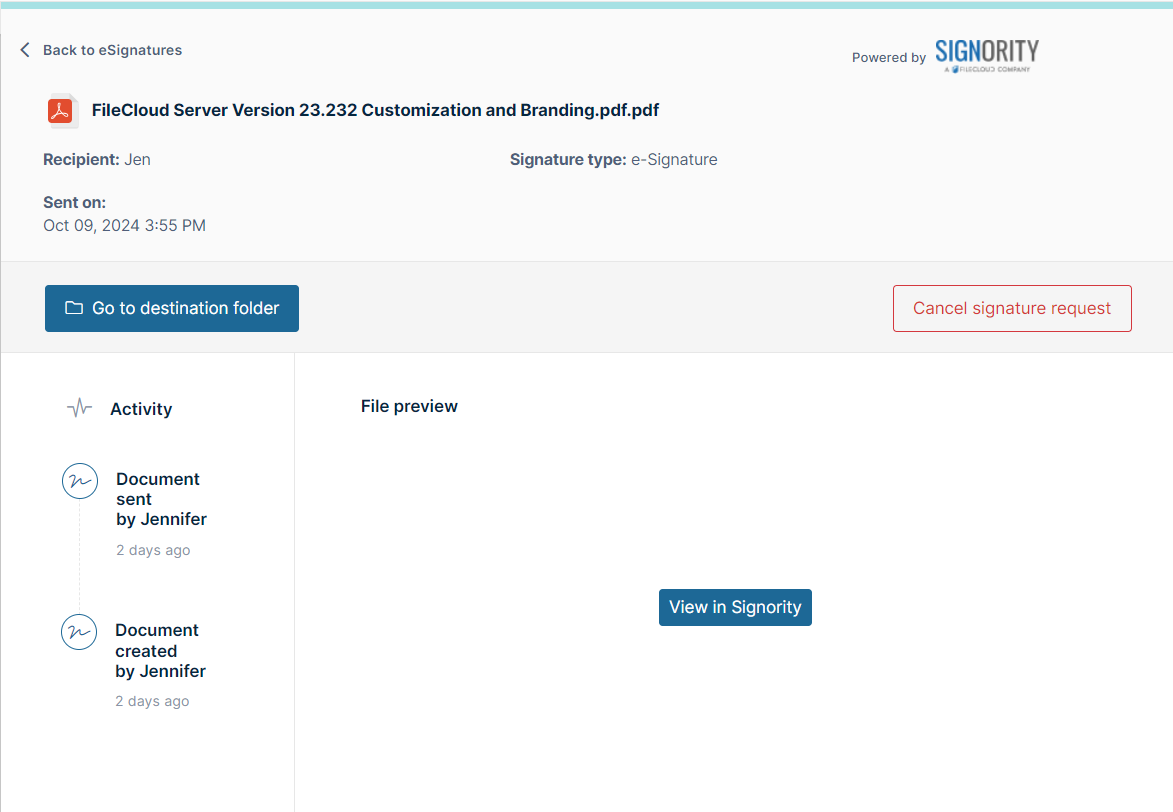
- To open the destination folder for the signed file, click Go to destination folder.
- To cancel the request, click Cancel signature request.
- To open the request in Signority, click View in Signority.
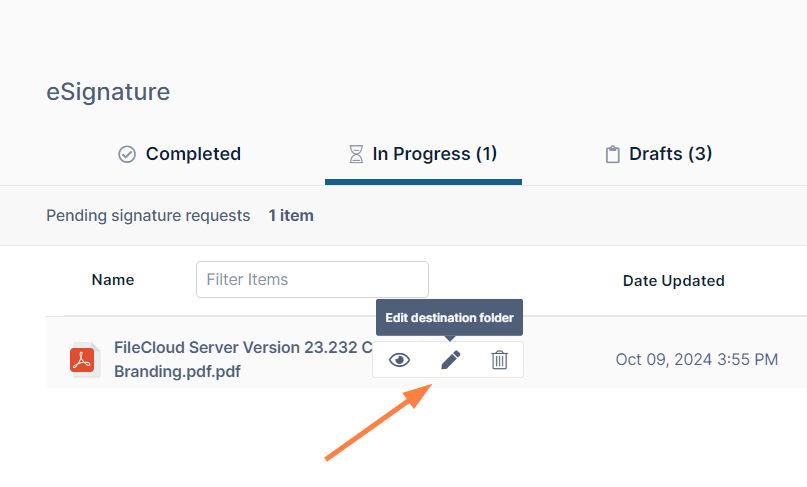
To edit the destination folder:
- In the In Progress tab, hover over the request and click the edit icon.
A Select Destination Folder dialog box showing the current destination folder opens: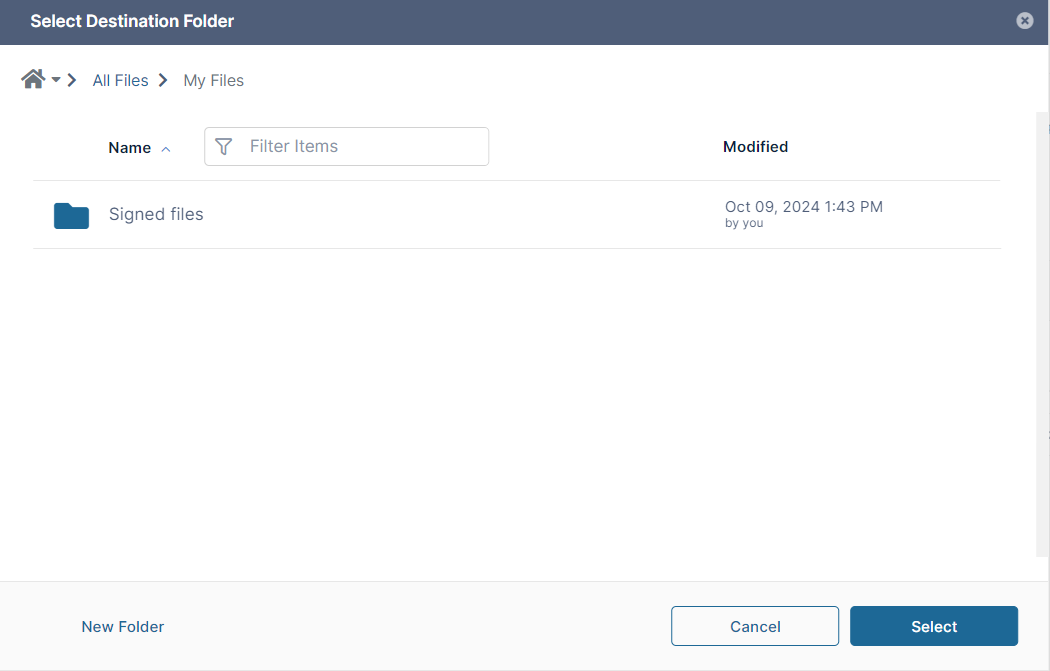
- Navigate to a new destination folder and click Select.
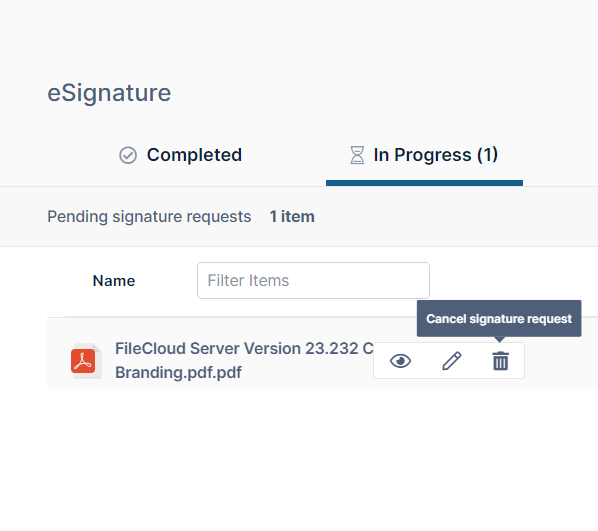
To cancel the request:
- In the In Progress tab, hover over the request and click the delete icon.
You are prompted to confirm the cancellation: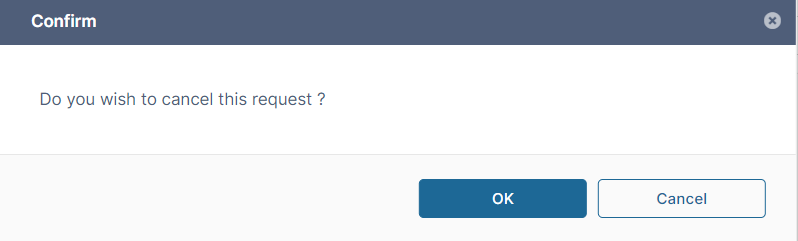
- Click OK.
The request is cancelled and no longer appears on the In Progress tab.
Draft eSignature requests
The Draft tab shows eSignature requests that have been created but not yet submitted to Signority.
From the Draft tab, you can view the request in the Signority editor and complete it as well as cancel the request.
To view the request in the Signority editor:
- Click the eSignature icon:
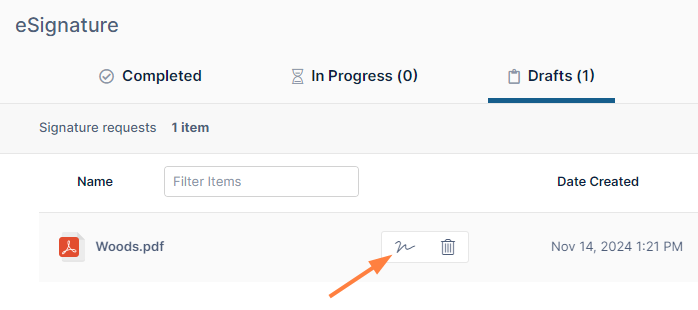
The draft opens in the Signority editor: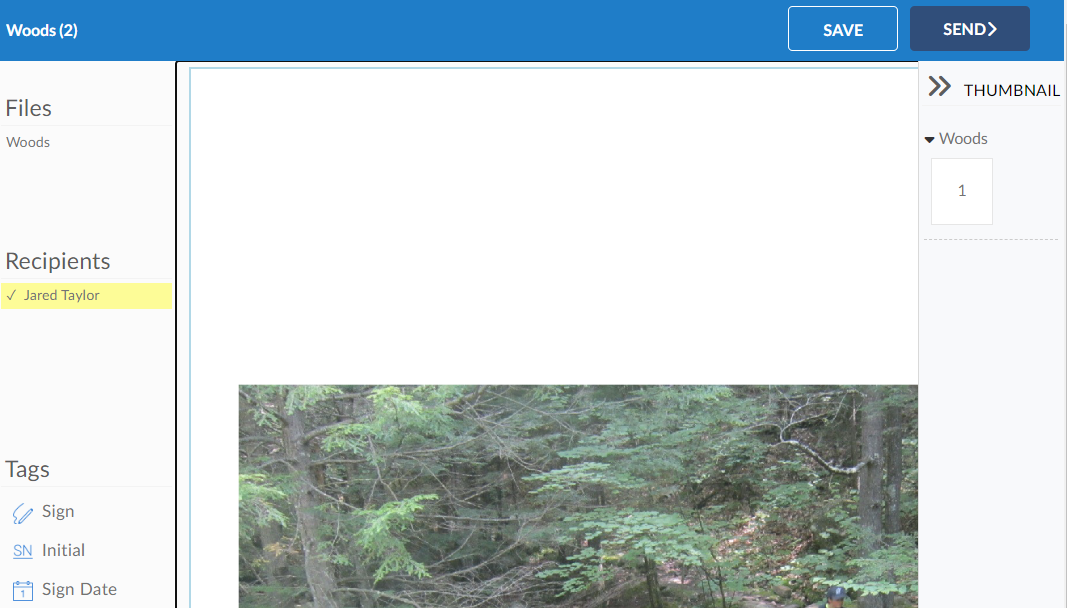
- Either view the document or complete the process of adding signature tags and sending it to recipients.
To delete the draft:
- Click the delete icon:
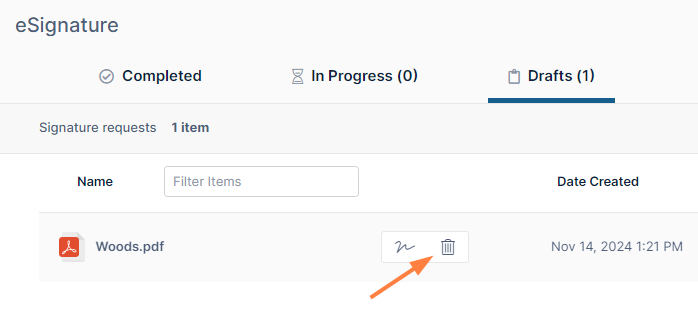
The draft is deleted and no longer appears in the Drafts tab.
Completed eSignature requests
The Completed tab shows completed eSignature requests.
From the Completed tab, you can download the request or view more details of it.
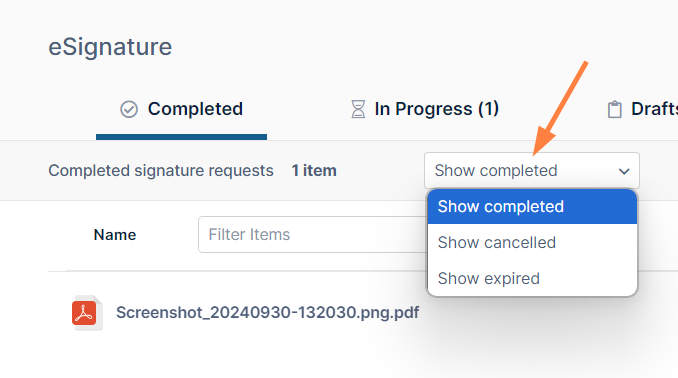
You can also view cancelled and expired eSignature requests.
To download the request:
- In the Completed tab, hover over the request and click the download icon.
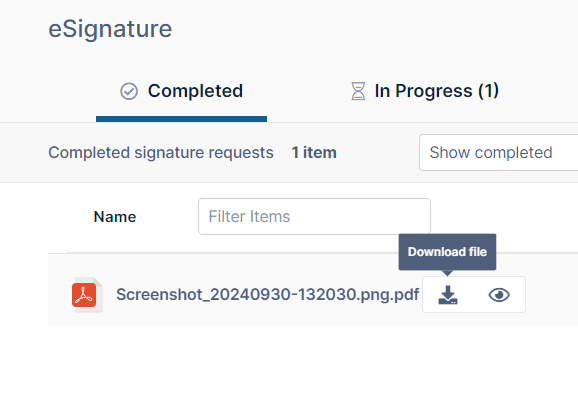
- Save the signed file.
To view more details of the request:
- In the Completed tab, hover over the request and click the eye icon.
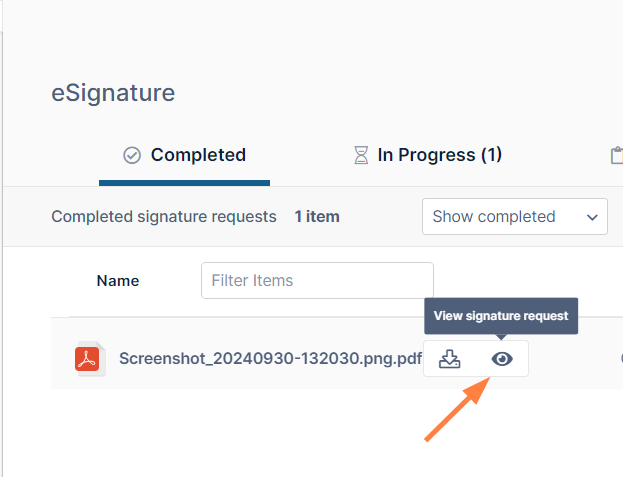
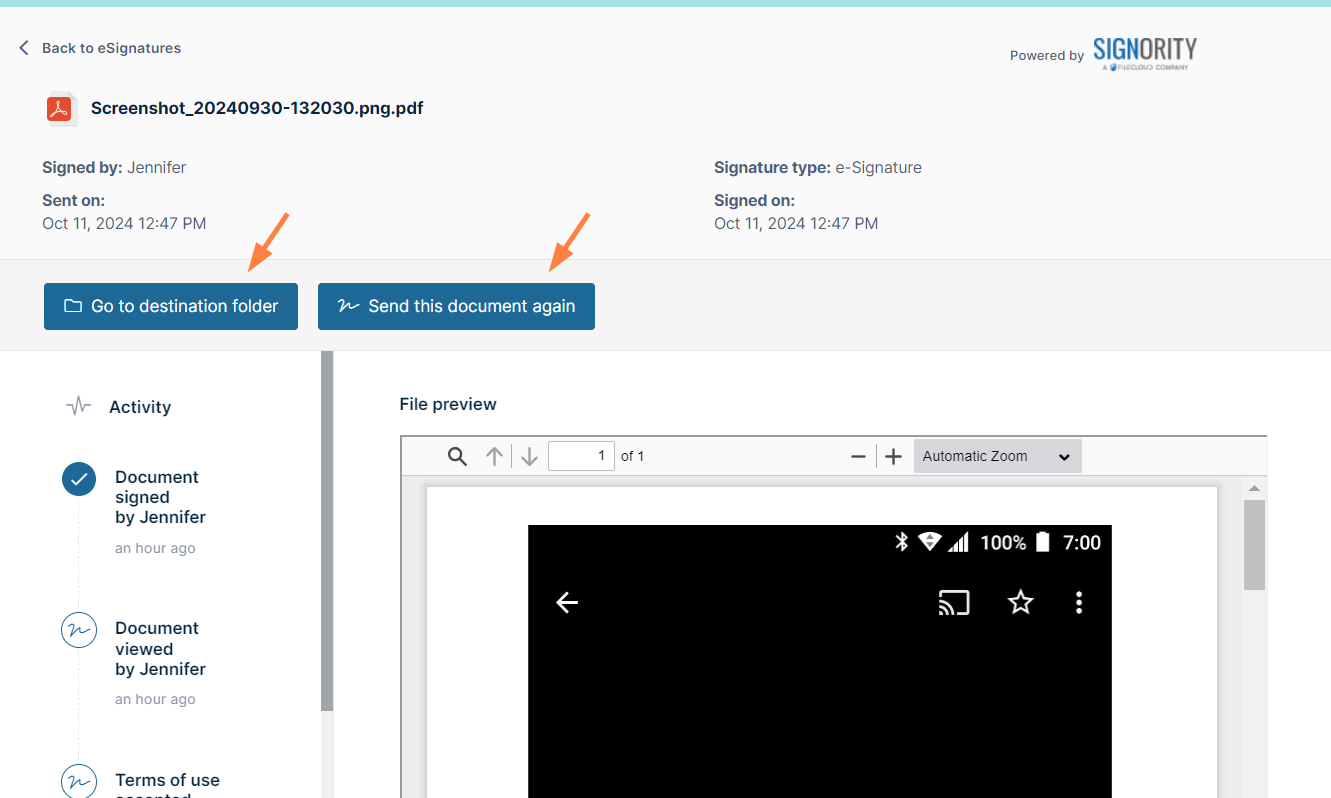
Details about the request are shown to you. - To view the completed request in its destination folder, click Go to destination folder.
- To send the signed document for further signatures, click Send this document again.
To view cancelled or expired requests:
- In the Completed tab, click the Show completed drop-down list and choose Show cancelled or Show expired.

FileCloud removes eSignature documents associated with completed, cancelled, and expired requests from Signority.