
Clear a Recycle Bin

This action:
- Is recorded in the Audit log as: "Action performed by ADMIN"
- CANNOT be undone
As an administrator, you can delete a user's files and folders.
 After you delete files and folders, they are normally placed in the user's Recycle Bin, which you can also manage.
- If you have a policy that stores deleted files, they are saved in the Recycle Bin
- This means that they can be recovered if deleted by mistake or are needed again at a later time
- You can also set the Recycle Bin to automatically delete through a policy


To go to a user's recycle bin:
- In the Admin portal, go to the Users page, select a user, and click the edit icon. In the User Details dialog box, click Manage Files.
- Click Deleted Files to view the contents of the recycle bin:
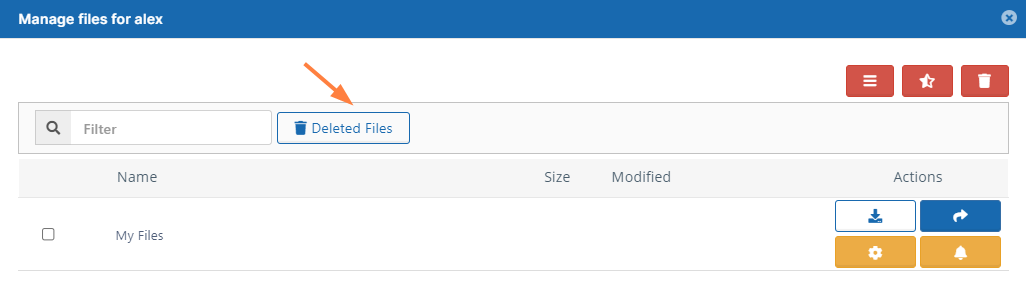
The recycle bin opens and displays deleted files. If the deleted files are in subfolders, navigate into the subfolders to locate them.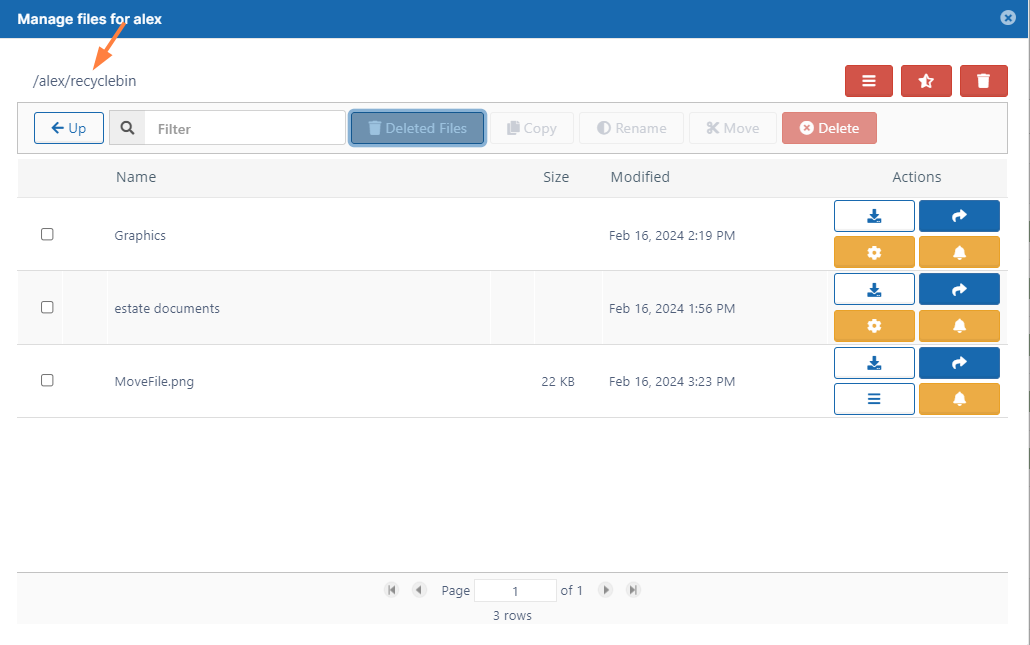
To clear a deleted file or folder from a user's recycle bin:
- Follow the steps above to go to the recycle bin.
- Navigate to the file or folder you want to delete from the recycle bin.
- Check the file or folder.
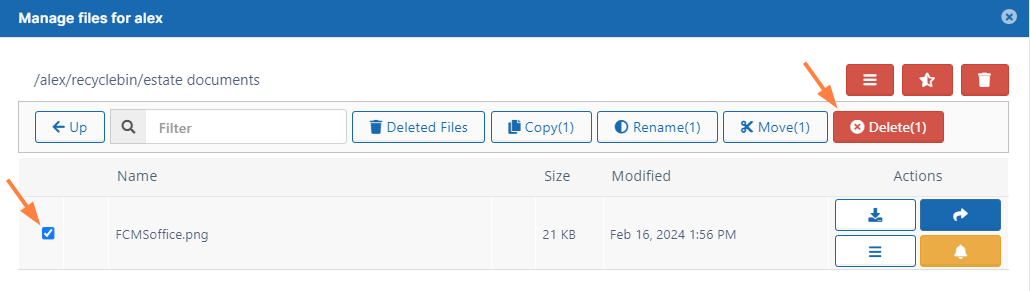
- Click Delete.
- In the Confirm dialog box, click Yes.
The file or folder is deleted from the recycle bin (permanently removed from FileCloud).
Only recycle bins with contents less than 16 MB of data can be cleared using this method.
- Follow the steps above to go to the recycle bin.
- Click the trash icon in the upper right corner.
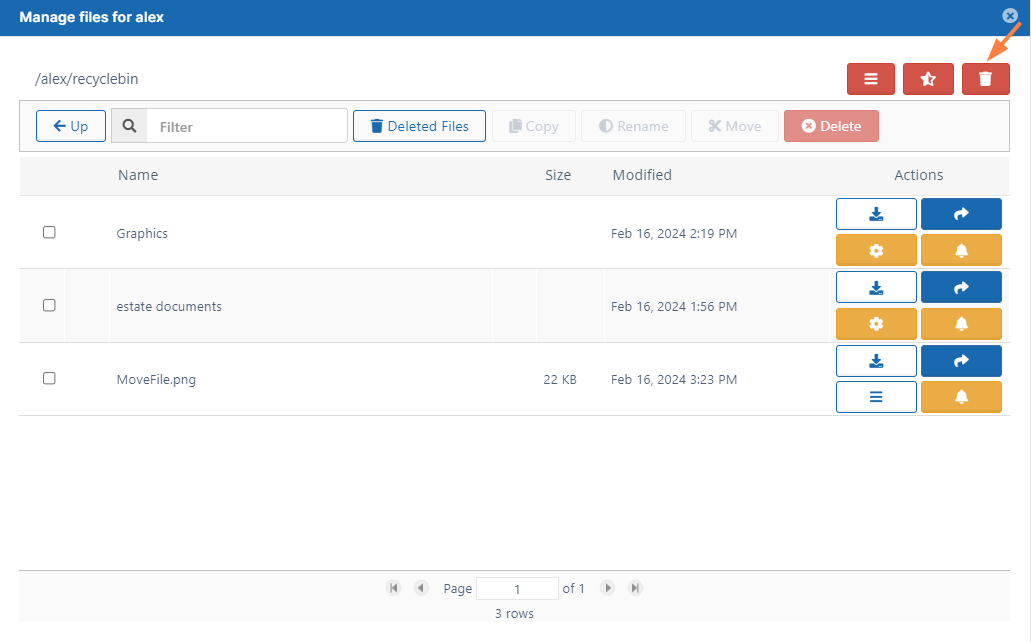
- In the Confirm dialog box, click OK.
All files and folders are deleted from the recycle bin (permanently removed from FileCloud).