
Managing User Folders and Files
As an administrator, you can manage the files that are stored on your FileCloud Server site.
This allows you to protect and maintain your system in the following ways:
- Remove user files infected with a virus
- Remove files belonging to a user that no longer has an account
- Move folders for teams
- Download, copy and move files at a user's request
- Manage your storage space limits by moving or deleting files
- Copy and move files and folders between two FileCloud users
To access user folder and files settings:
- Open a browser and log on to the Admin Portal.
- From the left navigation menu, select Users.
- On the Manage Users page, select a user, and then click the Edit icon

- On the User Detail dialog box, click Manage Files.
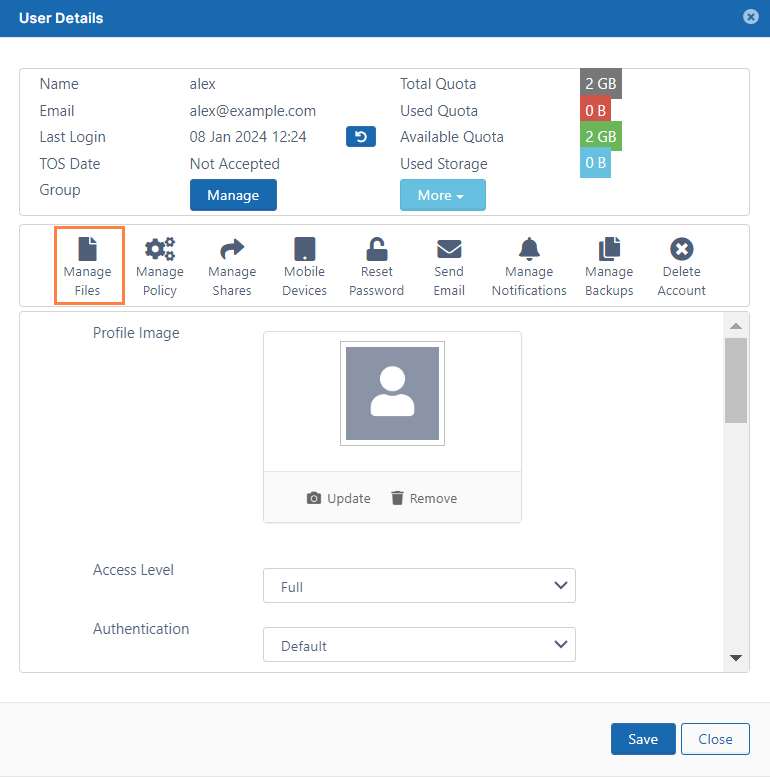
- The Manage Files for <User> window opens.
In this section: