
Selecting Folders to Sync

The ability to temporary disable syncing a folder without removing it from the list is available in FileCloud Server 19.1 and later.
When ServerSync runs:
- Changes in local copies can be uploaded to the server, replacing the version on the server for others to see your changes.
- Changes in server copies can be downloaded to your local file, replacing the local version with the one on the server so that you can see other people's changes.
- You can add any number of folders for synchronization by repeating the Add a Folder process.
- Note that synchronization occurs one by one and not in parallel. So if you have a large number of folders setup, a synchronization cycle might take some time.

One Way Sync
When a new folder is being added to the sync list, users can choose a Remote to Local type of synchronization.
- This means that any changes made in the local folder are not uploaded to the server.
- If the same file is modified on both the server and locally, there will be no conflict file created. Instead, the local file will be overwritten with the server version of the file.
- If the file is deleted locally, it will be copied back from the server.
 This feature is available only for new folders that are added.
- If you want to change the Sync type for existing folders, users have to delete the folder from the list and then add them back with the sync type required.
Administrators can also configure the sync type using centralized device configuration.
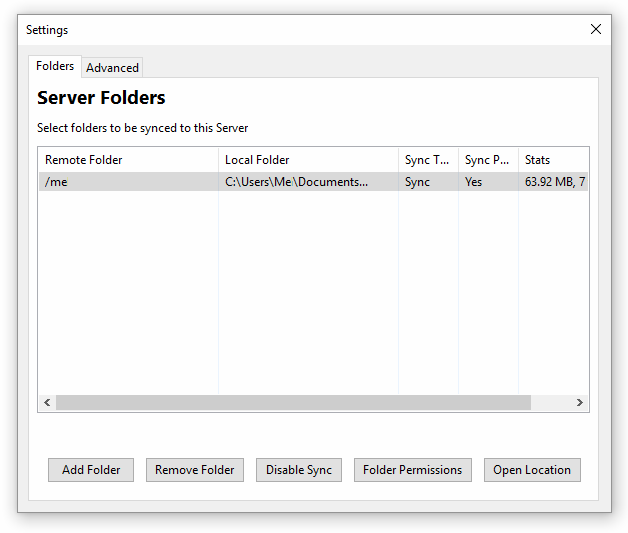
To manage folder settings:
- From the system icon tray, right-click the ServerSync icon, and then select Settings.
- On the Settings screen, in the Server Folders section, click Edit.
- On the Settings screen, on the Folders tab, perform any of the following actions:
| Option | Description | |||||||||
|---|---|---|---|---|---|---|---|---|---|---|
Add Folder 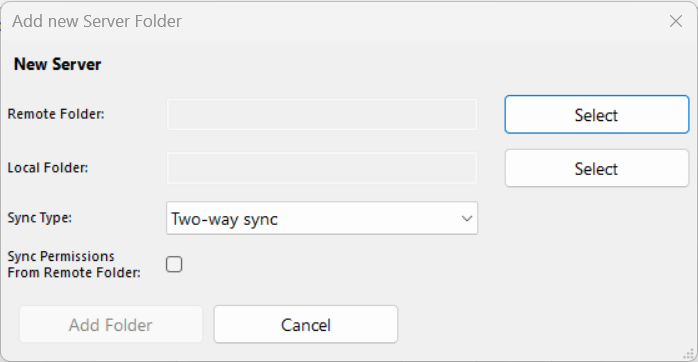 | Opens a dialog box called Add new Server Folder.
When server changes are downloaded to a local folder, the local folder modified date is changed to the current date, but the server folder keeps its original modified date. This is due to operating system constraints.
To add a folder:
| |||||||||
| Remove Folder | After selecting a folder, allows you to permanently stop synchronizing a folder with FileCloud server.
To temporarily stop synchronizing a folder, use the Disable option. | |||||||||
| Disable Sync | Allows you to disable synchronization of folders temporarily.
| |||||||||
| Folder Permissions | First, you must select a folder. Clicking Folder Permissions opens a new window to view and manage folder permissions.
| |||||||||
| Open Location | Opens a Windows File Explorer window showing the location of the folder you have chosen to keep local copies.
|
 When there are conflicts, you will be asked to choose which version you want to keep.