Configuring FileCloud To Use Office Online On-Premises Server For Web Edit
Introduction
FileCloud supports web based document editing using Microsoft Office Online. FileCloud uses the WOPI protocol to connect to Office Online for web based editing. This document assumes that you have already installed an Office Online server.
Configuration Tips
When configuring FileCloud with Office Online on-premises server, please use the default admin user to log in into FileCloud admin portal. For security reasons, this configuration is not allowed as a normal user promoted as admin.
Configuring FileCloud With Office Online
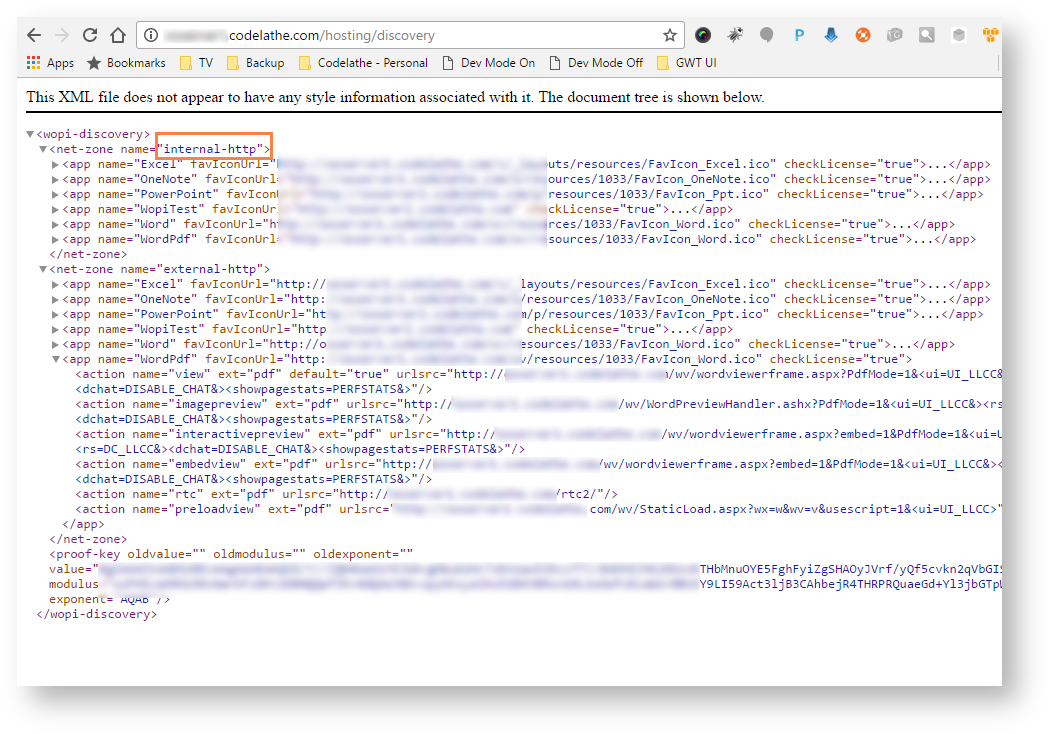
Navigate to the URL http[s]://IPAddressOfYourOfficeOnlineServer/hosting/discover using a browser. This is the page that contains all the information about the various editors supported by Office Online server.
From the resulting page, note zone of editors to be used by FileCloud. The selection depends on the requirement of where the web edit feature will be used. In our case, we will choose "internal-http", as we want to offer web-editing only to internal users.
Ensure that the Office Online server has access to the FileCloud server (To verify: navigate to FileCloud user login page from Office Online server).
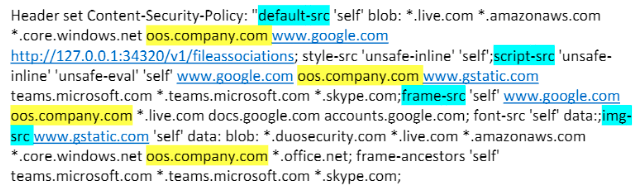
Add the Office Online server to the Content Security policy in the .htaccess file.
Open the .htacess file: Windows: C:\xampp\htdocs\.htaccess Linux: /var/www/html/.htaccess
Find the line:Header set Content-Security-Policy, and add your Office Online server url without http or https, for exampleoos.company.comto the url's listed for default-src,script-src,frame-src,and img-src:
Save your changes.
Configure FileCloud with Office Online Cloud.
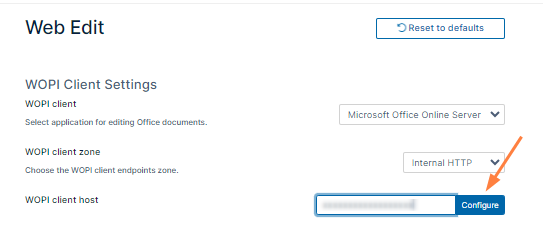
In the FileCloud admin portal's left navigation bar, scroll down and clickSettings.Then, on theSettingsnavigation page, clickWeb Edit . TheWeb Editsettings page opens.
Fill in the following values for the first three settings: WOPI client: Microsoft Office Online Server WOPI client zone: Internal HTTP WOPI client host: IP address/URL of office online server used as WOPI client host.
Click Configure.
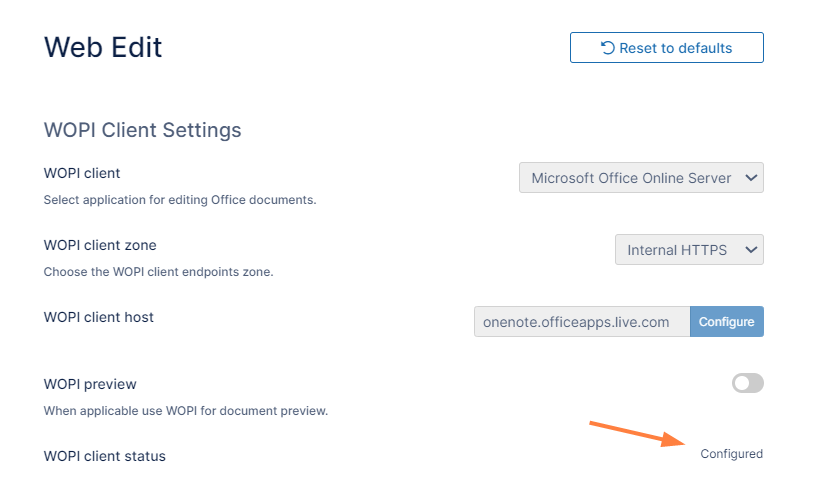
Upon successful configuration, the following screen should appear.
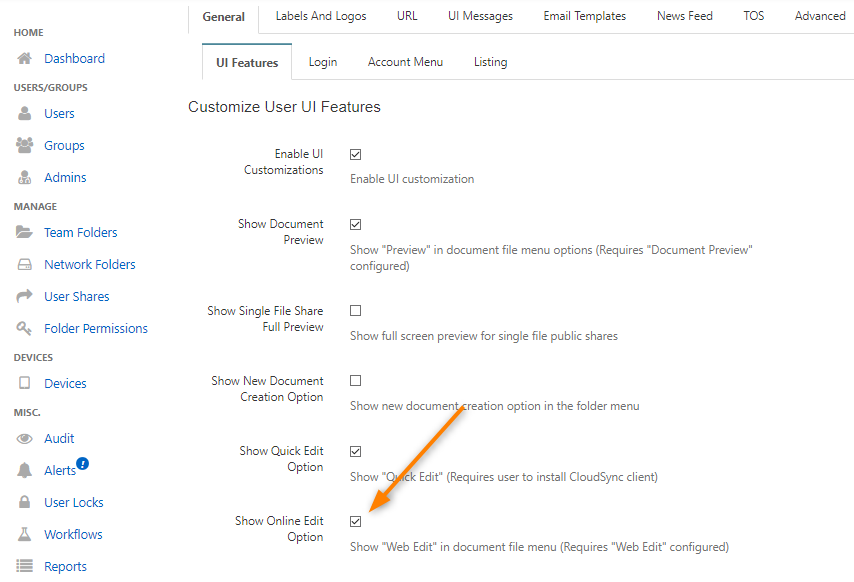
Now that FileCloud server is configured with office online server, enable the web edit option for users. To enable web edit in user portal and user clients, navigate to Customizations > General > UI Features and check Show Online Edit Option. Click Save.
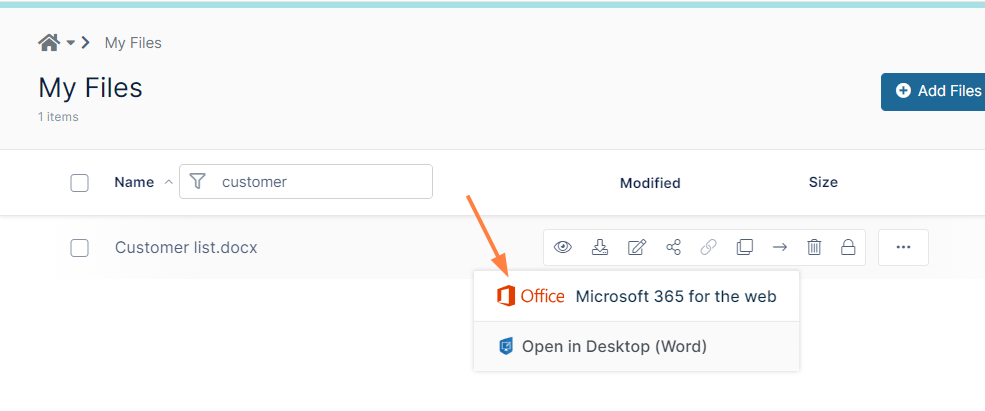
Now login in to the user portal and hover over an editable Office document. Hover over the Web Edit icon, and ensure that you see the Office icon and Microsoft 365 for the web.
Click the icon and confirm that the document opens in its Office for the web editor.
JavaScript errors detected
Please note, these errors can depend on your browser setup.
If this problem persists, please contact our support.