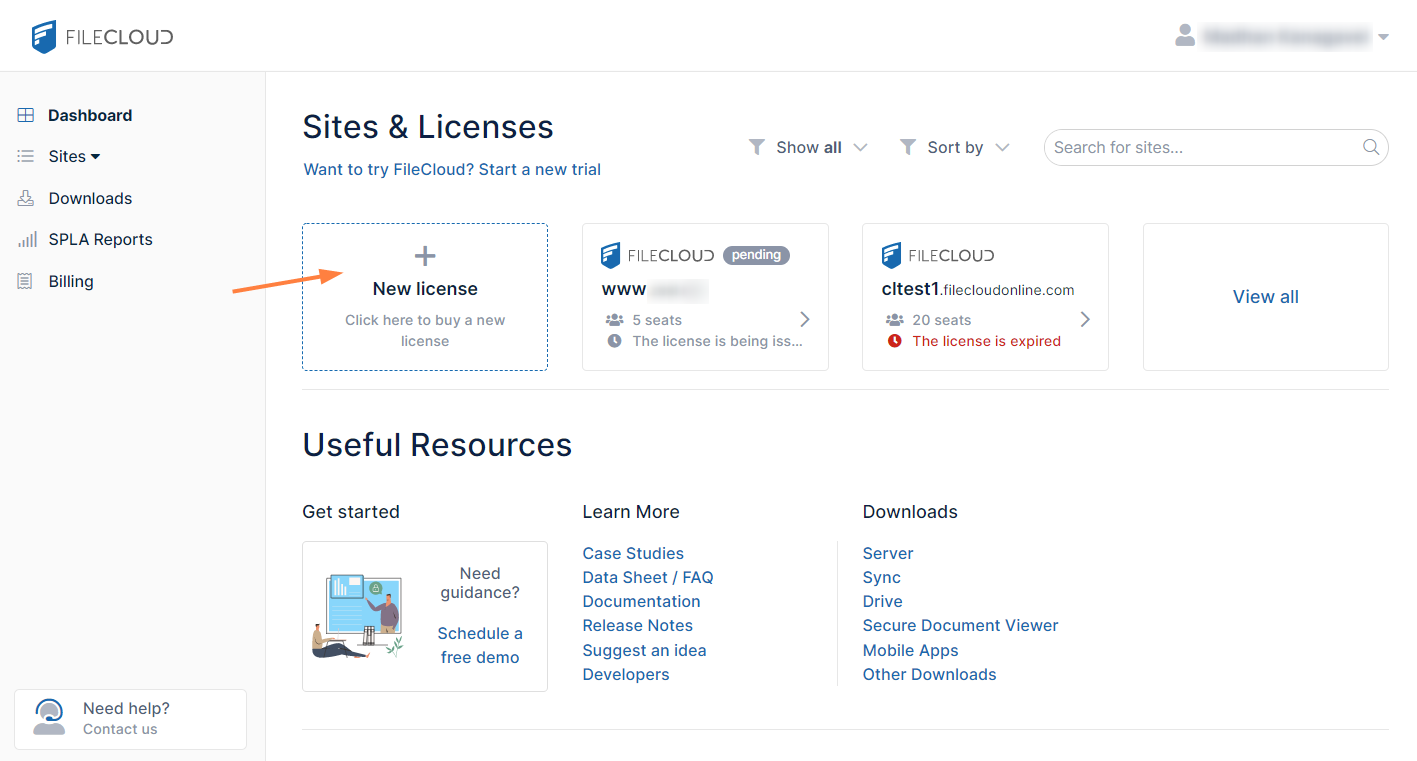
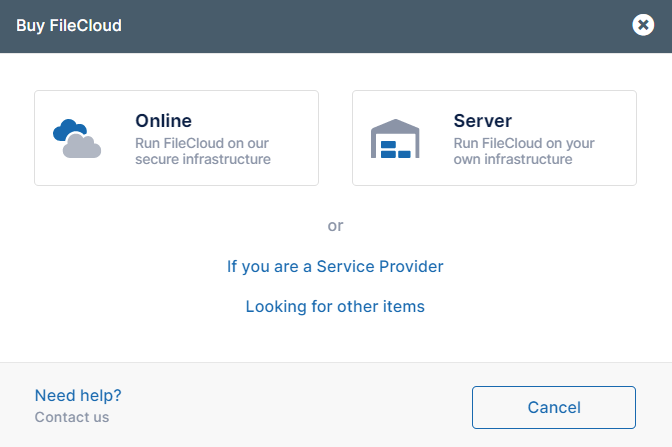
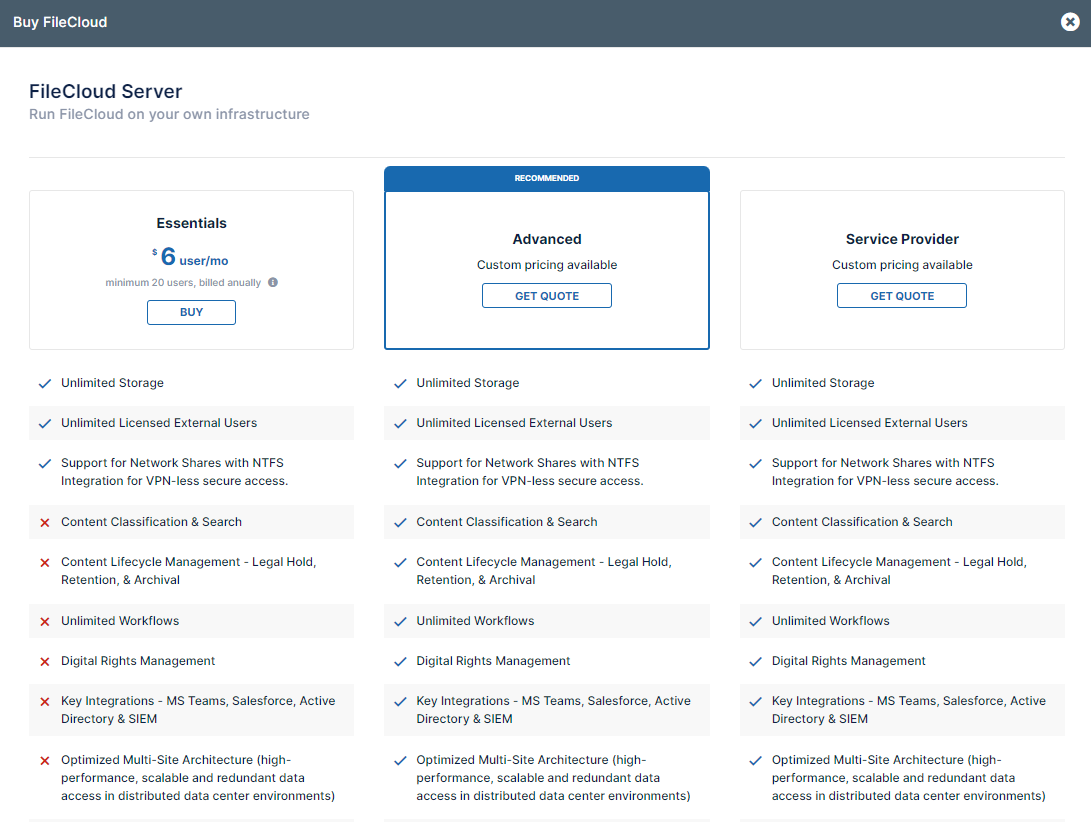
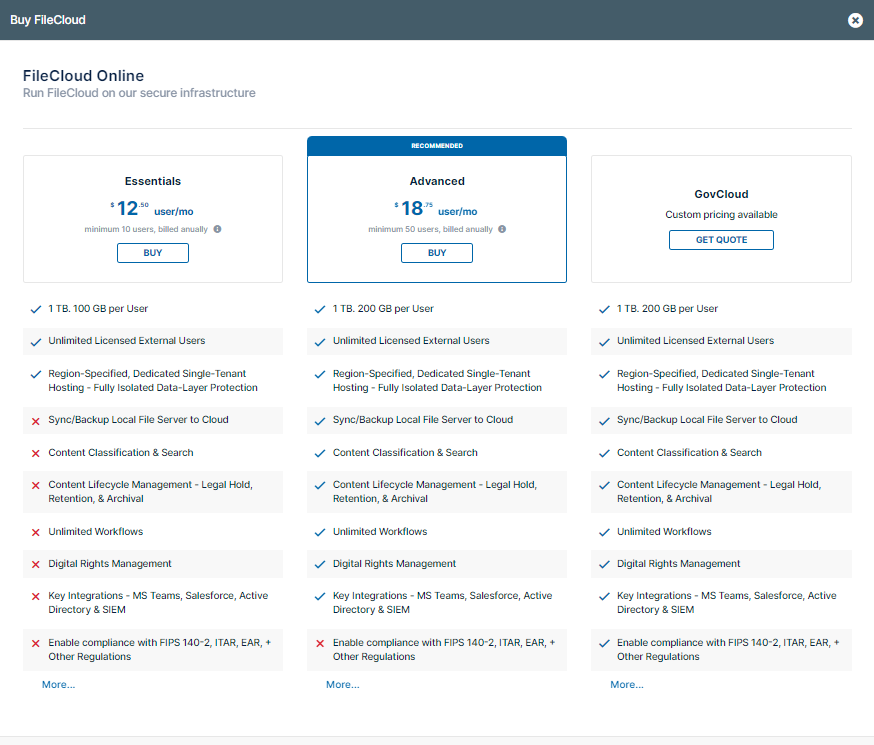
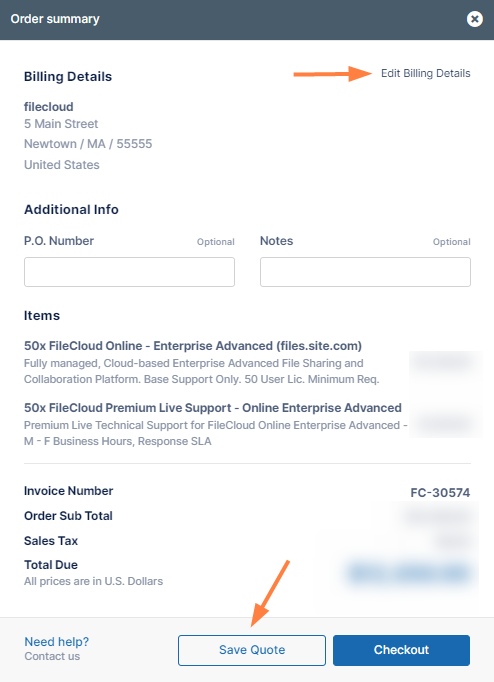
If you choose Online, the next window prompts you to choose Essentials, Advanced, orGovCloud.
If you click the GovCloud, in the window that opens, choose an option for contacting Sales and making your purchase.
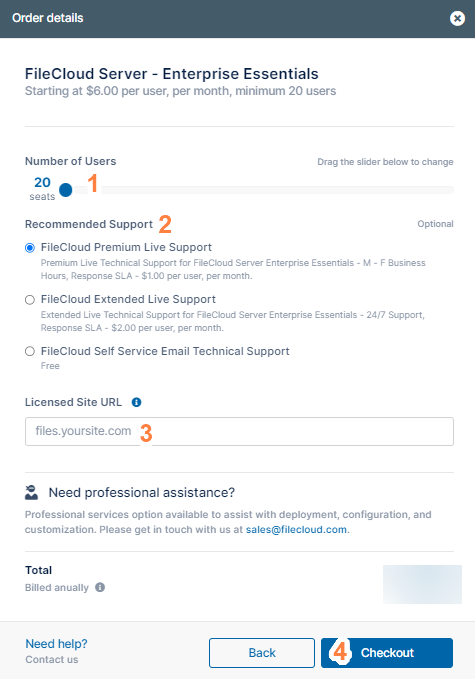
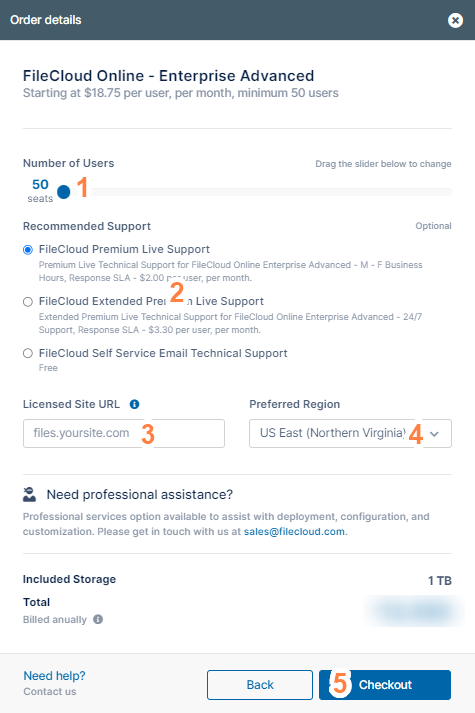
If you choose Essentials or Advanced, an Order details window opens. It is similar for both options, but shows different minimum number of users and support options.
Move the Number of Users slider to indicate the number of users to include.
Choose a support option.
In Licensed Site URL, enter your site address.
In Preferred Region, choose the region where you want your server located.
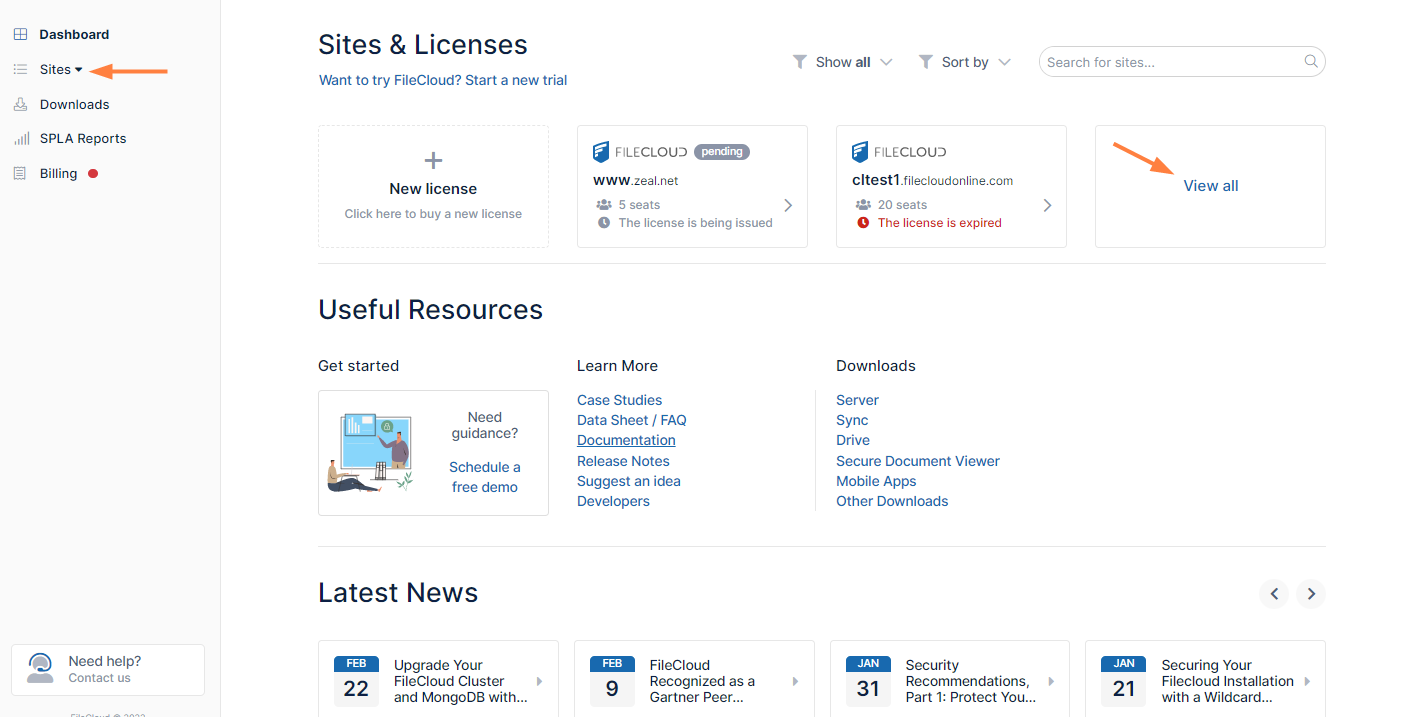
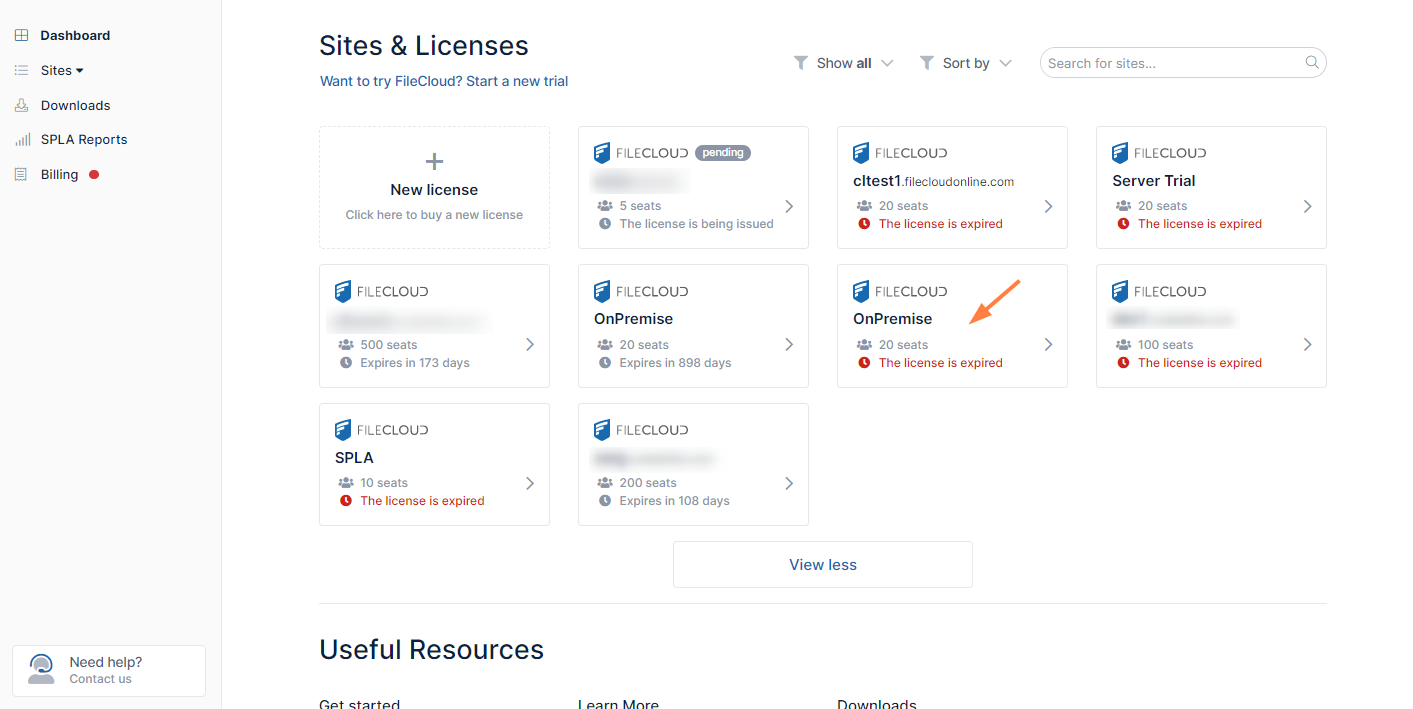
If you don't see the license you want to renew on the initial dashboard page, click View all to view all of your licenses. (You can also expand the Sites link in the navigation pane to see navigation links to all of your licenses.)
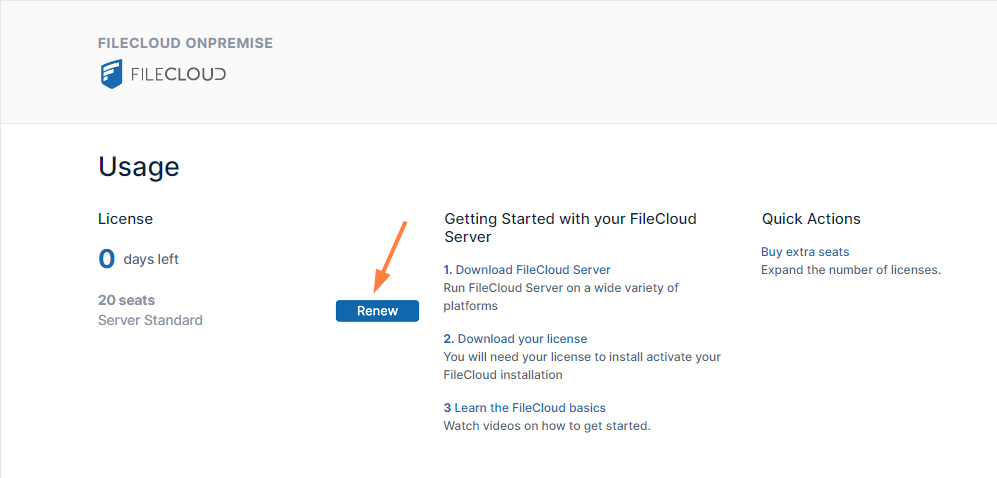
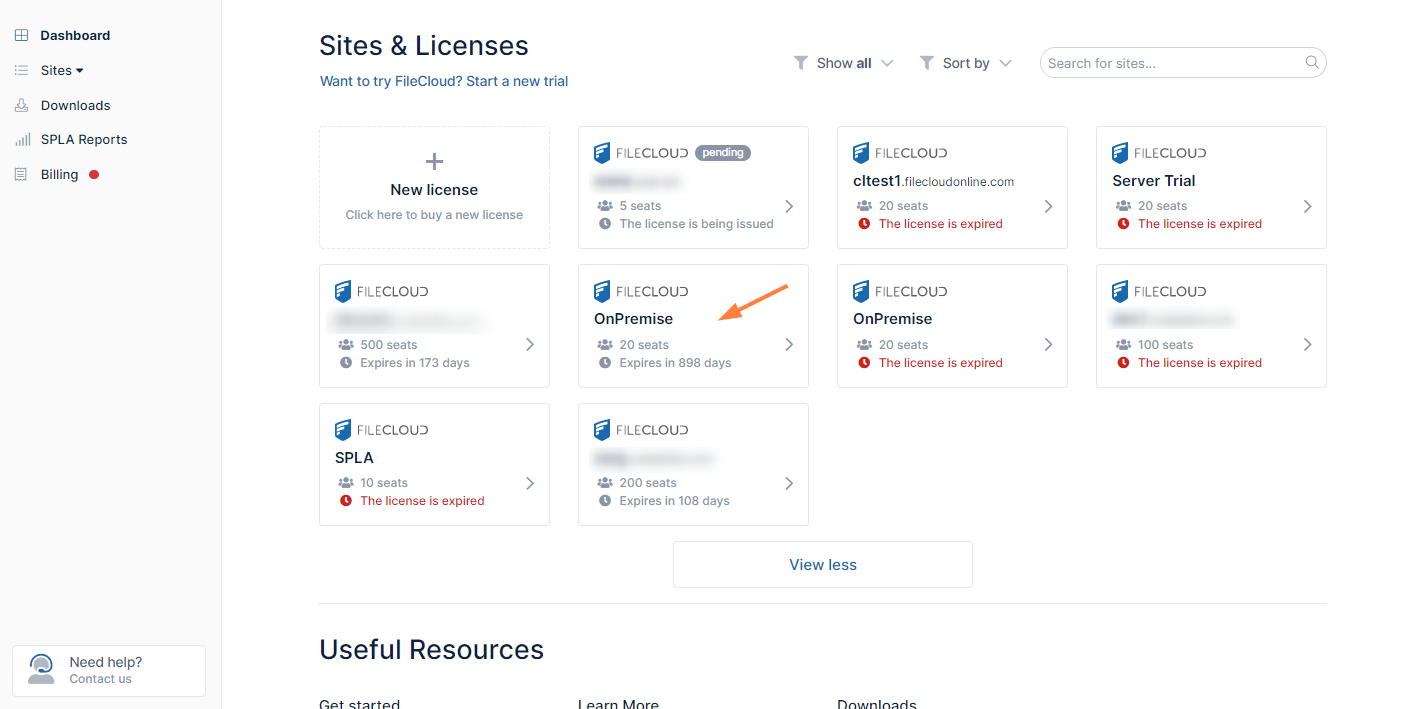
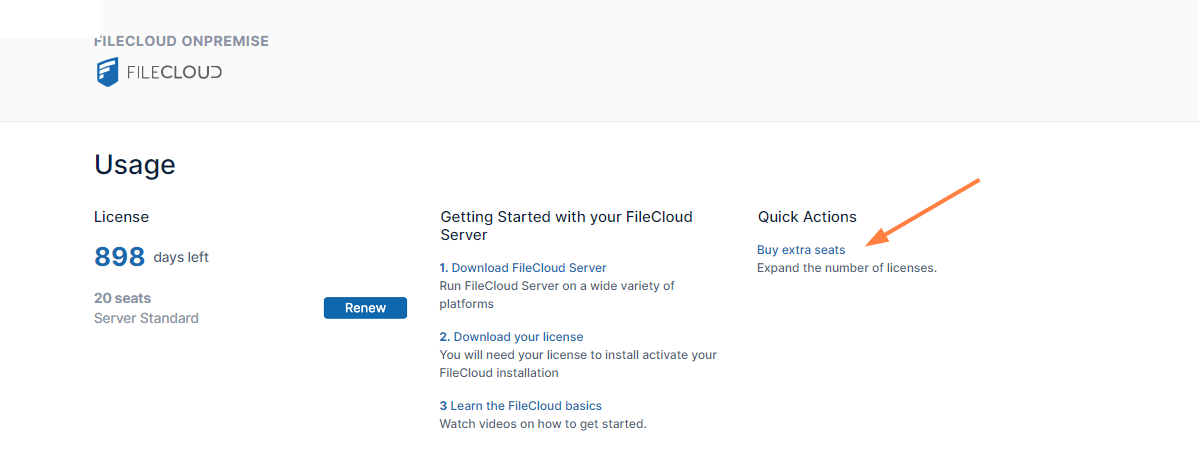
Find and click the license that you want to renew. A screen that displays the license details opens.
If you don't see the license you want to add users to on the initial dashboard page, click View all to view all of your licenses. (You can also expand the Sites link in the navigation pane to see navigation links to all of your licenses.)
Find and click the license that you want to add additional users to. . A screen that displays the license details opens.
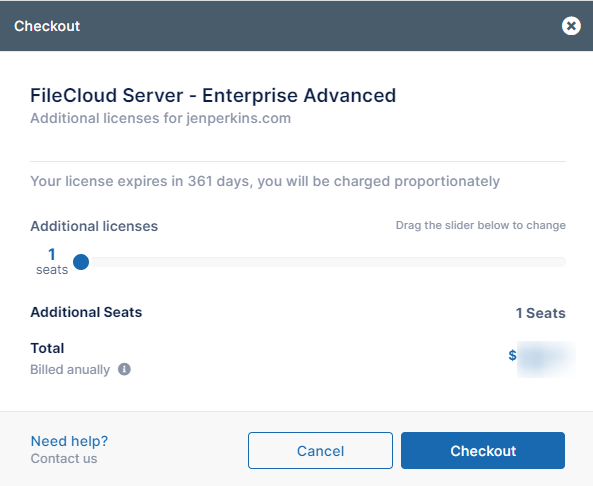
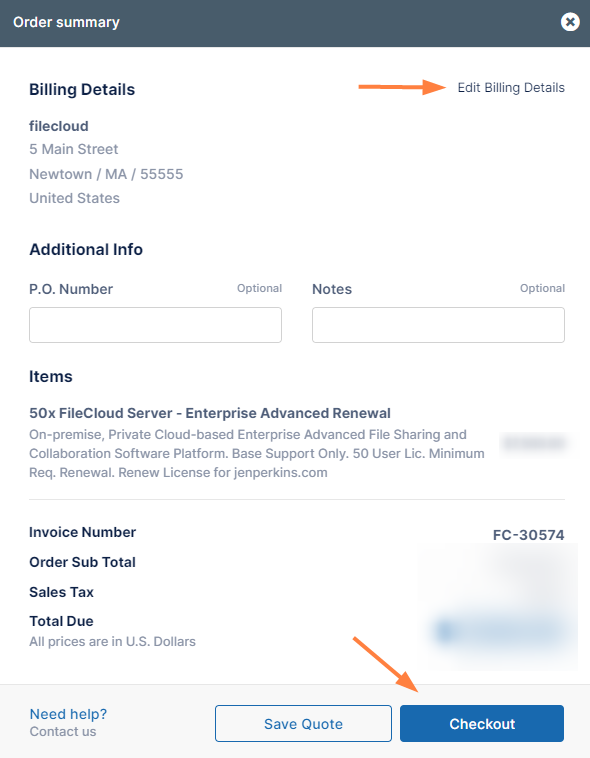
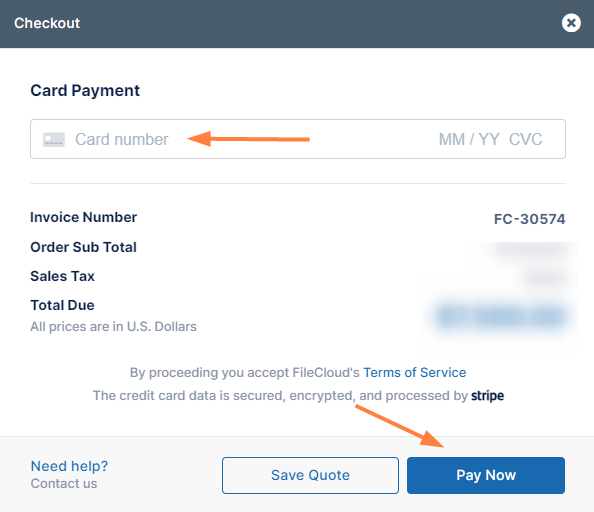
Click Buy extra seats. A checkout window opens. The number of extra seats is set to 1 by default.
If you want to purchase more than 1 extra seat, move the Number of Users slider to indicate the number of seats you want to buy.
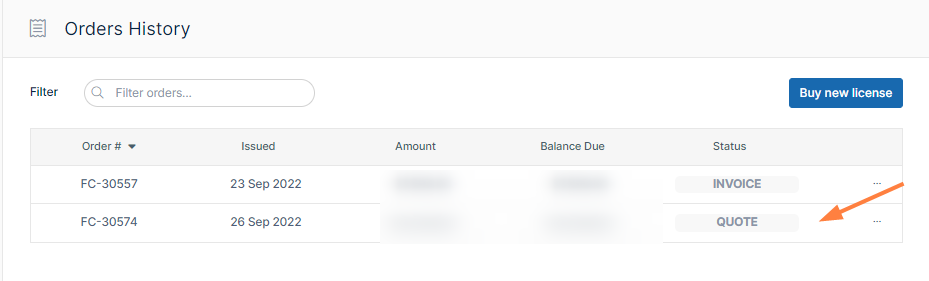
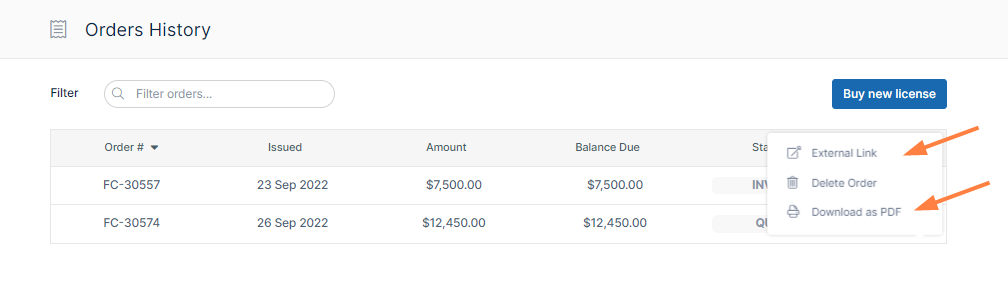
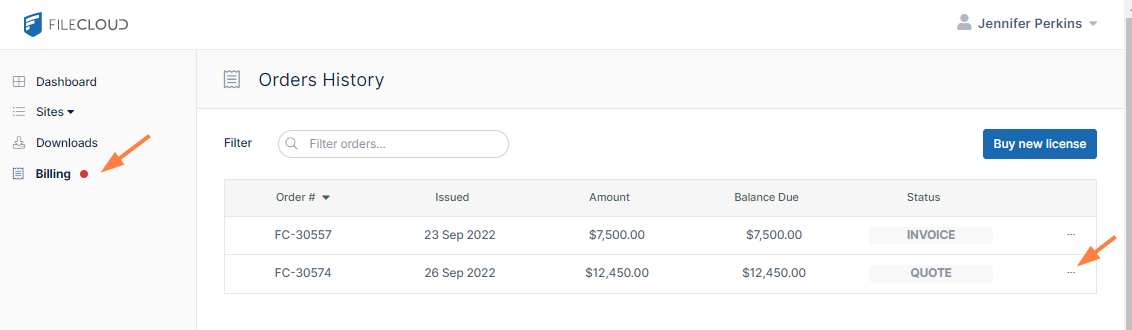
To the right of the order, click the More (triple-dot) icon.
You are given options to view the order in another link, delete it, or download it as a PDF. If you click External Link, you can copy the link and send it to another user to view the order or you can send it to FileCloud to purchase it. You can also send a copy of the PDF to FileCloud to purchase the order.
JavaScript errors detected
Please note, these errors can depend on your browser setup.
If this problem persists, please contact our support.