As an administrator, you can integrate CYBERARK SSO via SAML into FileCloud. Once integrated your users will be able to access FileCloud with their CYBERARK credentials.
CYBERARK is a cloud-based platform
Manage privileged accounts and credentials
Secure workforce and customer identities
Secure and manage access for applications and other non-human identities
In this integration scenario:
CYBERARK must be configured as an Identity Provider (IdP)
FileCloud will act as the Service Provider (SP)
Configure FileCloud with CYBERARK
In CYBERARK, create a new web app.
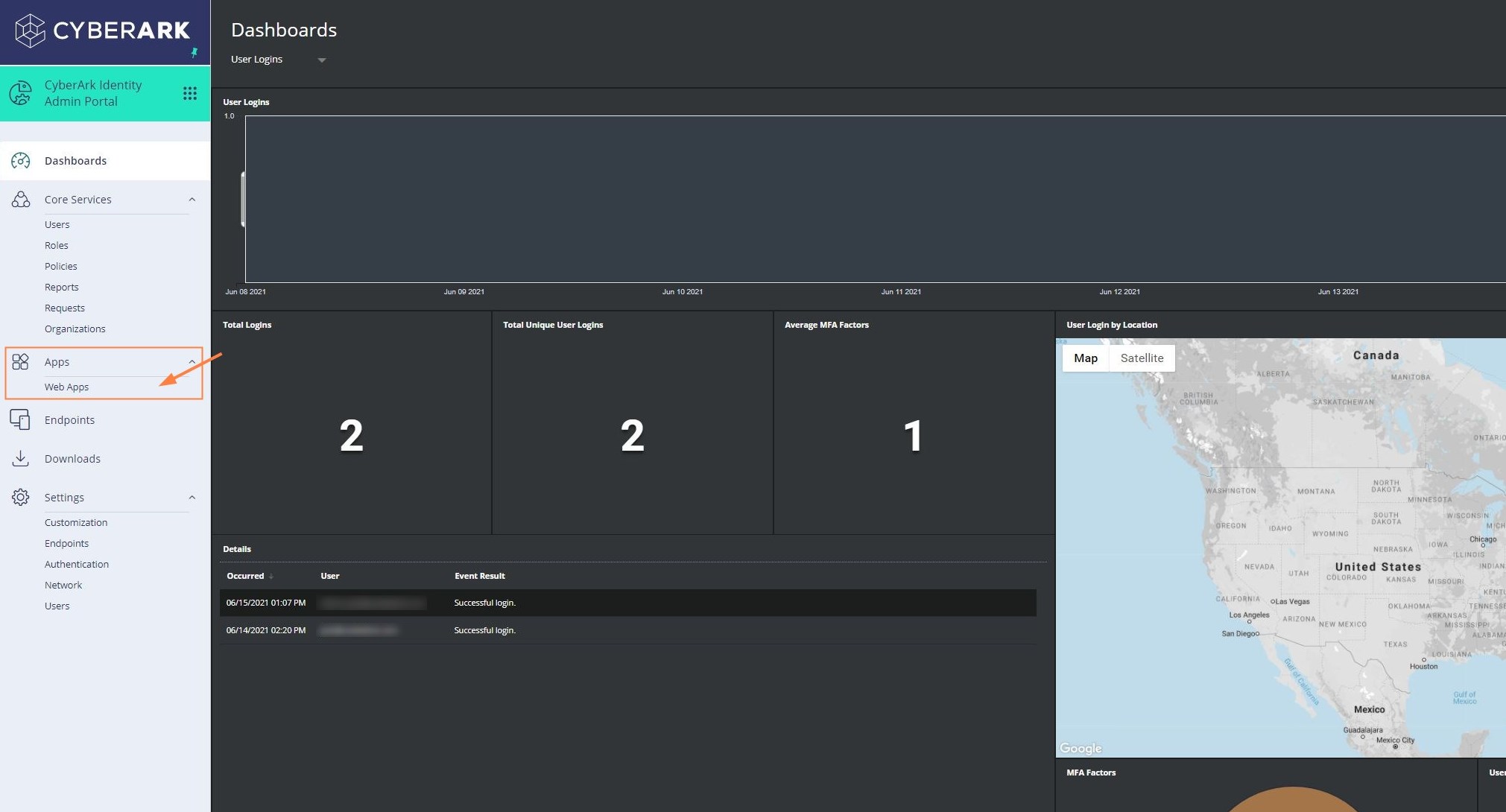
Open a browser and log in to your CYBERARK admin portal.
From the left navigation pane, click Web Apps.
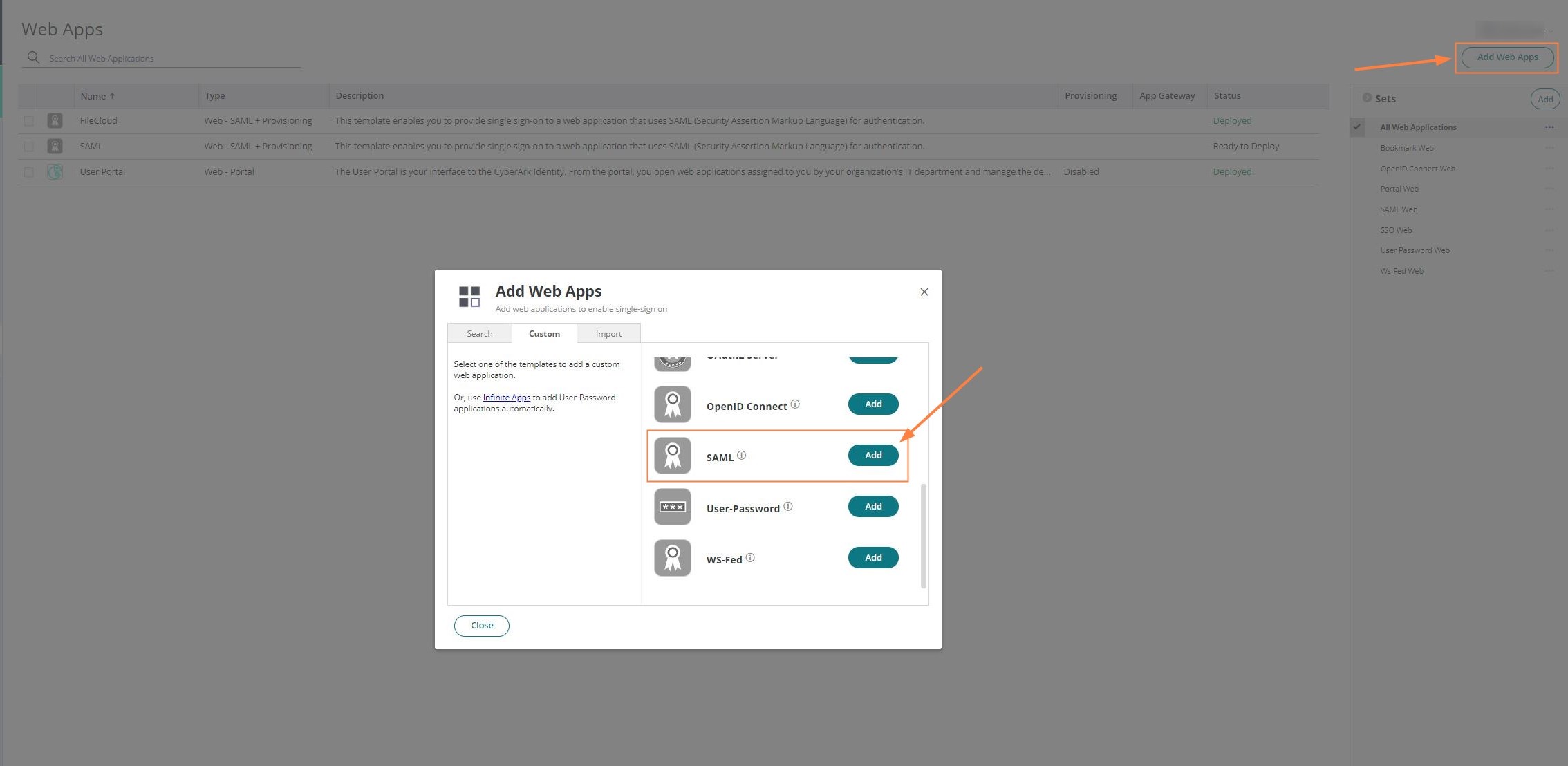
On the Web Apps screen, in the top right corner, click Add Web Apps.
In the Add Web Apps popup, select the Custom tab and scroll down until you find SAML,and click Add. A confirmation panel may appear. Click Yes, and then close to access the added SAML Web App.
In CYBERARK, configure the added SAML Web App.
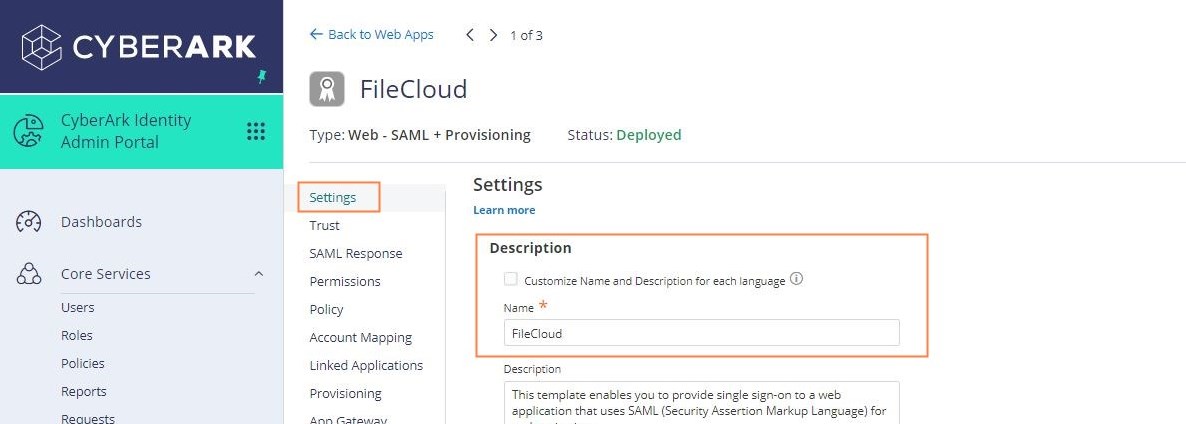
Click Settings in the navigation panel. In Description, enter a meaningful name such as FileCloud SSO. Click Save at the bottom-center of the screen.
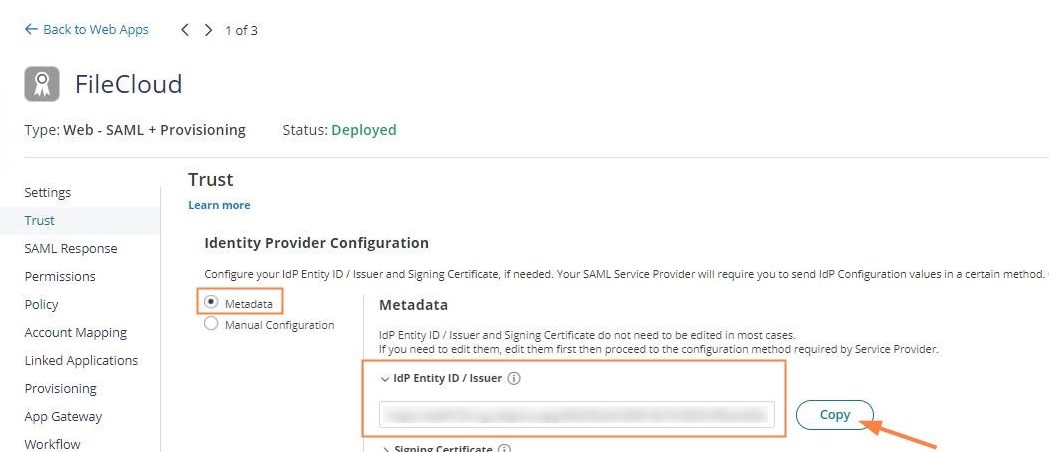
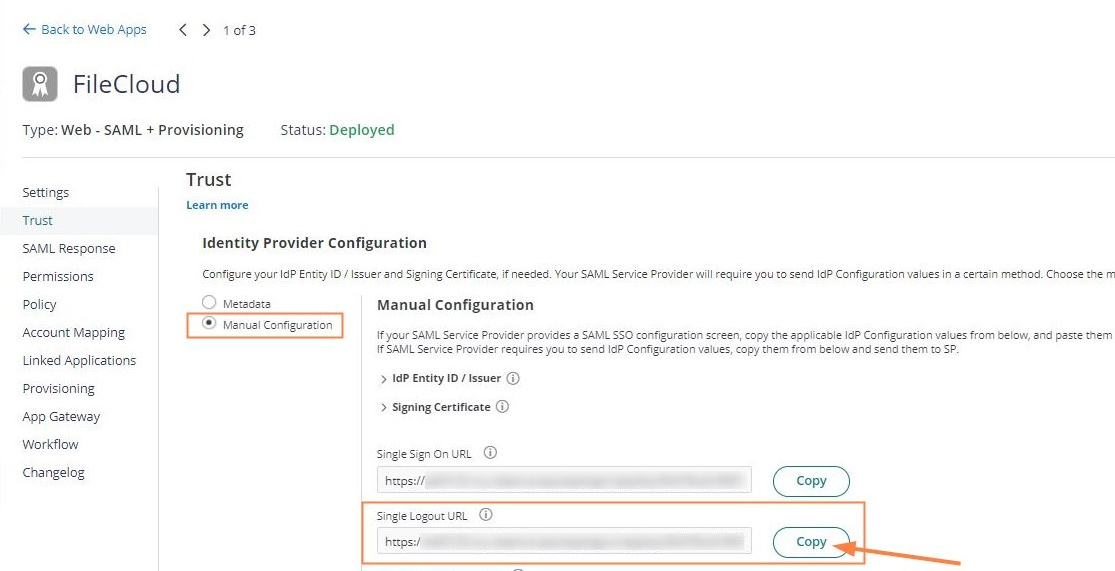
Click Trust in the navigation panel, and download the metadata file.
Under Identity Provider Configuration, expand IdP Entity ID /Issuer and copy the URL into a notepad.
Select Manual Configuration, and copy the Single Logout URL into a notepad as it will be used in the next steps.
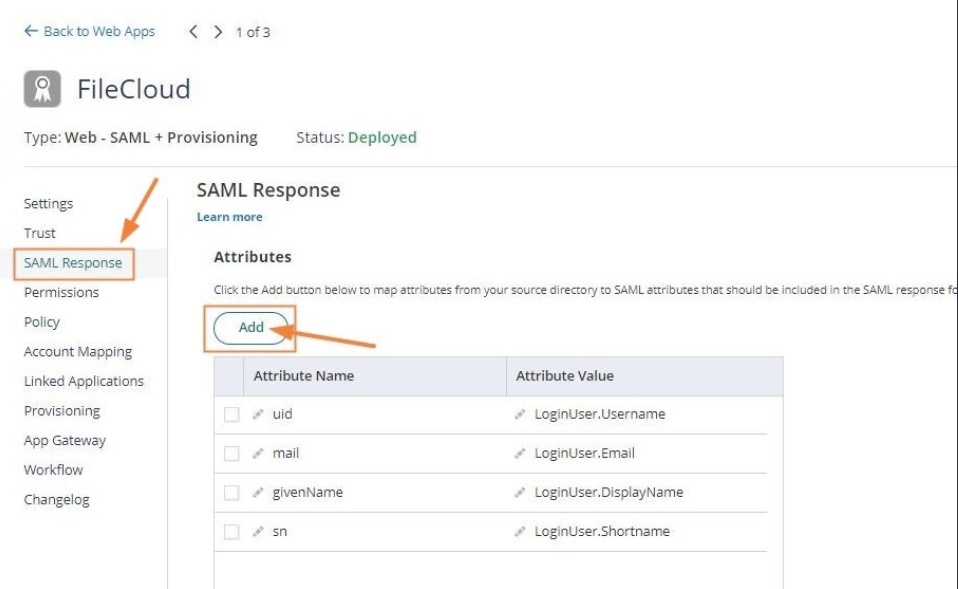
Access the SAML Response tab in the navigation panel, and add the following attribute values:
uid = LoginUser.Username mail = LoginUser.Email givenName = LoginUser.DisplayName sn = LoginUser.Shortname
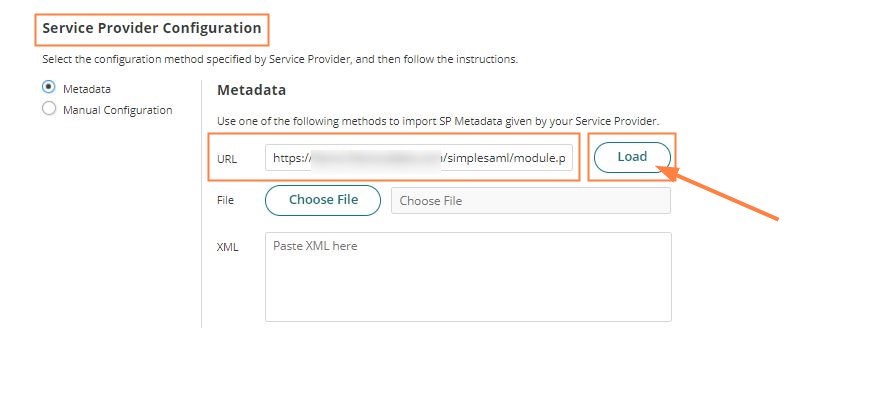
Export the metadata file into FileCloud and configure SSO.
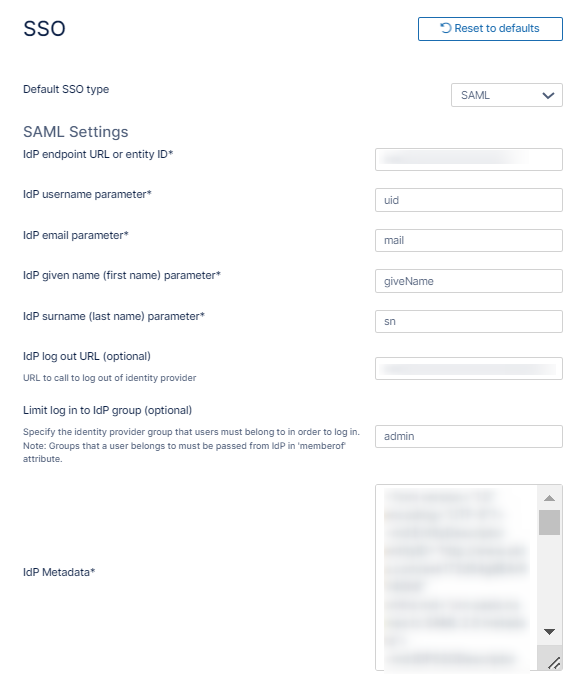
In the FileCloud admin portal's left navigation bar, scroll down and clickSettings.Then, on the Settings navigation page, click SSO . TheSSO page opens.
Configure the following attributes: IdP Username Parameter = uid IdP Email Parameter = mail IdP Given Name Parameter = givenName IdP Surname Parameter = sn
Paste the Single Logout URL copied in step 2d into IdP Log Out URL (Optional)
Paste the IdP Entity ID/Issuer URL copied in step 2c into Idp Endpoint URL or EntityID
Open the metadata file downloaded in step 2b, and copy its content intoIdP Metadata.
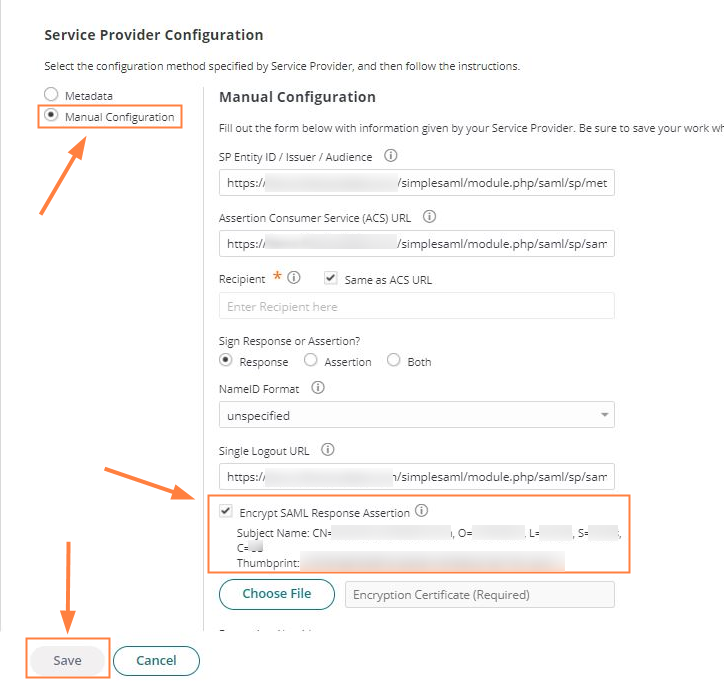
Once you have loaded FileCloud's metadata, change the settings from Metadata to Manual Configuration and disable Encrypt SAML Response Assertion. Click Save.
Complete CYBERARK SSO integration.
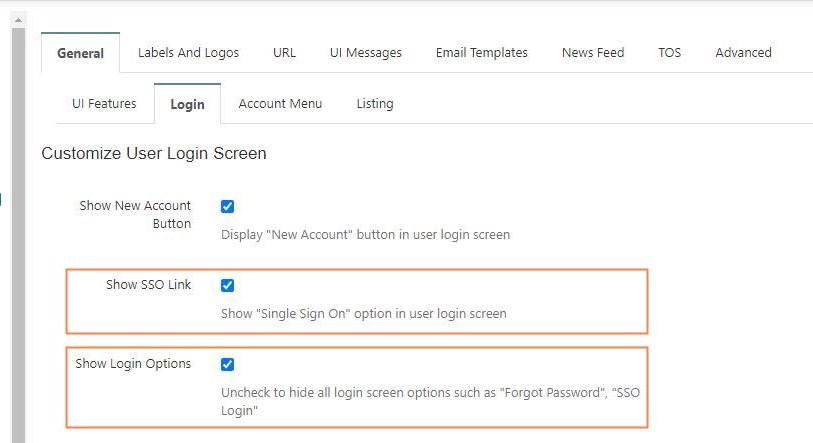
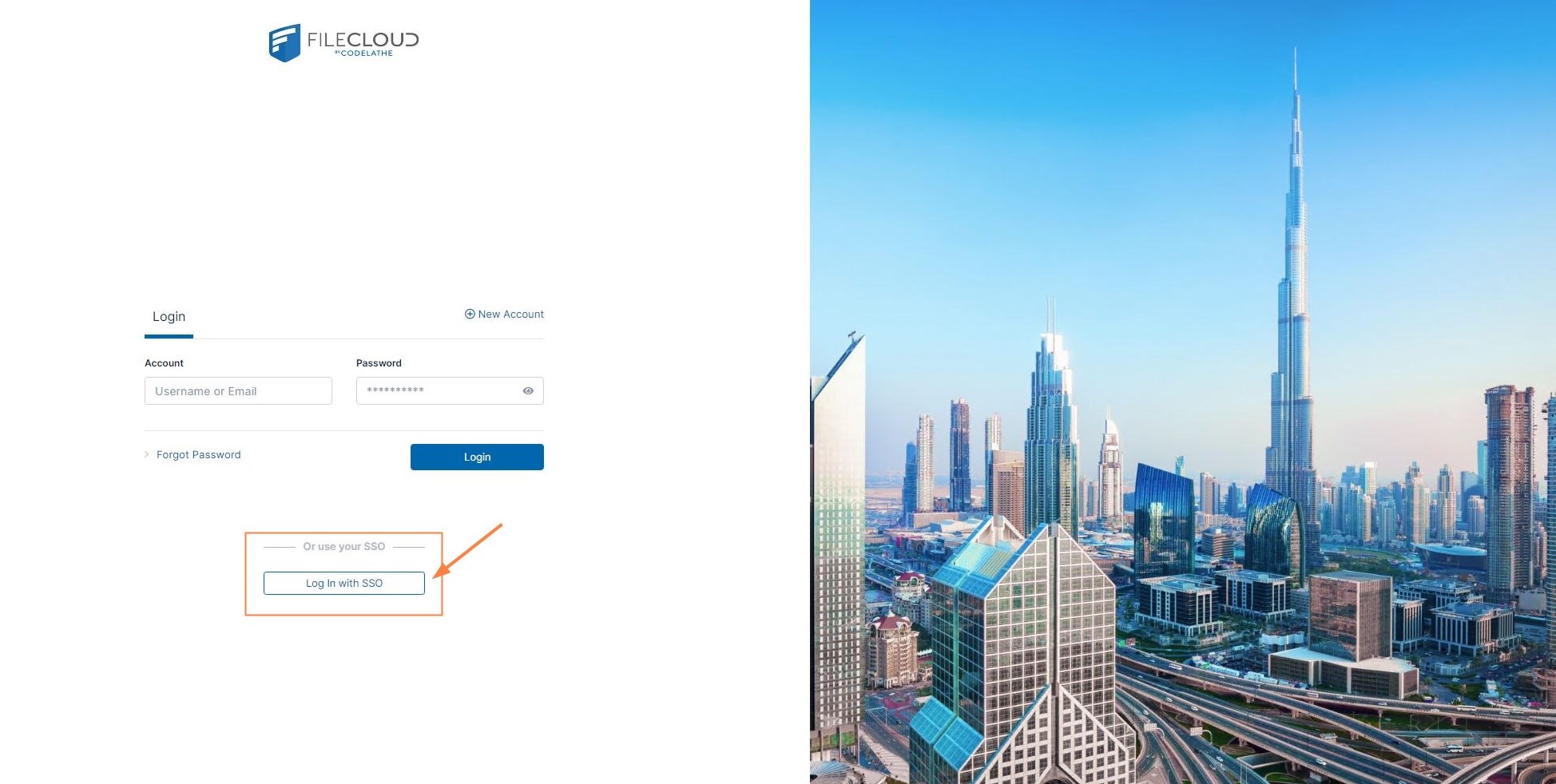
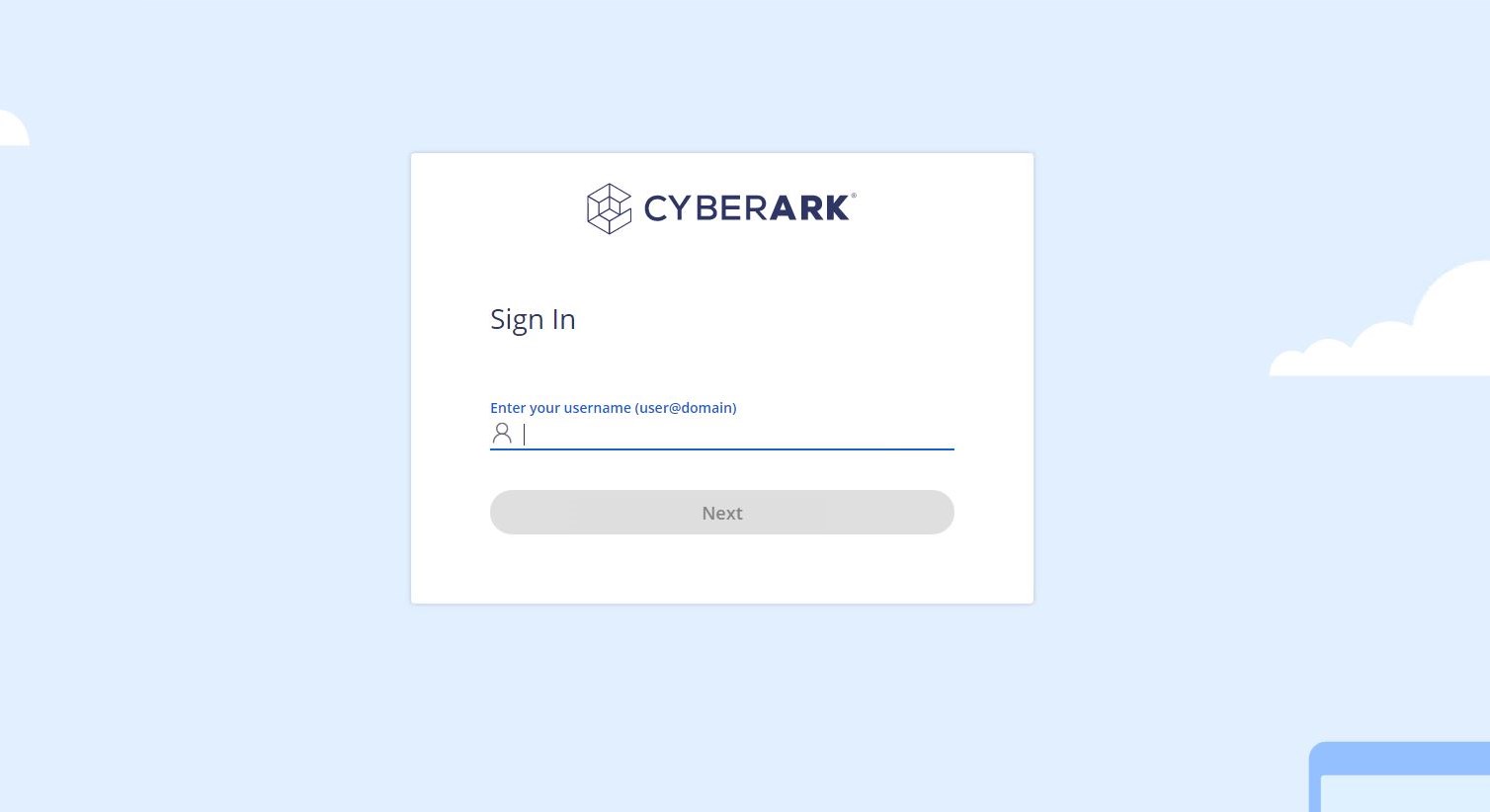
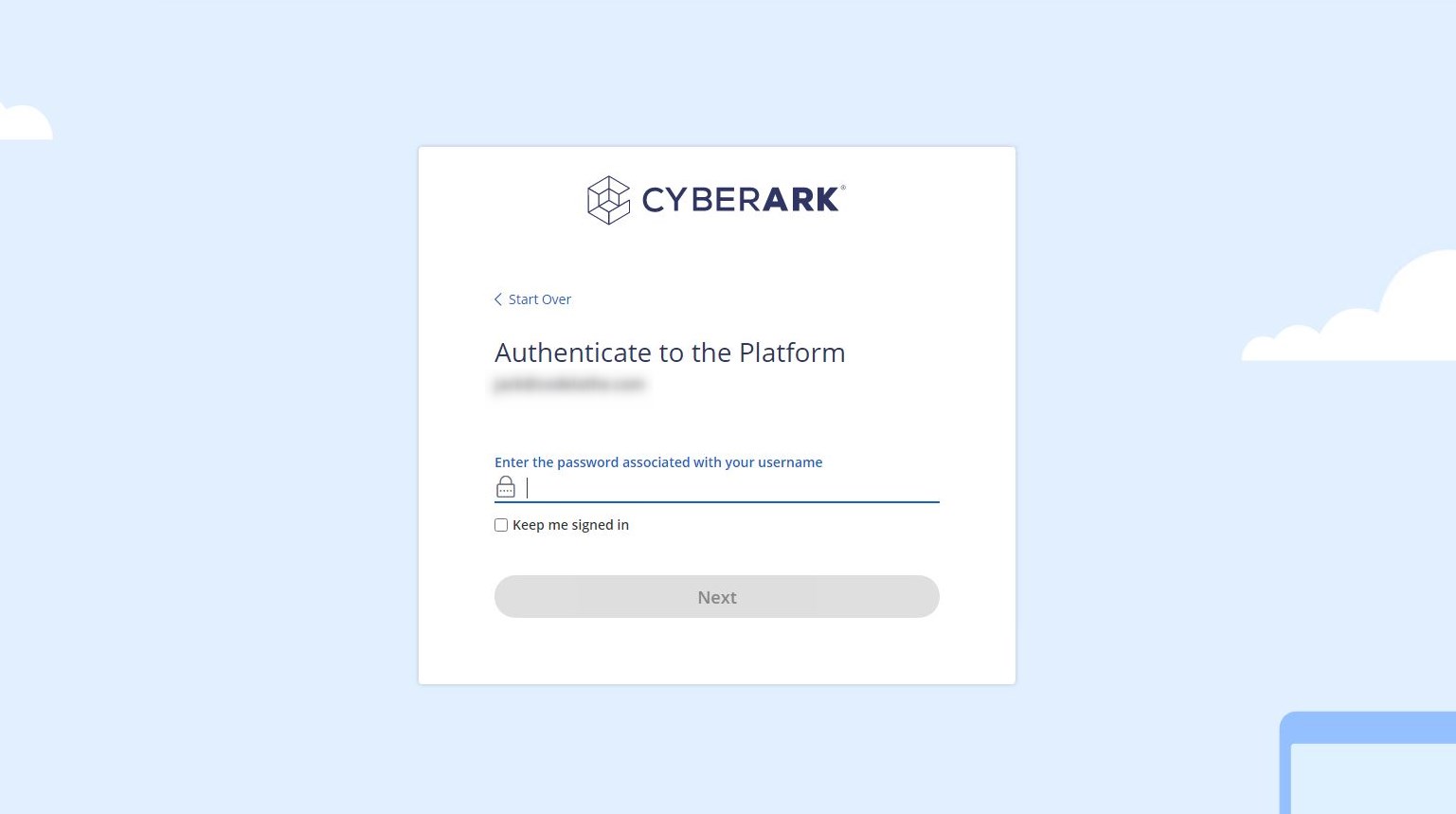
Access FileCloud's user portal and click Login In with SSO. You are redirected to your CYBERARK login page.
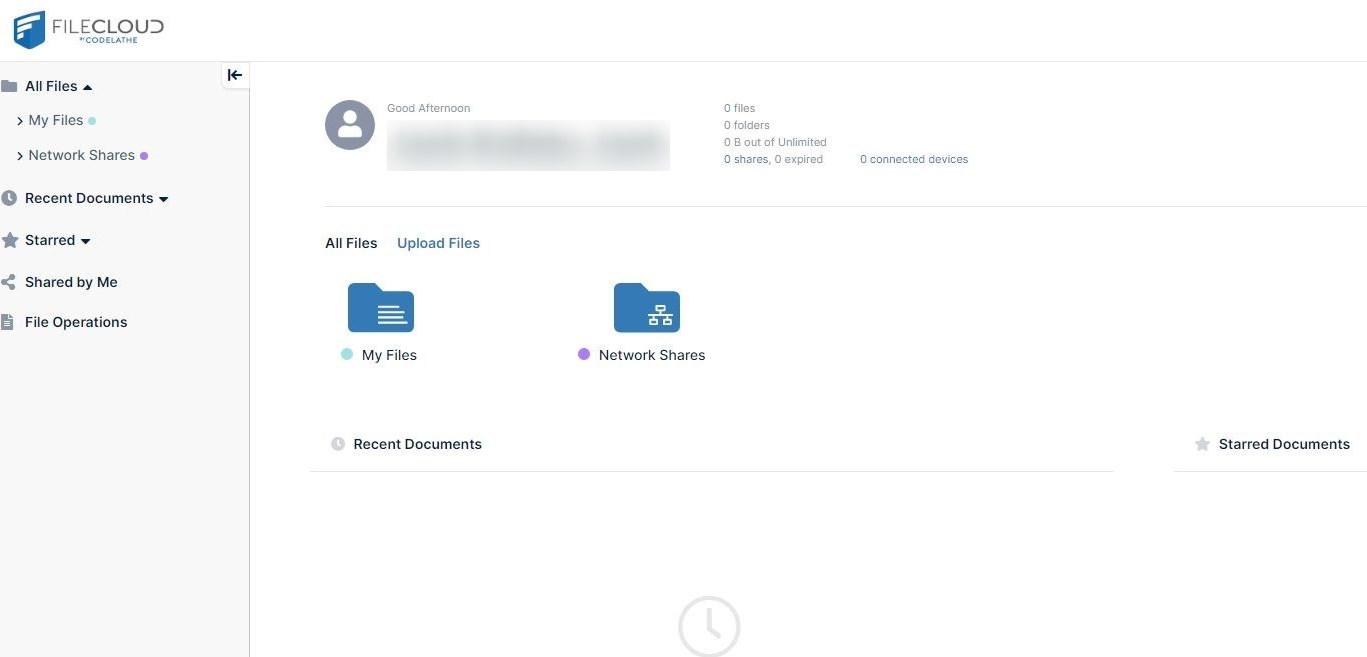
Complete your user authentication. You are redirected to FileCloud. Now you can use single sign-on with CYBERARK from FileCloud.
JavaScript errors detected
Please note, these errors can depend on your browser setup.
If this problem persists, please contact our support.