As an administrator you can integrate these two systems so that your JumpCloud users can access their FileCloud account without having to enter their credentials a second time.
JumpCloud’s is a cloud-based platform
It enables IT teams to securely manage user identities
It connects teams them to resources they need regardless of provider, protocol, vendor, or location
In this integration scenario:
JumpCloud must be configured as an Identity Provider (IdP)
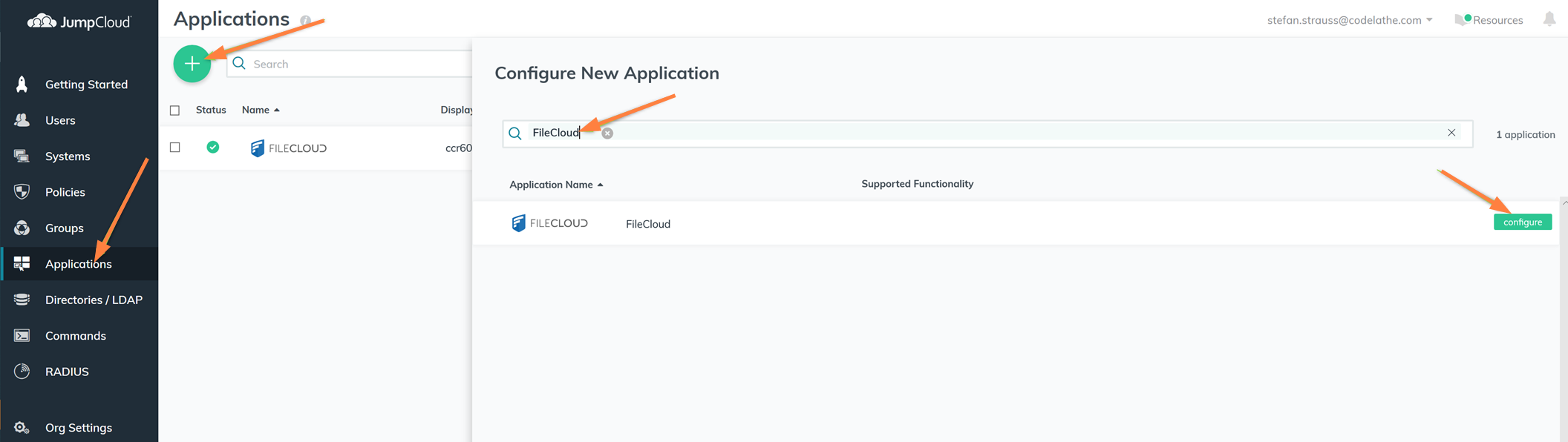
From the left navigation pane, click Applications.
On the Applications screen, to add a new application, click the plus sign.
In the Configure New Application screen, enter FileCloud in the search field and click configure.
2. In JumpCloud, configure the FileCloud application
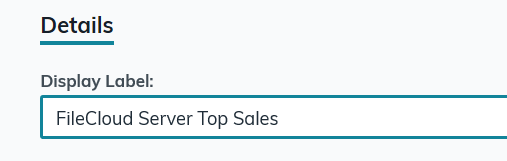
In Display Label, enter a meaningful name.
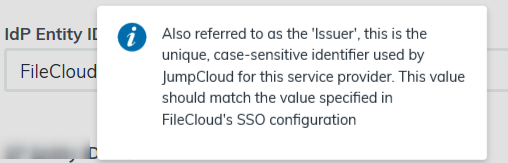
In IDP Entity ID, enter a unique, case-sensitive identifier to be used by JumpCloud for this FileCloud service provider.
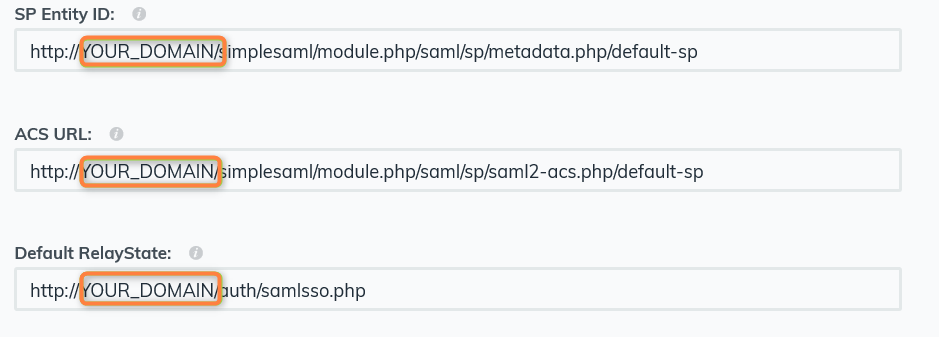
Replace YOUR_DOMAIN with your domain name in all fields.
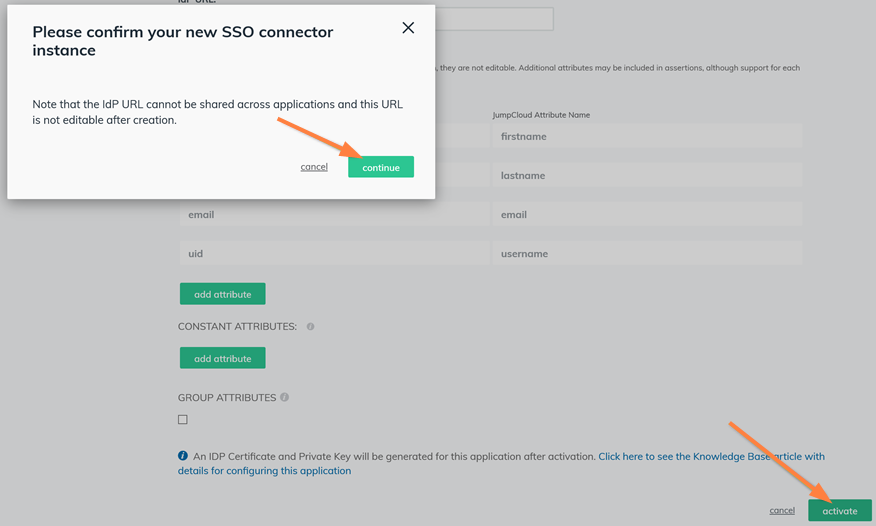
Enter a unique value for IdP URL. Note that the IdP URL cannot be shared across applications, and this URL is not editable after creation.
3. In JumpCloud, activate the new application and export metadata and certificate
In JumpCloud, on the configuration screen, save and activate the new application
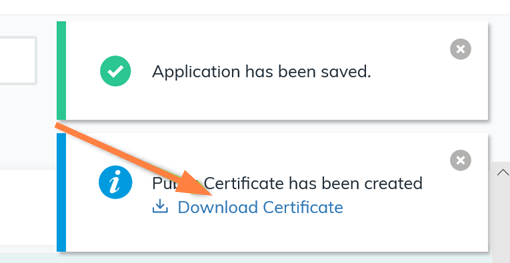
Download the generated certificate.
4. In JumpCloud, create a group and add users
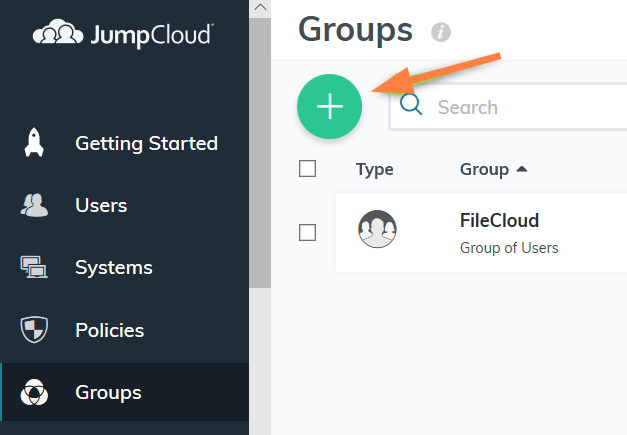
In JumpCloud, on the Groups screen, click the plus sign to add a new group.
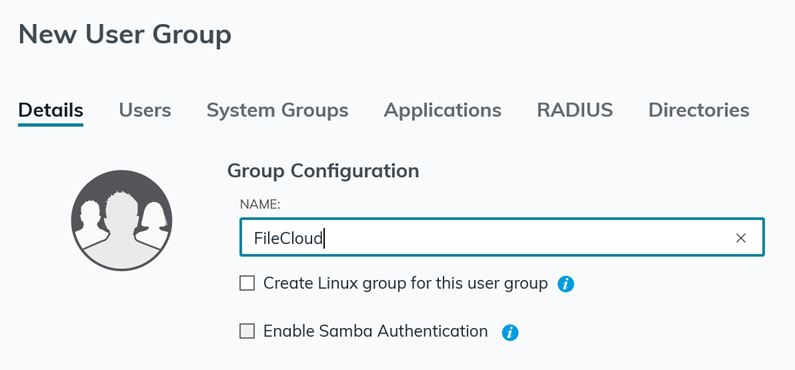
Enter the group name.
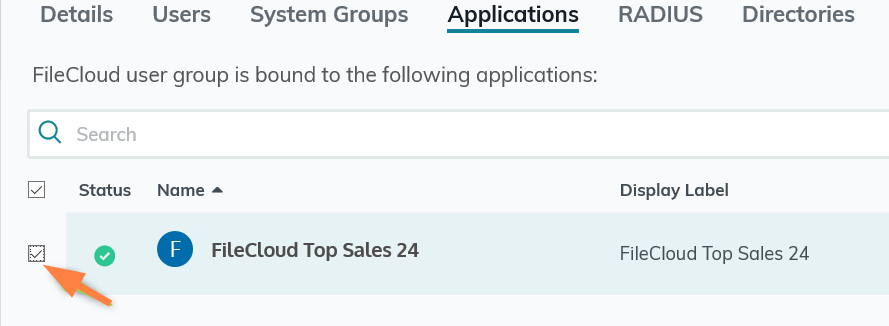
Enable the group to access FileCloud.
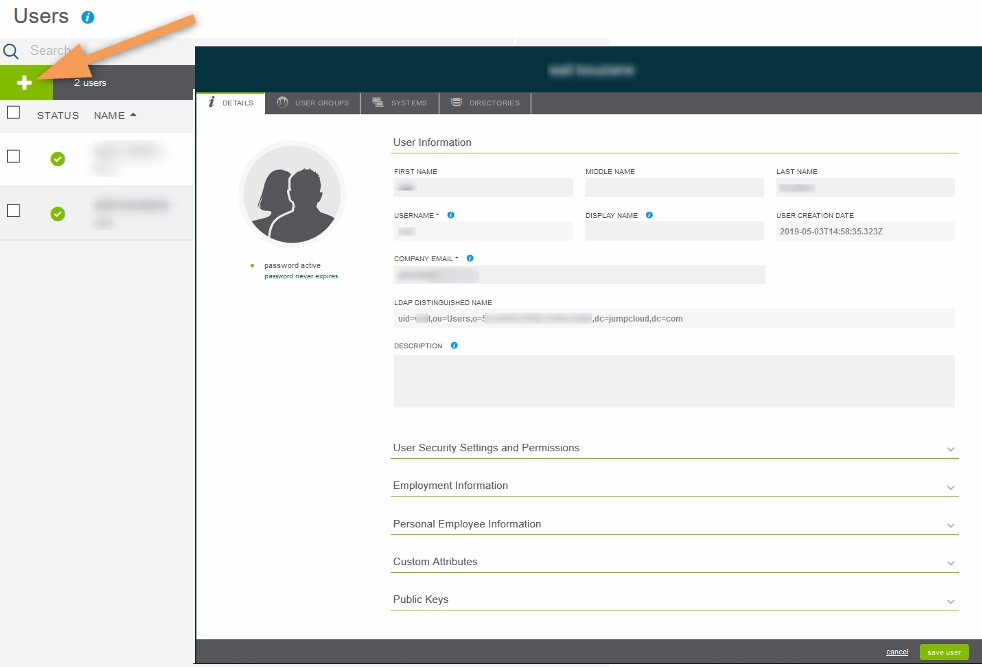
On the Users screen, click the plus sign to add a new user.
On the New User screen, click the Details tab and type in the user's information.
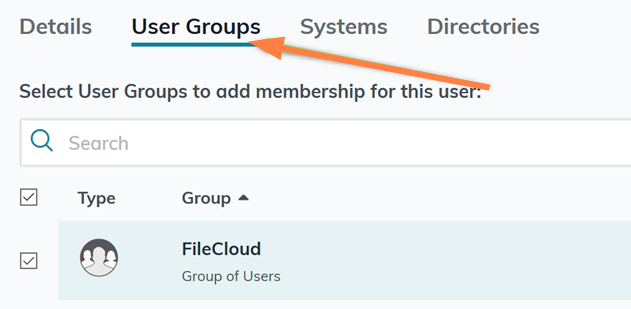
On the New User screen, click the User Groups tab and add the user to your FileCloud group.
Click Save User.
5. In FileCloud, configure the SSO settings.
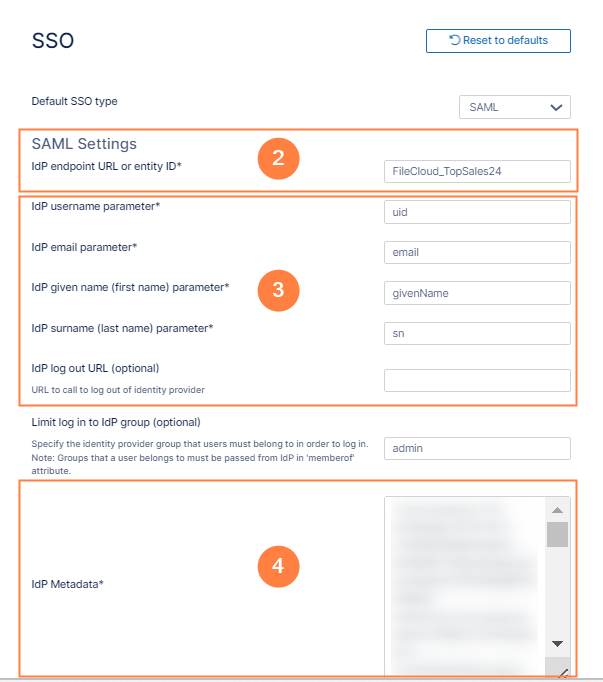
In the FileCloud admin portal's left navigation bar, scroll down and clickSettings.Then, on the Settings navigation page, click SSO . TheSSO page opens.
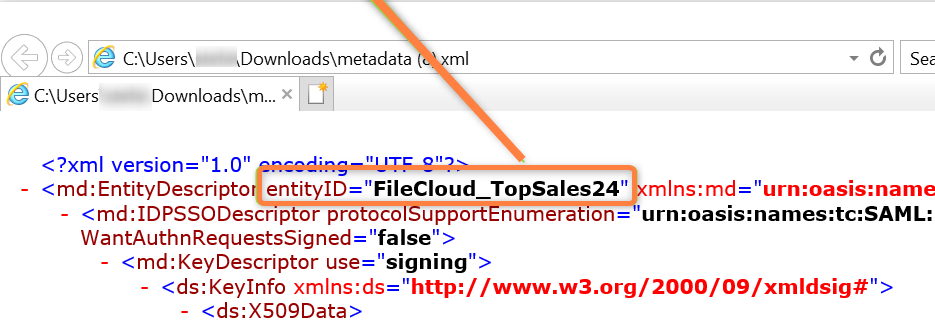
In Idp End Point URL, type or paste in the same value as theIdP Entity ID that you entered into JumpCloud. The correct string can also be seen in the metadata xml file:
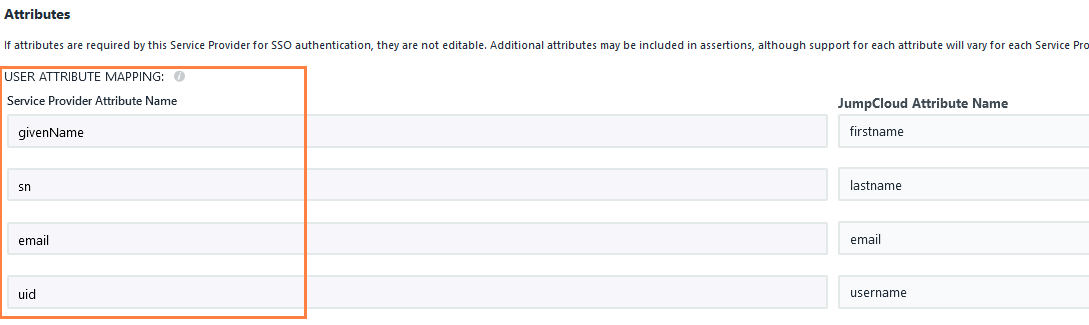
Input the Service Provider Attribute Name information from the JumpCloud configuration screen into the corresponding fields in the FileCloud Settings > SSO tab. Copy these values from JumpCloud: Enter them into the corresponding settings in FileCloud on the Settings > SSO tab.
On the server, open the XML file that contains the metadata you exported from JumpCloud. Copy the metadata in the file and paste it into theIdP Metadata field in FileCloud.