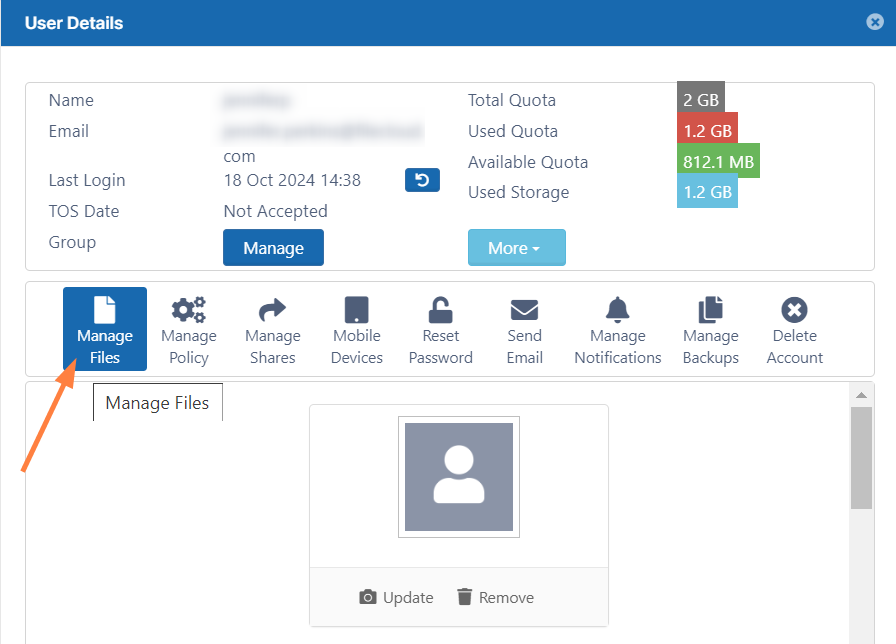
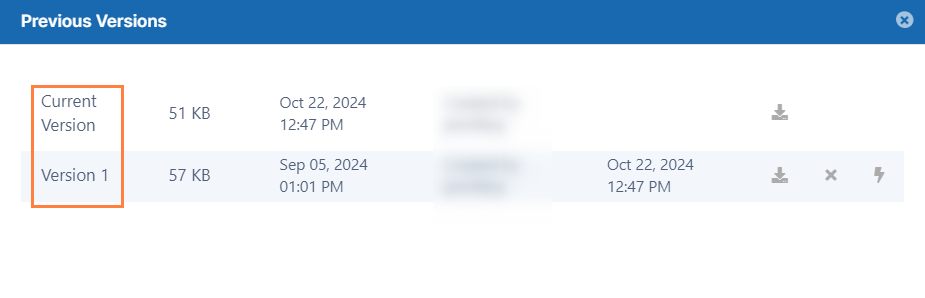
In the Manage files screen, navigate to a file and click its Versions icon .
The Previous Versions window opens and lists all versions of the file.
If file versioning is causing issues, you can turn it off.
File versioning can cause loss of data when a user accidentally overwrites a file with the same name.
Users may be storing too many unnecessary versions of a file and are taking up too much space.
When you configure file versioning, use the following values:
Option
Setting
Result
Number of old versions to keep for each file
-1
The user tries to upload another version but the upload will FAIL
Number of old versions to keep for each file
any number greater than 0
When the user uploads a new version of a file, it is saved, and the latest<Number of old versions to keep for each file> versions are kept.
To manage file versioning:
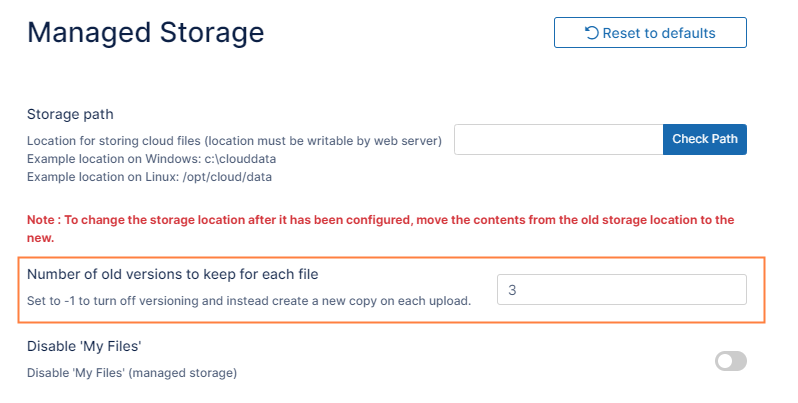
In the FileCloud admin portal's left navigation bar, scroll down and clickSettings.Then, on theSettingsnavigation page, clickStorage. TheManaged Storage settingspage opens by default.
In Number of old versions to keep for each filetype in -1 to turn versioning off or any number greater than 0 to use versioning.
To save your changes, click Save.
JavaScript errors detected
Please note, these errors can depend on your browser setup.
If this problem persists, please contact our support.



 If file versioning is causing issues, you can turn it off.