You must be logged on as an Administrator or be a member of the Administrators group in order to perform Device Management actions.
As an administrator, you can manage the various clients connecting to the FileCloud instance.
This feature is called Remote Client Management (RCM) or Data Leak Prevention Control (DLPC)
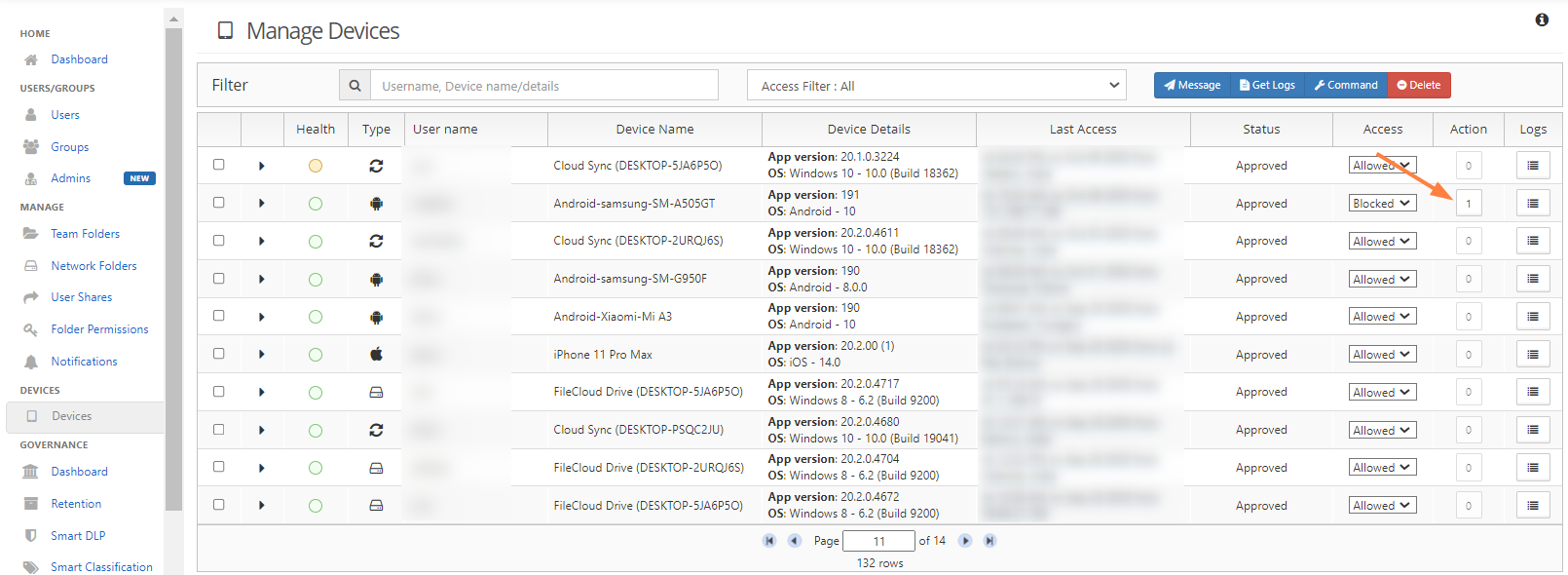
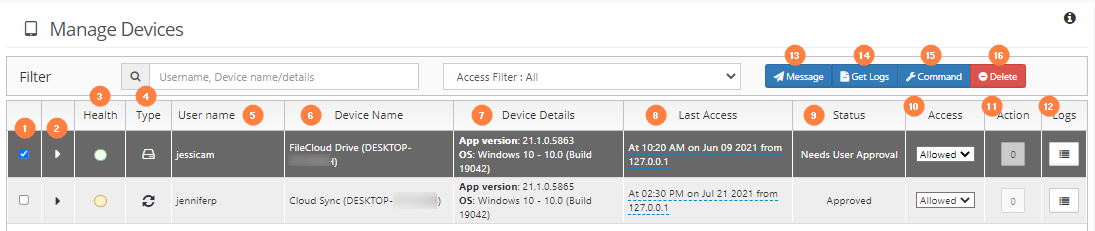
What Do All These Columns Mean?
Column
Title
Description
1
Checkbox to identify the client device record you are working with
2
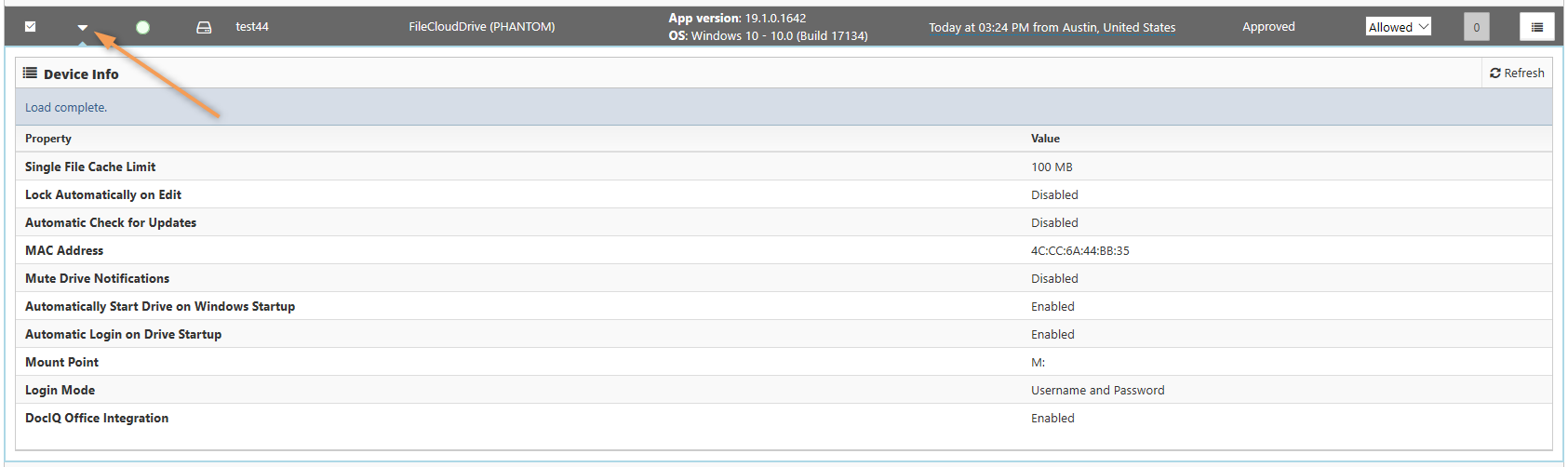
Arrow to expand or collapse device details
3
Health
Health icon displayed as a color
Green = Healthy
Yellow = Needs Attention
4
Type
Client device icon
5
User Name
The account name that user logged in with on the client device
6
Device Name
The device name as setup by the client device.
This can be generic like "Cloud Sync" or "Client Drive" or specific like "Anis' iPhone 5"
7
Device Details
Displays the OS type, OS version and the Client App's version.
8
Last Access
Displays the last time this device connected to the FileCloud server
Also displays the location where the client connected from
9
Status
Indicates whether the device has been Approved or Not Approved for Access by the administrator
10
Access
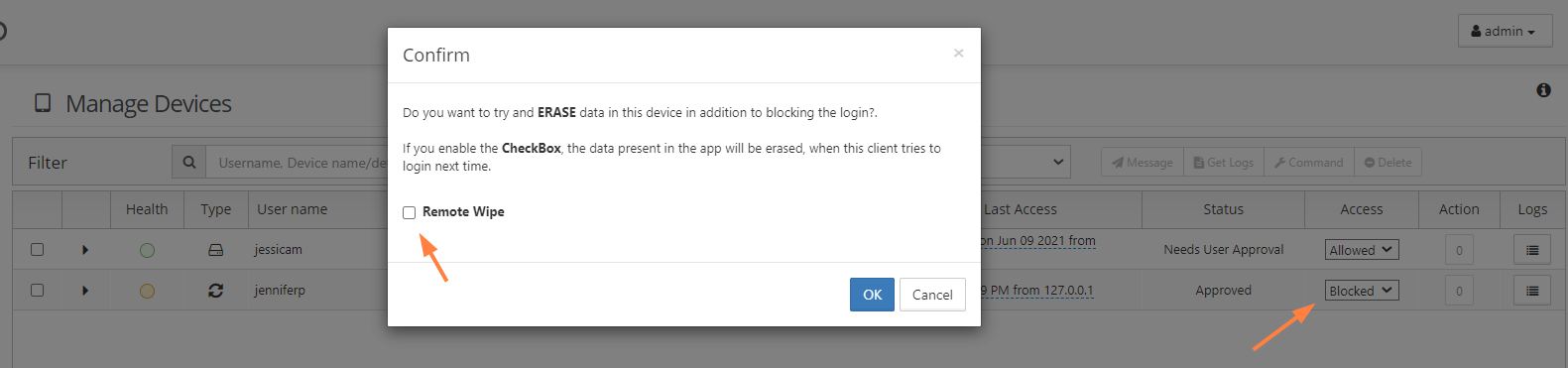
Indicates if the device can connect or not.
Allow
Block
Remote wipe
11
Action
The list of queued actions for that client device, such as the number of messages.
12
Logs
Folder to view uploaded logs from the client
13
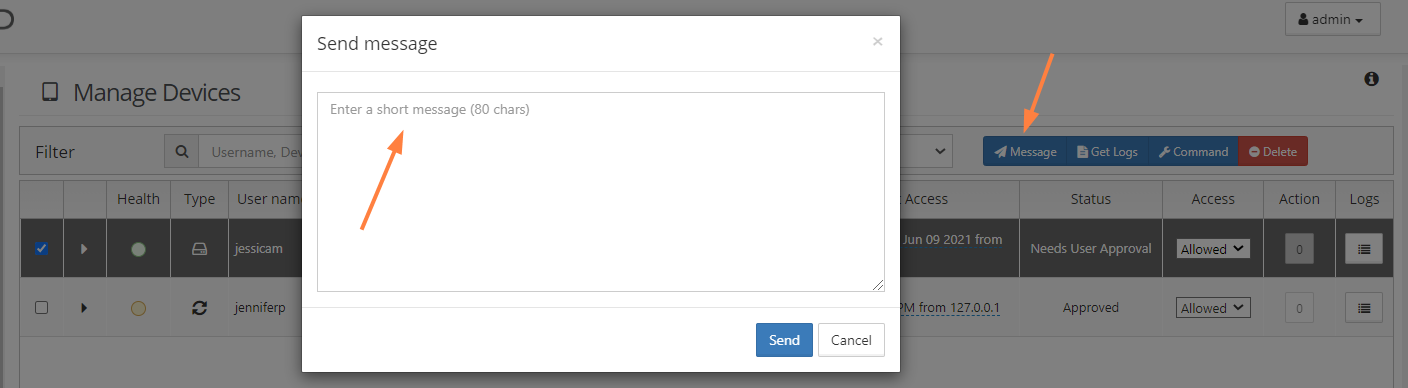
Message
Opens a window to send a message to the selected client
14
Get Logs
Retrieves the logs from the selected client
15
Command
Sends a configuration command to the selected client
16
Delete
Removes the selected client from the list of connect clients
Logs the user out of their account
Closes the connection
Removes data associated with the device
Removes any connection permissions associated with the device
FAQ's
What Devices Can Connect?
By Default, FileCloud will not allow non RCM Compliant clients to connect into FileCloud service. You can change this behavior in Server Settings page.
The following devices can connect to FileCloud Server and can be managed from the Admin Portal:
FileCloud iOS App
FileCloud Android App
FileCloud Windows Store App
FileCloud Sync
FileCloud Drive
FileCloud Desktop for Windows
FileCloud Desktop for macOS
FC Outlook AddIn
FC Office AddIn
FC Desktop Edit
FC File Browser
Admin user will be able to see all devices that connected to a FileCloud server using the Admin Control Panel.
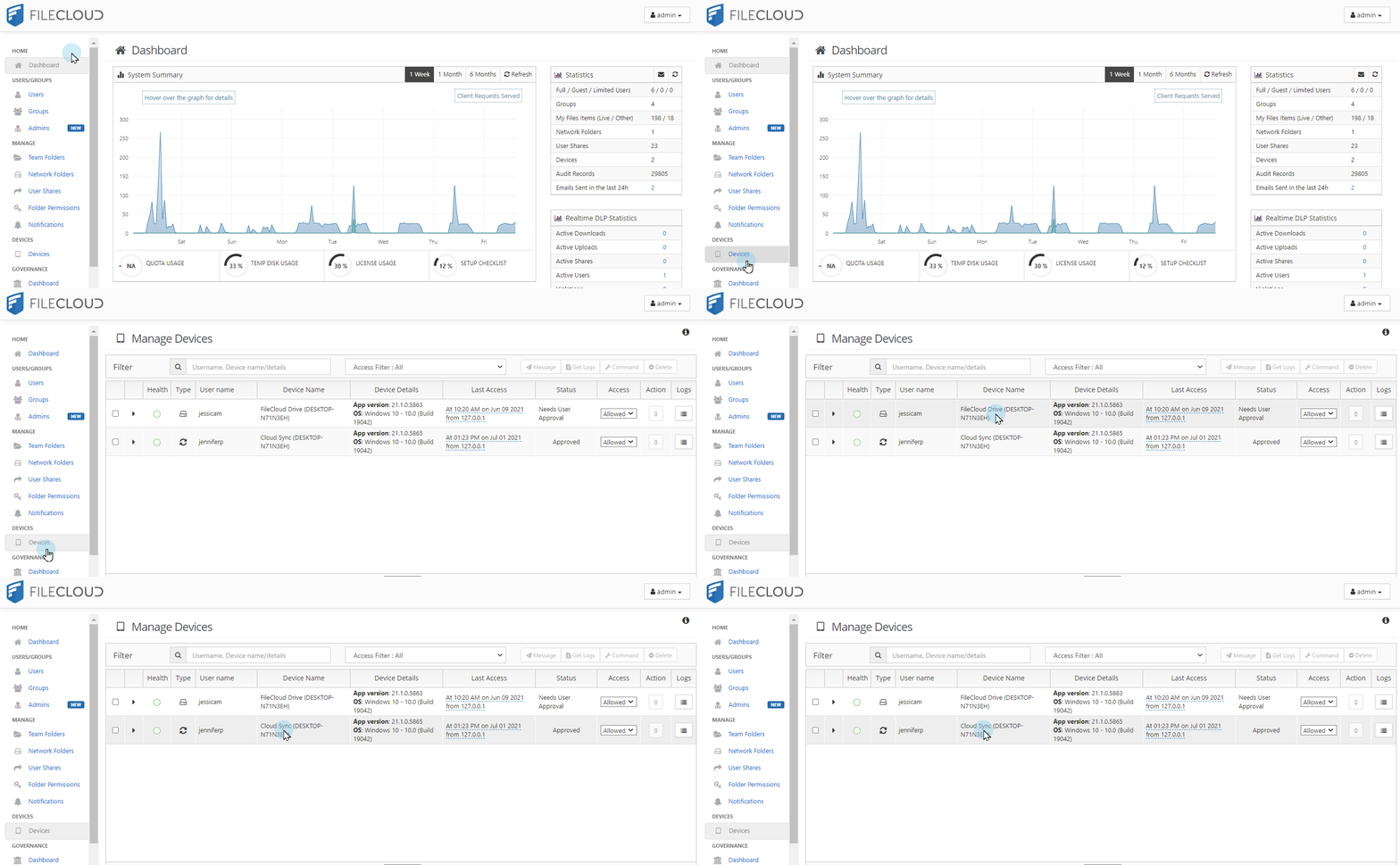
The number of devices are shown in the Summary and the actual list of devices can be seen from the "Manage Devices" menu.
Where Can I See a List of Connected Devices?
An administrator can open the list of devices to manage using one of the following ways:



 Sometimes a list may start out empty. However, as users connect devices to the FileCloud Server by logging in, the devices will appear.