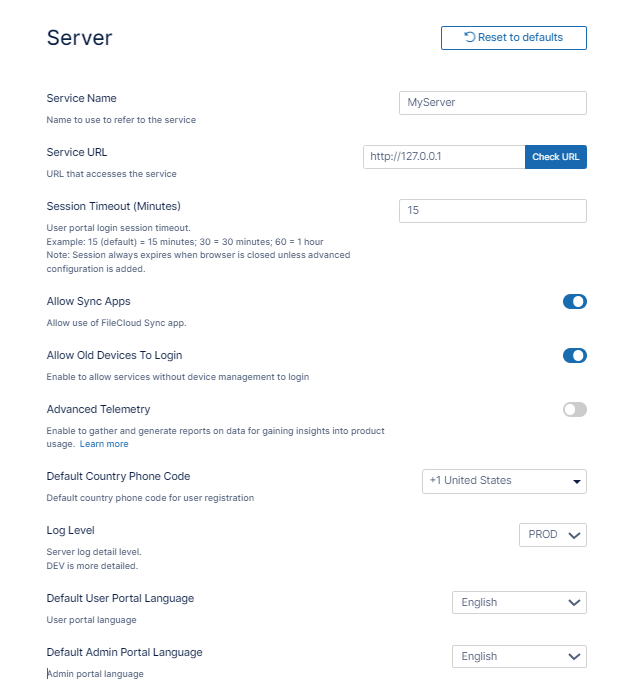
Server settings include the Server Name and Server URL, which you must set before using FileCloud, as well as other server-related settings such as the session timeout period and the languages of the user portal and admin portal
To set the Server settings:
In the FileCloud admin portal's left navigation bar, scroll down and click Settings.Then, on the Settings navigation page, click Server .
The Server settings page opens.
Fill in the settings as shown in the following screenshot, using the table below as a guide.
Settings Name
Description
Service Name
The name to be used when referring to your FileCloud service. This is used in email messages, in the zip filename for multiple downloads, and anywhere else your service is referred to by its name.
Server URL
The URL by which users access your FileCloud site. Enter the protocol and domain name, for example, https://xyz.company.com. If you are using a custom port, also include the port number, for example, https://myfilecloud.com:3000.
Notes:
Confirm that your domain name is externally accessible via any firewall you have.
Since this URL is used for background cron job processing, if you are running multi-tenant setup, make sure it is accessible from the server running FileCloud.
Use the appropriate protocol prefix https:// or http:// . For production use only https://
Session Timeout
The number of minutes the browser session is valid.
By default:
Session Timeout value is only applicable for the user portal and not for other FileCloud clients such as Sync, Drive, and FileCloud Desktop.
If the browser is closed, the session is logged out.
To apply Session Timeout to other clients or to disable session log out when the browser is closed, see User Session Expiration
Value
Meaning
15 (default value)
Session expires in 15 minutes (minimum session timeout)
1
Session Expires in 1 minute
60
Session Expires in 1 hour
Allow Sync Apps
Enabled by default. Disable to block all Sync apps from connecting to this server and performing sync operations.
Allow Old Devices to Login
FileCloud supports Remote Client Management (RMC) of various clients.
However, you can allow access using older FileCloud (non RMC compliant) clients by enabling this setting.
Allow FileCloud to gather diagnostic and usage data.
Default Country Phone Code
The default country code that appears in the user portal when share creators invite users to a share and when users add/modify their phone numbers in settings.
Log Level
How many activities are recorded in the system log. The default is PROD (production), a regular level of logging. Changing Log Level to DEV (development)generates more log entries and can have performance impact as well as take up more storage. Tech Support may ask you to change this value to help in troubleshooting any issues you might have.
Default User Portal Language
The language that is used when a user logs in to the user portal.
Default Admin Portal Language
The language that is used when an administrator logs in to the admin portal.
Configure Cron Jobs
FileCloud needs a cron job to perform certain ongoing maintenance tasks. These tasks include:
Sending email notifications such as file change notification, share notification, etc.,

 .
.