In the FileCloud admin portal's left navigation bar, scroll down and clickSettings.Then, on theSettingsnavigation page, clickPolicies . ThePolicies page opens.
Edit the policy assigned to the users who you want to use 2FA.
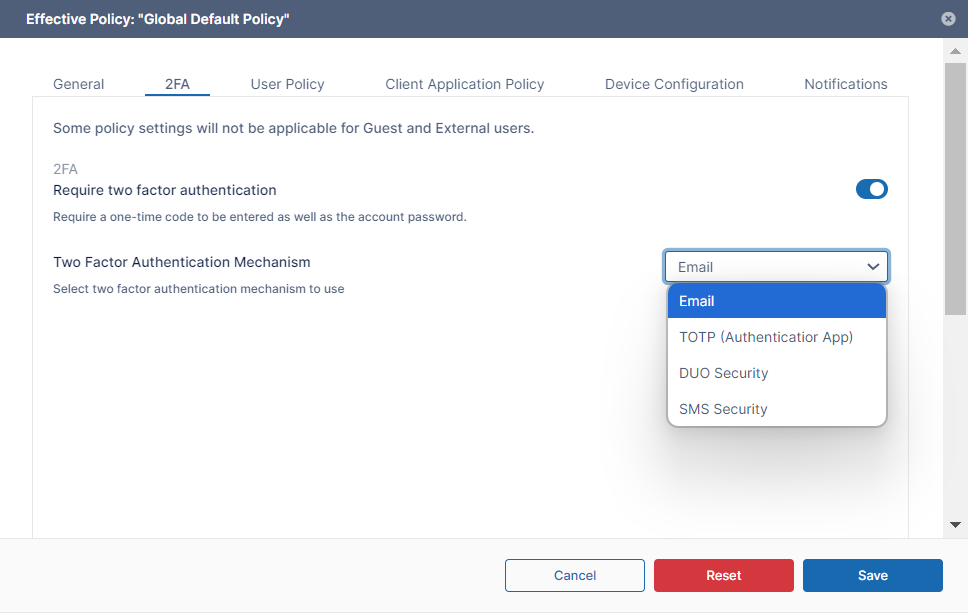
Click the 2FA tab.
Under 2FA heading, Change the Enable Two Factor Authentication drop down box to Enabled
In Two Factor Authentication Mechanism choose Email,TOTP (Authenticator App),DUO Security or SMS Security.
6. If you choose SMS Security and users are permitted to create accounts, add the following setting that enables users to add a phone number when creating a share with an external user:
Open the configuration file: Windows: XAMPP DIRECTORY/htdocs/config/cloudconfig.php Linux: /var/www/config/cloudconfig.php
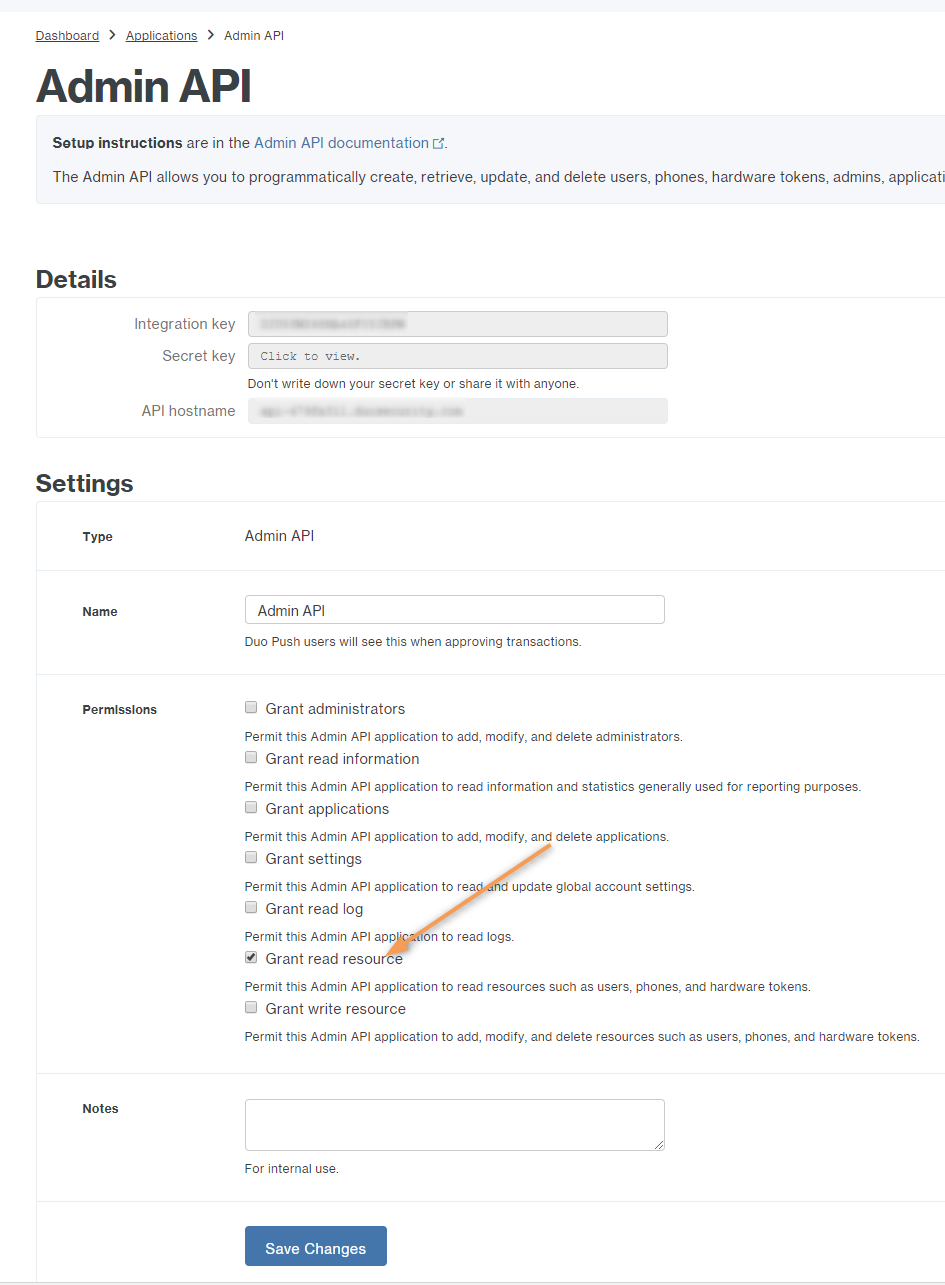
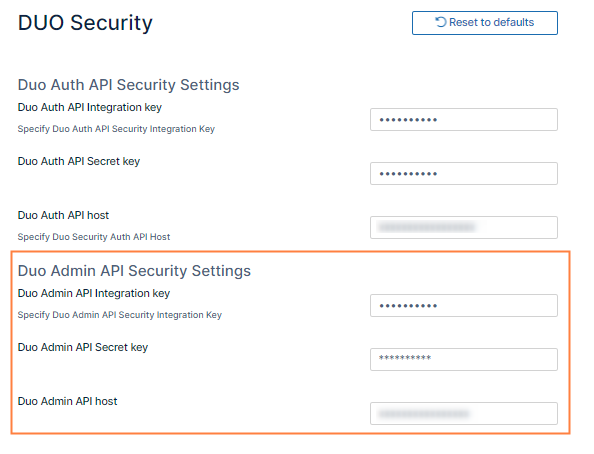
FileCloud can be set up to use DUO security service to perform 2FA. Note that DUO PUSH is not supported and requires code generated by DUO Mobile app to be entered to perform 2FA.
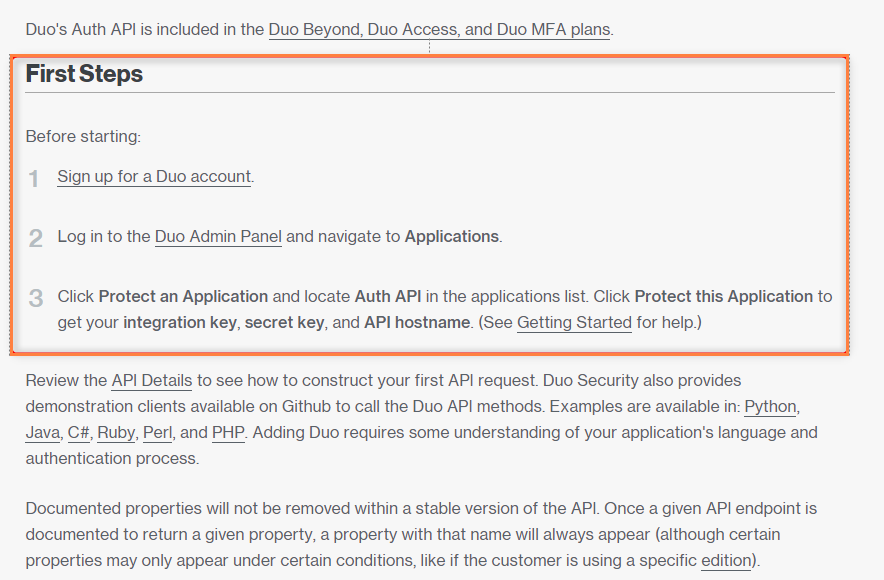
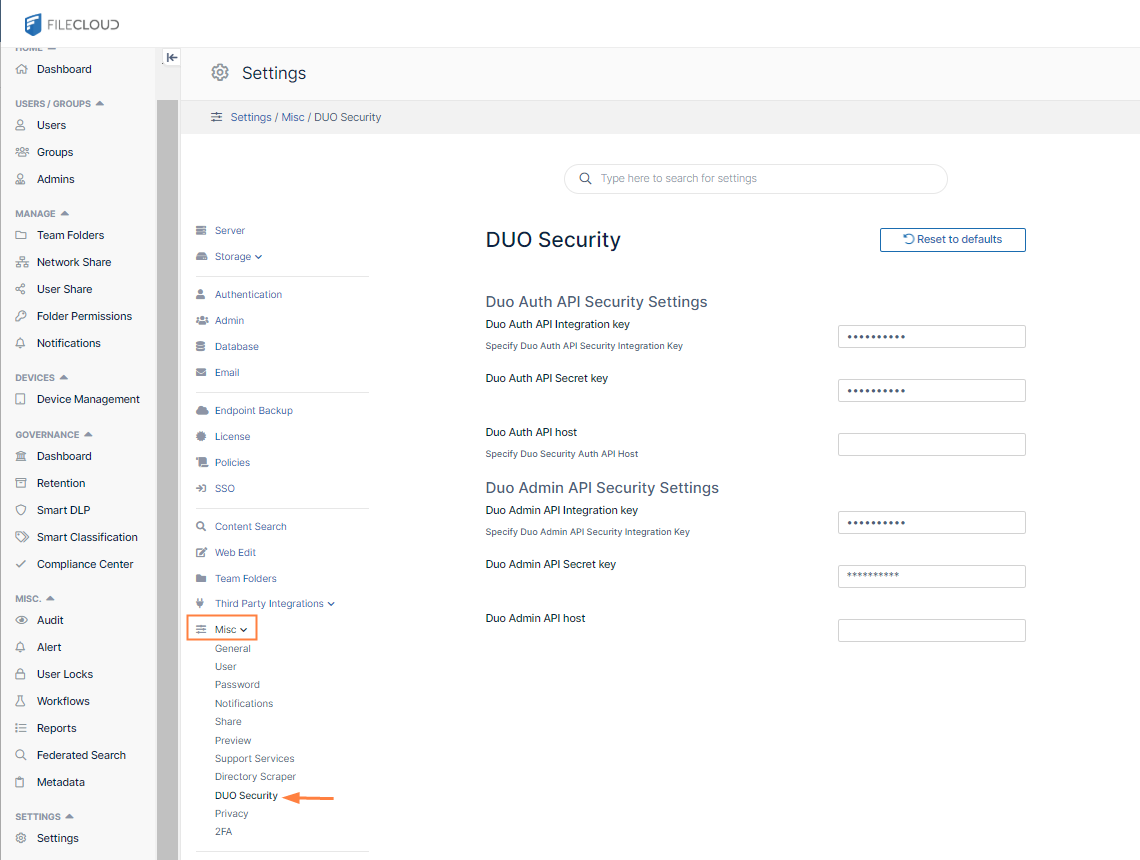
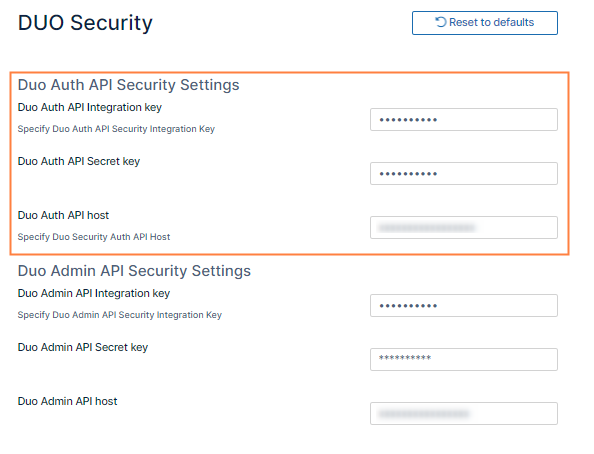
The following steps are required to set up 2FA using DUO.
Note: When users who are enrolled in the Duo Admin Panel log in, they must use the text code from the default entry in their Duo App. When users who are not enrolled in the Duo Admin Panel attempt to log in, they are prompted to use a QR code scanner to enroll themselves, and then must use the text code from the entry they added in their Duo App. See Log in Using Two-Factor Authentication for more information.
Reset TOTP or DUO settings for a user
When a user loses a TOTP (Google Auth) app enabled device or if they need to reset the code for any reason, you can reset the Google Authenticator setup for that user using the following steps.
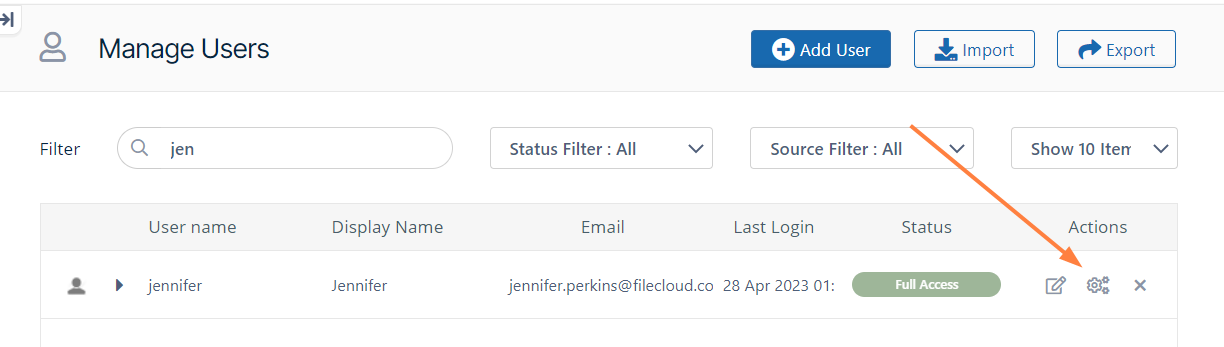
In the FileCloud admin portal, go to Users and click the Manage Policy icon in the row for the user.
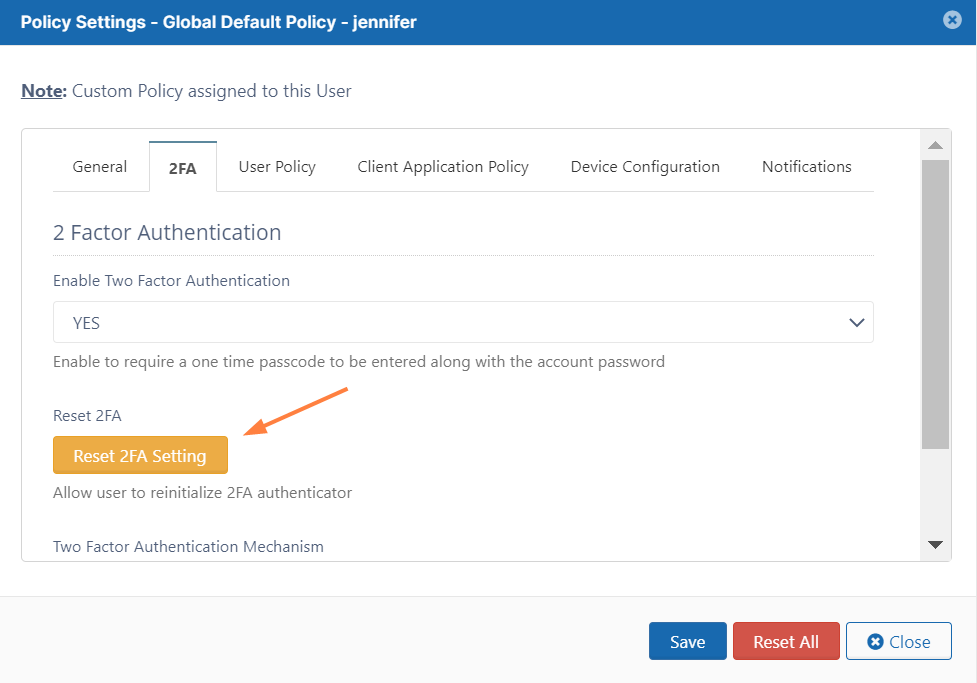
Click the 2FA tab.
Click the Reset 2FA Setting to enable the user to reset their authenticator code.
After the secret is reset, the user is not required to redo the DUO 2FA setup on initial login as FileCloud will import access tokens from DUO automatically. New devices can be registered from the DUO Admin Panel using the DUO Enrollment Email feature.
JavaScript errors detected
Please note, these errors can depend on your browser setup.
If this problem persists, please contact our support.



.png?inst-v=905ec3ff-f772-42a7-ab10-adb3d35ec823)