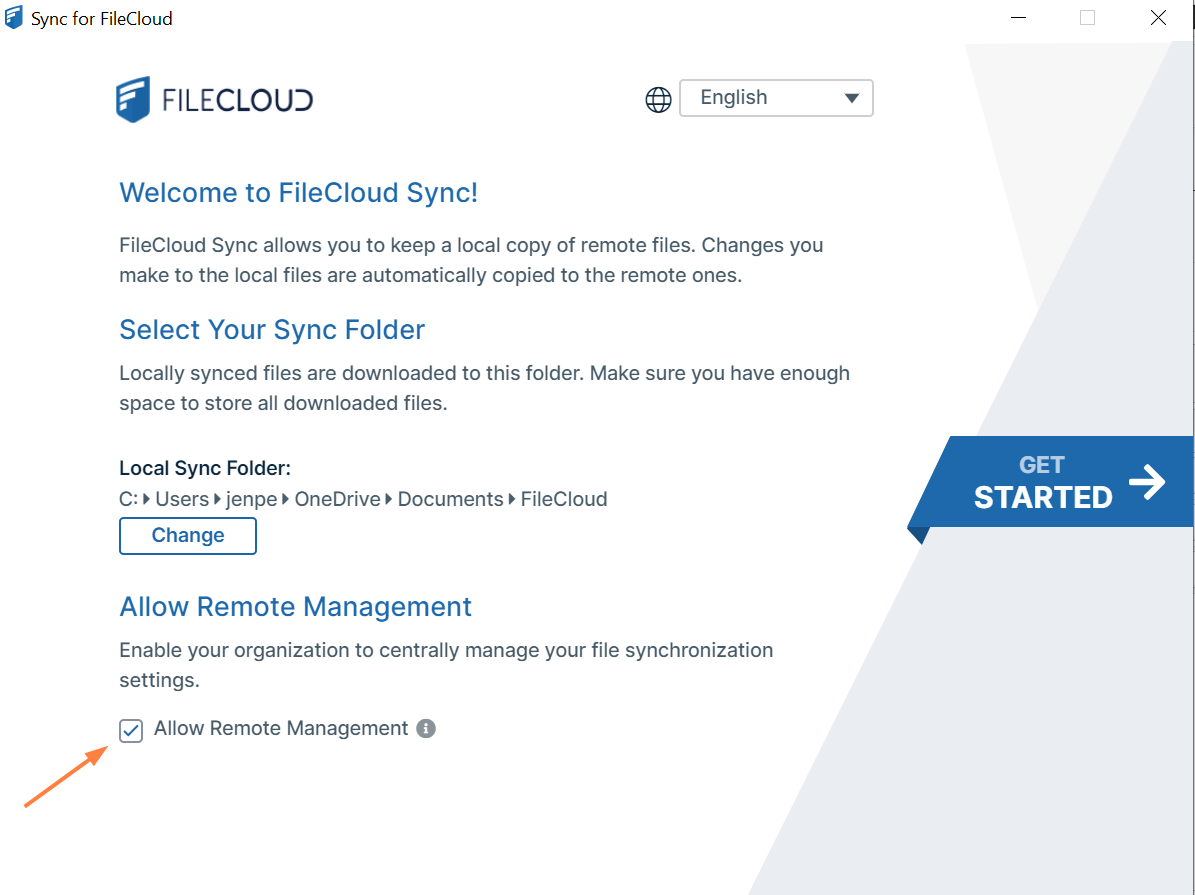
Client Device configuration settings can be configured remotely by specifying the configuration XML using policies.
For the Sync client, when an Admin sets a remote client policy, a user working in the Sync app cannot modify the settings. Sync will display a message saying "Centralized Configuration is being applied. Settings cannot be changed."
Any Sync settings in the config xml block the user's ability to configure selective sync, network folder, and backup folder settings. If you want users to be able to continue to change these settings, set the allowuserconfigforlimitsync, allowuserconfigfornwfolders, and allowuserconfigforbackup tags to 1 in the policy.
allowuserconfigforlimitsync - enables users to select selective sync folders
allowuserconfigfornwfolders - enables users to select network folders
allowuserconfigforbackup - enables users to select backup folders
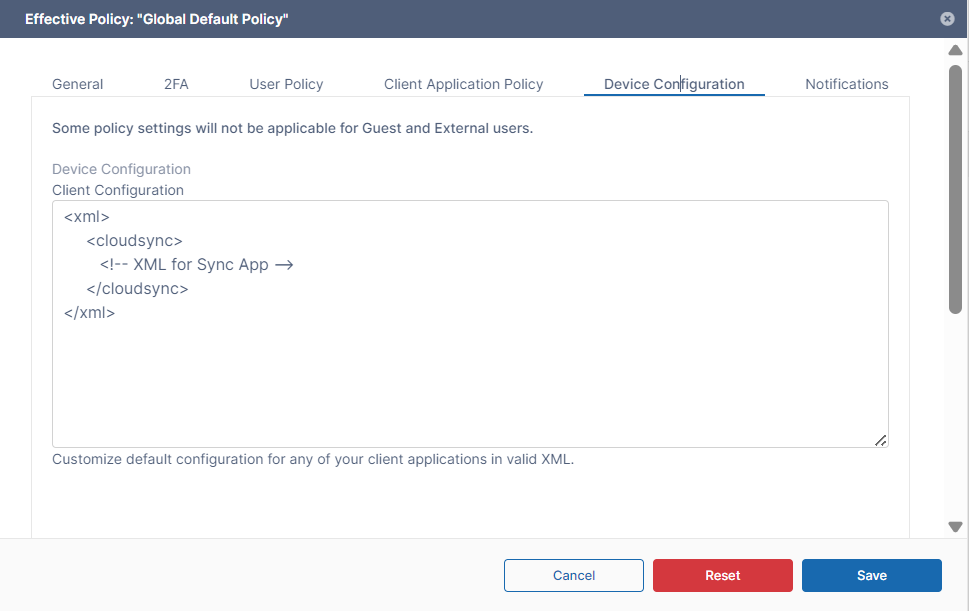
To set a FileCloud Sync device configuration in a policy:
In the FileCloud admin portal's left navigation bar, scroll down and clickSettings.Then, on theSettingsnavigation page, clickPolicies . ThePolicies settings page opens.
Edit the policy of the users whose client device settings you want to modify.
Click theDevice Configurationtab.
Paste or type in the following remote device configuration XML inDevice Configuration replacing <!-- XML for Sync App --> with any parameters from the table below.
TEXT
<xml>
     <cloudsync>
        <!-- XML for Sync App -->
     </cloudsync>
</xml>
Supported parameters for FileCloud Sync. All parameters are optional. Add one of more of these parameters (as XML tags) in the <cloudsync> tags in the XML.
Parameter (XML Tag)
Value
Example
limitfolders
'|' separated list of folders for selective sync. If Limitfolders is not specified, then there are no folders for selective sync.
Number of offline folders to sync. If key is not specified, then there are no offline folders.
<offline_folder_count>0</offline_folder_count>
offline_folder_1
offline_folder_2
offline_folder_3
...
Depending upon the number of offline folders specified in the offline_folder_count, you will need to have the appropriate number of entries.
The folder value is specified using 6 parameters using the following format <LOCAL FOLDER>|<REMOTE FOLDER>|<SYNCTYPE>|<SCHEDULE>|<RECURSE INTO DIRECTORIES>|<ALLOW REMOTE DELETION>|<SENDEMAIL>
<LOCAL FOLDER> = E.g: C:\data\localfolder <REMOTE FOLDER> = E.g.: /john/folder1 <SYNC TYPE> = 0 - 2 Way Sync, 1 - Backup from Local to Remote, 2 - Read only copy of remote files to local <SCHEDULE>= 1h (every 1 hour), 2h (every 2 hours), 4h (every 4 hours), 8h (every 8 hours), 24h (every 24 hours), 30m (every 30 minutes), manual (Manual), realtime (Real-time syncing) <RECURSE INTO DIRECTORIES> = 1 - Recurse (top level and sub folders are synced), 0 - Not Recurse (only top level folder is synced) <ALLOW REMOTE DELETION> = 1- Allowed (Local deletes are not propagated to server) , 0-Disallowed (Local deletes are not propagated to server) <SENDEMAIL> = 1 - Send Email after backups, 0-No Email
0/1 - Enable or Disable if lock information is shown in icon overlay
<showlocks>1</showlocks>
syncfrequency
number - Number in seconds to sync to the server (default is 120 seconds)
<syncfrequency>100</syncfrequency>
checkmodtime
0/1 - Advanced: check modification time in addition to size when checking for changes. Default is disabled.
<checkmodtime>1</checkmodtime>
checkcrc
0/1 - Advanced: check CRC in addition to size when checking for changes. Default is disabled.
<checkcrc>1</checkcrc>
removeunshared
0/1 - Delete locally synced folders that are unshared. Default is disabled
<removeunshared>1</removeunshared>
deleteapprovalpct
Number from 0 to 100, which indicates what % of files requires deletion approval. Default is 10. This applies only to file deletions in the local sync folder.
<deleteapprovalpct>20</deleteapprovalpct>
skipdeleteapproval
0/1 - Whether approvals are needed for bulk sync changes. Default is disabled. When set to 1, approval is required if > 50 files are deleted AND percent of files being deleted is > deleteapprovalpct. This applies only to file deletions in the local sync folder.
<skipdeleteapproval>1</skipdeleteapproval>
currentlanguage
Allows changing the current language of the Sync app
<currentlanguage>dutch</currentlanguage>
globalbwforupload
Specifies the bandwidth limit when uploading files from the client to the server in terms of KB only.
This limit can be different from the download limit.
<globalbwforupload>100</globalbwforupload>
globalbwfordownload
Specifies the bandwidth limit when downloading files from the server to the client in terms of KB only.
This limit can be different from the upload limit.
<globalbwfordownload>50</globalbwfordownload>
altbwforupload
Specifies that alternative settings should be used instead of the global bandwidth limit when uploading files from the client to the server in terms of KB only.
If altbwforupload or altbwfordownload is specified but altbwfromtime and altbwtotime are missing, then the bandwidth values will not be set.
<altbwforupload></altbwforupload>
altbwfordownload
Specifies that alternative settings should be used instead of the global bandwidth limit when downloading files from the server to the client in terms of KB only.
If altbwforupload or altbwfordownload is specified but altbwfromtime and altbwtotime are missing, then the bandwidth values will not be set.
<altbwfordownload></altbwfordownload>
altbwfromtime
Specifies the starting time when the alternative settings should be used instead of the global bandwidth limit.
Time must be expressed in the format HH:MM:SS
If altbwforupload or altbwfordownload is specified but altbwfromtime and altbwtotime are missing, then the bandwidth values will not be set.
<altbwfromtime>16:45:00</altbwfromtime>
altbwtotime
Specifies the ending time when the alternative settings should be used instead of the global bandwidth limit.
Time must be expressed in the format HH:MM:SS
If altbwforupload or altbwfordownload is specified but altbwfromtime and altbwtotime are missing, then the bandwidth values will not be set.
<altbwtotime>24:00:00</altbwtotime>
altbwschedule_dayofweek
Specifies the days of the week when the alternative settings should be used instead of the global bandwidth limit.
This value can be any number such as: {-1, 0, 1, 2, 3, 4, 5, 6} where:
1 = (default) Sync checks for updates on startup, and notifies user if there is an update
<checkupdates>1</checkupdates>
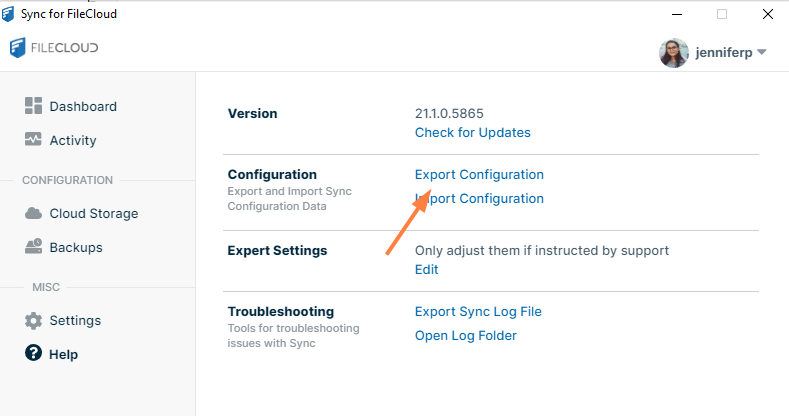
How do I get the configuration XML for Sync?
The easiest way to get the configuration XML for Sync is by installing a copy of Sync and configuring it as needed, and then exporting the configuration.
Or you can use centralized device management to limit bandwidth rates for all clients.
If Centralized Device Configuration is set, the user will not be allowed to change the settings from the User Portal. The user will see the following message: Centralized Configuration is being applied. Bandwidth Settings cannot be changed. Please contact your administrator for assistance.
Specifies the bandwidth limit when uploading files from the client to the server in terms of KB only.
This limit can be different from the download limit.
<globalbwforupload>100</globalbwforupload>
globalbwfordownload
Specifies the bandwidth limit when downloading files from the server to the client in terms of KB only.
This limit can be different from the upload limit.
<globalbwfordownload>50</globalbwfordownload>
altbwforupload
Specifies that alternative settings should be used instead of the global bandwidth limit when uploading files from the client to the server in terms of KB only.
<altbwforupload></altbwforupload>
altbwfordownload
Specifies that alternative settings should be used instead of the global bandwidth limit when downloading files from the server to the client in terms of KB only.
<altbwfordownload></altbwfordownload>
altbwfromtime
Specifies the starting time when the alternative settings should be used instead of the global bandwidth limit.
Time must be expressed in the format HH:MM:SS
<altbwfromtime>16:45:00</altbwfromtime>
altbwtotime
Specifies the ending time when the alternative settings should be used instead of the global bandwidth limit.
Time must be expressed in the format HH:MM:SS
<altbwtotime>24:00:00</altbwtotime>
altbwschedule_dayofweek
Specifies the days of the week when the alternative settings should be used instead of the global bandwidth limit.
This value can be any number such as: {-1, 0, 1, 2, 3, 4, 5, 6} where:
If altbwforupload or altbwfordownload is specified but altbwfromtime and altbwtotime are missing, then the bandwidth values will not be set.
A "Missing RMC params" message will be displayed in the log file.
What is the XML code for Active Sync Hours?
As an administrator, you can enable or disable a client's ability to set a schedule for when the Sync app runs. Users set their schedule from the Sync dashboard. See Limit Sync To a Schedule.
If Active Sync Hours is disabled, Sync will be active and function normally unless the user clicks the Pause button to stop it.
Use the following XML code to allow or disable the Active Sync Hours checkbox and settings.
When device configuration xml is included for Sync, whether or not the settings included affect selective Sync folder, network folder, or backup folders, by default, users are prevented from configuring these folder types in the Sync application.
As an administrator, you can override this, and allow Sync users to modify the following folders:
Selective Sync folders
Network folders
Backup folders
The XML Settings for enabling or disabling the ability to modify these folders are:
XML Tag
Value
Example
allowuserconfigforlimitsync
0 = user cannot modify Selective Sync folders and any limitfolder setting, if present in xml, is applied.
1 = user can modify Selective Sync folders and this overrules any limitfolder settings.
If xml device config settings are present, whether or not they apply to selective sync or offline folders, they must be overridden to allow users to modify folder settings in the Sync client app.
Controlling modifications to selective sync folders
limitfolders
allowuserconfigforlimitsync
Sync User's Access
/john/folder1|/john/folder2
1
Although limit folders are present, because allowuserconfigforlimitsync is set to allow modifications:
limitfolder settings will NOT be applied
Users CAN modify their selective sync folders
/john/folder1|/john/folder2
0
Because limit folders are present, AND allowuserconfigforlimitsync is set to disable modifications:
limitfolder settings will BE applied
Users CANNOT modify their selective sync folders
None set but other settings are present
1
Becauseallowuserconfigforlimitsync is set to allow modifications:
Users CAN modify their selective sync folders, irrespective of any other settings in the config
None set but other settings are present
0
Becauseallowuserconfigforlimitsync is set to disable modifications:
Users CANNOT modify their selective sync folders
Controlling modifications to selective network folders
offline folders
allowuserconfigfornwfolders
Sync User's Access
/EXTERNAL/folderA
1
Because offline folders (configured as Network Folders) are present, AND allowuserconfigfornwfolders is set to enable modifications:
offlinefolder setting configured for Network Folders, will NOT be applied
Sync users CAN modify Network Folders
/EXTERNAL/folderA
0
Because offline folders (configured as Network Folders) are present AND allowuserconfigfornwfolders is set to disable modifications:
offlinefolder setting configured for Network folders, will BE applied
Sync users CANNOT modify Network Folders
None set but other settings are present
1
Because allowuserconfigfornwfoldersis set to enable modifications:
Sync users CAN modify Network Folders, irrespective of any other settings in the config.
None set but other settings are present
0
Because allowuserconfigfornwfoldersis set to disable modifications:
Sync users CANNOT modify Network Folders
Controlling modifications to selective backup folders
offline folders
allowuserconfigforbackup
Sync User's Access
C:\data\local
1
Because offline folders (configured for backup) are present, AND allowuserconfigforbackup is set to enable modifications:
offlinefolder setting configured for Backup folders, will NOT be applied
Sync users CAN modify backup folders
C:\data\local
0
Because offline folders (configured for backup) are present AND allowuserconfigforbackup is set to disable modifications:
offlinefolder setting configured for Backup folders, will BE applied
Sync users CANNOT modify backup folders
None set but other settings are present
1
Because allowuserconfigforbackupis set to enable modifications:
Sync users CAN modify backup folders, irrespective of any other settings in the config.
None set but other settings are present
0
Because allowuserconfigforbackup is set to disable modifications:
Sync users CANNOT modify backup folders
How do I prevent users from overriding remote management?
In the Sync client, by default, there is a setting on the initial window of the log-in wizard: Allow Remote Management.
This setting is also available in the Settings window.
It allows Sync users to manage their Sync application by overriding an Administrator's settings
In some cases, administrators want to disable the toggle by hiding it.
In FileCloud Server version 19.1 and later,an administrator can hide the setting by adding a registry key called allowcentralmgmtusermodify
When set to 0, the central management option is disabled and can no longer be changed by users



.png?inst-v=905ec3ff-f772-42a7-ab10-adb3d35ec823)

 If Centralized Device Configuration is set, the user will not be allowed to change the settings from the User Portal. The user will see the following message: