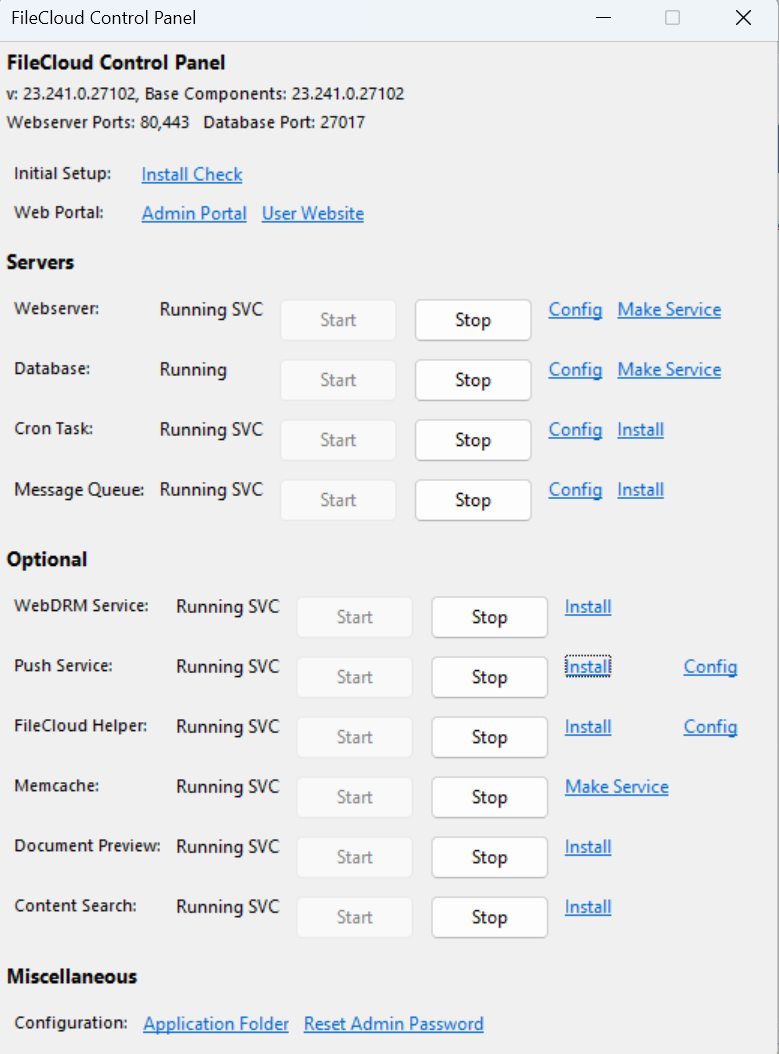
Beginning in FileCloud 23.241, before running the upgrade tool, confirm that each of your FileCloud services is running and that your storage is in a READY state. This is a change from previous version upgrades, in which you were instructed to confirm that each of your FileCloud services was not running.
If you have folder-level security enabled in Settings > Misc > General, changes in functionality will significantly impact the way existing share behavior works when you upgrade from versions below 23.1 to FileCloud 23.x and higher. If you have granular folder permissions set, please contact FileCloud Support before upgrading to FileCloud 23.x and higher to avoid share and file access issues.
FileCloud support is ending for Windows Server 2012 R2 with 22.1 release. If you are using Cloud Enterprise Server and Windows 2012, migrate your FileCloud site to Windows 2016, Windows 2019, or Windows 2022.
The version of Solr has been upgraded in FileCloud 23.232. If your Solr data with indexes was created using Solr version 7.x or older please do a full re-index.
If you are running a version of FileCloud less than 22.1, upgrade to 23.232.1.
See Pre-upgrade instructions for FIPS-enabled systems and systems with managed storage encryption enabled on page Upgrade Notes for FileCloud 23.241 or Later for more information about preparing for the Windows upgrade.
Download the latest FileCloud Windows Update Tool from https://patch.codelathe.com/tonidocloud/live/installer/cloudupdatetool.zip Note: It is essential that you download the latest version of the update tool; If you run an old version of the tool, you will re-install an old version of FileCloud.
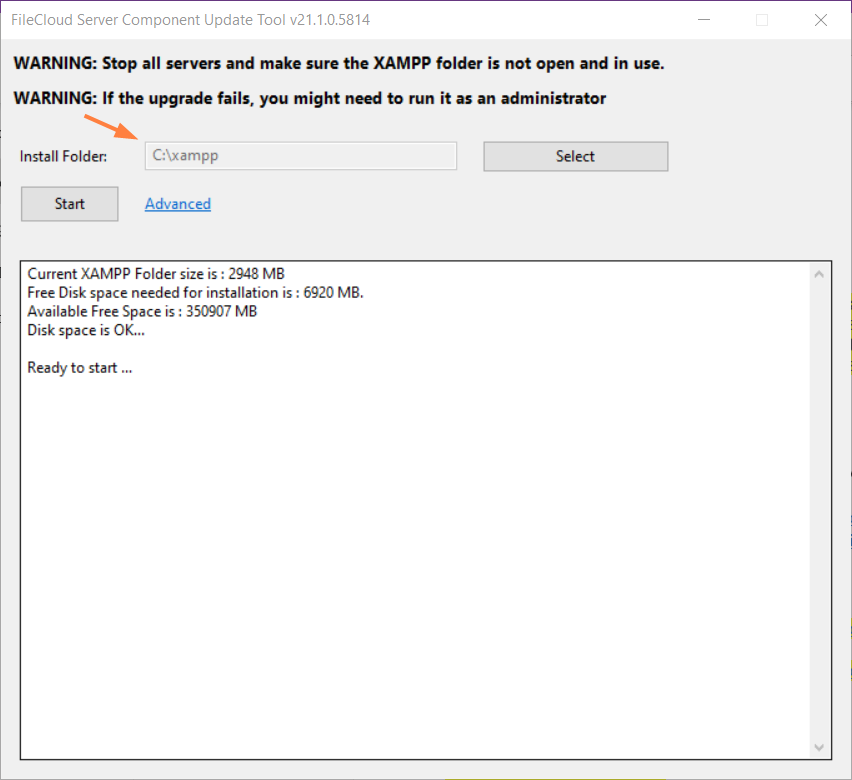
Now, navigate to the cloudupdatetool folder and double click on (cloudupdate.exe). The following window opens:
STEP 3: Update
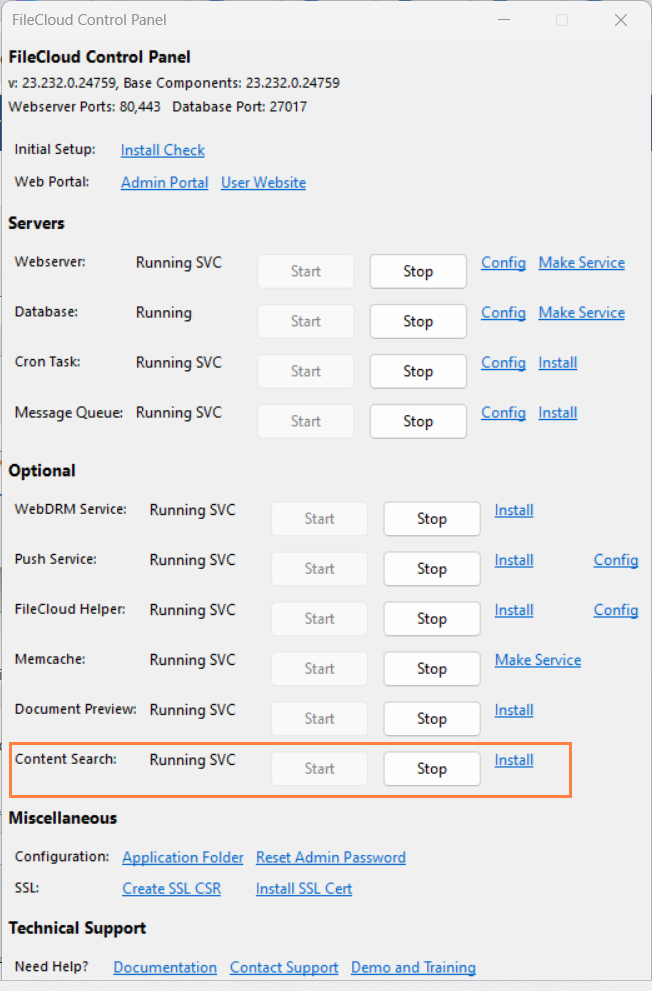
Open the FileCloud Control Panel and confirm that each service you are using is running, and that your storage is in the READY state.
Ensure that Install Folder shows the location of your XAMPP folder. This location is auto-detected, but it may not be able to determine it correctly if there are multiple XAMPP folders. If it is not correct, select the correct XAMPP install folder.
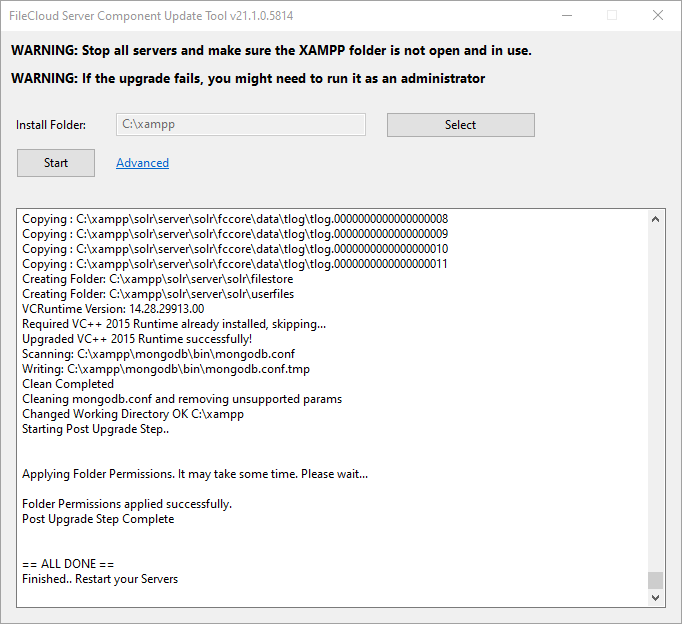
Click Start on the Update Tool dialog box to begin the upgrade. (Repeat steps 1-3 for each of the nodes for HA system). The tool must be able to connect to the internet in order to download the update package. Please contact support@codelathe.com if you see any errors in this step.
If you are running multi-tenant FileCloud, make sure the database post upgrade script is run correctly.
cd c:\xampp\htdocs\resources\backup
c:\xampp\php\php.exe fcpostupgrade.php
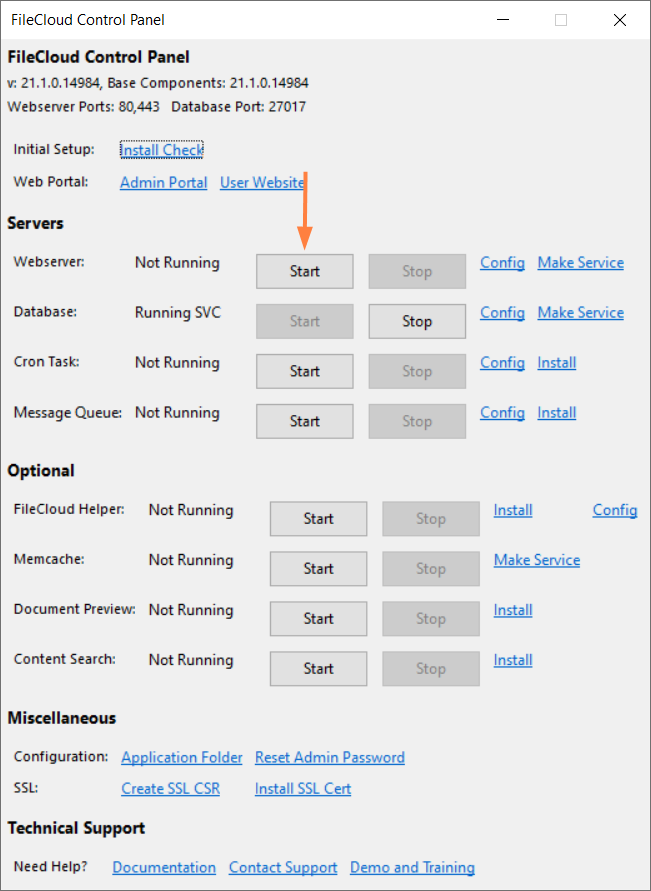
Once the nodes are updated, start each of the nodes using the cloud control panel.
Message Queue is an important service and must be started after the upgrade.
Message Queue must be installed. If you cannot click the Start button for Message Queue, it is not installed. Click Install, and once installation is complete, click Start.
Click on Extended Checks. In section 3 of Extended Checks, your new updates are shown with status and available actions.
If Apache is running as the Windows Logon account, then give the logon account write permission on the XAMPP folder.
When you initially log in to the admin portal after upgrade, refresh the browser using CTRL-F5 to clear any prior setup information from the cache.
Beginning in FileCloud 20.1, to sign into the admin portal for multi-tenancy, you must sign in as the superadmin user and enter your password in encrypted format in the multi.php file. See Password encryption and logging in to a multi-tenant admin portal for instructions on encrypting your password.
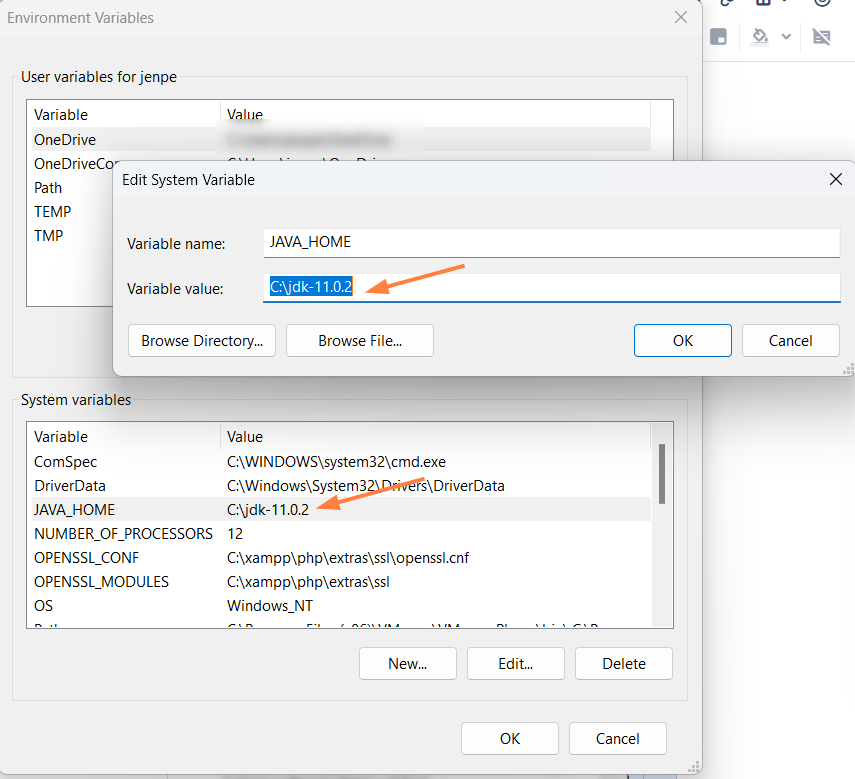
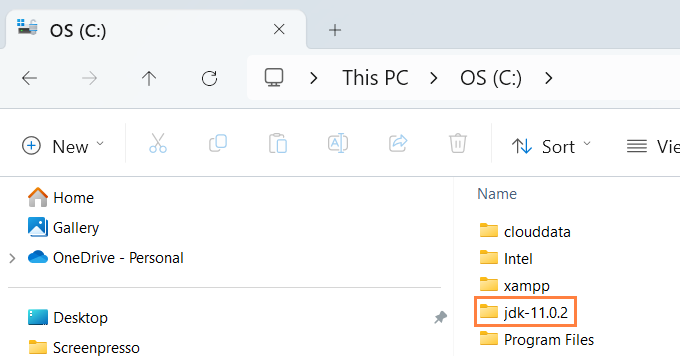
Create a new folder in the C: drive. (In the example screenshot, jdk-11.0.2 is the name of the new folder.)
Extract the Open JDK file you downloaded into the new folder.
Set JAVA_HOME to the new version's path.
Set the JAVA_HOME path
Setting the path and environment variables will differ depending on the version of Windows you have on your computer. These instructions were designed for Windows 11.
Administrator privileges are required to modify the path and environment variables.
To set the JAVA_Home path:
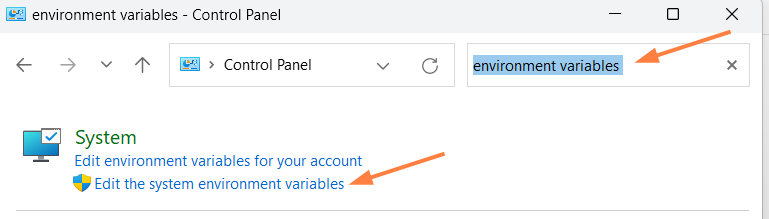
Open the Windows Control Panel.
Enter environment variables in the search bar.
Click Edit the system environment variables.
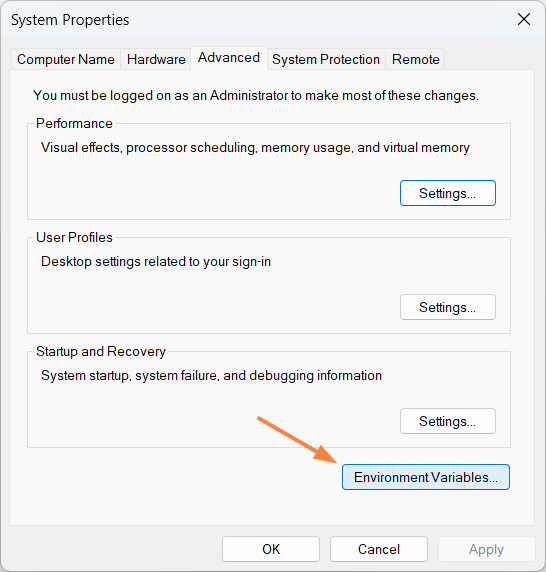
In the System Properties dialog box, click Environment Variables. The Environment Variables dialog box opens.
In the System variables box, Click JAVA_HOME, and then click Edit. The Edit System Variable dialog box opens.
Change Variable value to the address of the folder you created for jdk, and click OK.
In the Environment Variables dialog box, click OK.
Log in to the FileCloud admin portal.
In the FileCloud Control Panel, and stop and restart Content Search.
Custom settings in configuration files that are replaced during upgrade are not reset in the new configuration files.
Check If the following files are replaced with newer versions during upgrade, and in the case that they are replaced, reconfigure any custom settings after upgrade:




 Administrator privileges are required to modify the path and environment variables.